roadrunner.hdmap.StencilMarkingType
R2026bDescription
A roadrunner.hdmap.StencilMarkingType object enables you to
define the type and type information for a stencil marking in a RoadRunner HD Map scene model.
Creation
Syntax
Description
stencilMarkingType = roadrunner.hdmap.StencilMarkingType
stencilMarkingType = roadrunner.hdmap.StencilMarkingType(Name=Value)ID="StencilMarkingType1" sets the ID of the curve marking
type element to "StencilMarkingType1".
Properties
Examples
Create an empty RoadRunner HD Map as a default roadrunnerHDMap object.
rrMap = roadrunnerHDMap
rrMap =
  roadrunnerHDMap with properties:

                 Author: ""
           GeoReference: [0 0]
     GeographicBoundary: []
                  Lanes: [0×1 roadrunner.hdmap.Lane]
            SpeedLimits: [0×1 roadrunner.hdmap.SpeedLimit]
         LaneBoundaries: [0×1 roadrunner.hdmap.LaneBoundary]
             LaneGroups: [0×1 roadrunner.hdmap.LaneGroup]
           LaneMarkings: [0×1 roadrunner.hdmap.LaneMarking]
              Junctions: [0×1 roadrunner.hdmap.Junction]
           BarrierTypes: [0×1 roadrunner.hdmap.BarrierType]
               Barriers: [0×1 roadrunner.hdmap.Barrier]
              SignTypes: [0×1 roadrunner.hdmap.SignType]
                  Signs: [0×1 roadrunner.hdmap.Sign]
      StaticObjectTypes: [0×1 roadrunner.hdmap.StaticObjectType]
          StaticObjects: [0×1 roadrunner.hdmap.StaticObject]
    StencilMarkingTypes: [0×1 roadrunner.hdmap.StencilMarkingType]
        StencilMarkings: [0×1 roadrunner.hdmap.StencilMarking]
      CurveMarkingTypes: [0×1 roadrunner.hdmap.CurveMarkingType]
          CurveMarkings: [0×1 roadrunner.hdmap.CurveMarking]
            SignalTypes: [0×1 roadrunner.hdmap.SignalType]
                Signals: [0×1 roadrunner.hdmap.Signal]
           ParkingEdges: [0×1 roadrunner.hdmap.ParkingEdge]
          ParkingSpaces: [0×1 roadrunner.hdmap.ParkingSpace]
Create a relative path to an asset. This code creates a relative path to a stencil marking asset file from the RoadRunner asset library. This path is relative to the Assets folder of your RoadRunner project.
path = roadrunner.hdmap.RelativeAssetPath(AssetPath="Assets/Stencils/Stencil_15_Stretched.svg_rrx")path =
RelativeAssetPath with properties:
AssetPath: "Assets/Stencils/Stencil_15_Stretched.svg_rrx"
Create a stencil marking type as a StencilMarkingType object. Specify the stencil marking type ID and the asset path for the type information.
rrMap.StencilMarkingTypes = roadrunner.hdmap.StencilMarkingType(ID="StencilMarkingType1",AssetPath=path)rrMap =
roadrunnerHDMap with properties:
Author: ""
GeoReference: [0 0]
GeographicBoundary: []
Lanes: [0×1 roadrunner.hdmap.Lane]
SpeedLimits: [0×1 roadrunner.hdmap.SpeedLimit]
LaneBoundaries: [0×1 roadrunner.hdmap.LaneBoundary]
LaneGroups: [0×1 roadrunner.hdmap.LaneGroup]
LaneMarkings: [0×1 roadrunner.hdmap.LaneMarking]
Junctions: [0×1 roadrunner.hdmap.Junction]
BarrierTypes: [0×1 roadrunner.hdmap.BarrierType]
Barriers: [0×1 roadrunner.hdmap.Barrier]
SignTypes: [0×1 roadrunner.hdmap.SignType]
Signs: [0×1 roadrunner.hdmap.Sign]
StaticObjectTypes: [0×1 roadrunner.hdmap.StaticObjectType]
StaticObjects: [0×1 roadrunner.hdmap.StaticObject]
StencilMarkingTypes: [1×1 roadrunner.hdmap.StencilMarkingType]
StencilMarkings: [0×1 roadrunner.hdmap.StencilMarking]
CurveMarkingTypes: [0×1 roadrunner.hdmap.CurveMarkingType]
CurveMarkings: [0×1 roadrunner.hdmap.CurveMarking]
SignalTypes: [0×1 roadrunner.hdmap.SignalType]
Signals: [0×1 roadrunner.hdmap.Signal]
ParkingEdges: [0×1 roadrunner.hdmap.ParkingEdge]
ParkingSpaces: [0×1 roadrunner.hdmap.ParkingSpace]
Add a stencil marking to a road in a RoadRunner HD Map, and build a RoadRunner scene using the HD Map.
Create an empty RoadRunner HD Map by using the roadrunnerHDMap object.
rrMap = roadrunnerHDMap;
Create a road lane 50 meters in length using the roadrunner.hdmap.Lane object. Specify the lane ID, coordinates defining the centerline of the lane, driving direction, and lane type.
rrMap.Lanes(1) = roadrunner.hdmap.Lane(ID="Lane",Geometry=[0 0; 0 50],TravelDirection="Forward",LaneType="Driving");
Create the lane boundaries of the road using the roadrunner.hdmap.LaneBoundary object. For each boundary, specify the lane ID and the coordinates that define the points of the lane boundary.
rrMap.LaneBoundaries(1) = roadrunner.hdmap.LaneBoundary(ID="Left",Geometry=[-5 0; -5 50]);
rrMap.LaneBoundaries(2) = roadrunner.hdmap.LaneBoundary(ID="Right",Geometry=[5 0; 5 50]);
Link the lane boundaries to the lane. Define the left and the right lane boundaries for the lane, and specify the alignment between the lane and lane boundaries.
leftBoundary(rrMap.Lanes(1),"Left",Alignment="Forward");
rightBoundary(rrMap.Lanes(1),"Right",Alignment="Forward");
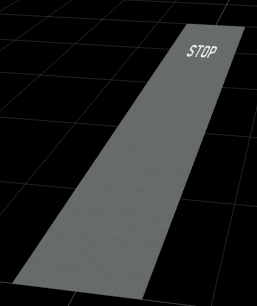
To add a stop type stencil marking to the road, first extract the corresponding stencil marking asset by using the roadrunner.hdmap.RelativeAssetPath object. For more information about these assets, see RoadRunner Asset Types (RoadRunner).
pathStencilMarking = roadrunner.hdmap.RelativeAssetPath(AssetPath="Assets/Stencils/Stencil_STOP.svg");Now, create a stencil marking element that refers to the extracted stencil marking asset by using the roadrunner.hdmap.StencilMarkingType object. Specify the stencil marking ID and the path to the stop asset.
rrMap.StencilMarkingTypes(1) = roadrunner.hdmap.StencilMarkingType(ID="StopStencilType",AssetPath=pathStencilMarking);Create a reference to the stencil marking using the roadrunner.hdmap.Reference object.
stencilMarkingRef = roadrunner.hdmap.Reference(ID="StopStencilType");Define the geometry of the stencil marking as an oriented bounding box by using the roadrunner.hdmap.GeoOrientedBoundingBox object, and add the stencil to the road in the HD Map.
GeoOriBBStencil = roadrunner.hdmap.GeoOrientedBoundingBox(Center=[0 40 0],Dimension=[2 2 2]);
rrMap.StencilMarkings(1) = roadrunner.hdmap.StencilMarking(ID="StopStencilType",Geometry=GeoOriBBStencil,MarkingTypeReference=stencilMarkingRef);
Write the modified HD Map to a binary file.
filename = "MyMap.rrhd";
write(rrMap,filename)
To open RoadRunner using MATLAB®, first specify the path to your RoadRunner project. This code shows the path for a sample project folder location in Windows®. If you are using RoadRunner for the first time, you must install RoadRunner and activate your RoadRunner license. For more information, see Install and Activate RoadRunner (RoadRunner).
rrProjectPath = "C:\RR\MyProject";Specify the path to your local RoadRunner installation folder. This code shows the path for the default installation location in Windows.
rrAppPath = "C:\Program Files\RoadRunner\R2026b\roadrunner\bin\win64";Open RoadRunner using the roadrunner object from the MATLAB command line. Alternatively, you can start the RoadRunner application interactively, using the roadrunnerSetup (RoadRunner) function. This function opens a dialog box to specify the project folder and installation folder to use when opening RoadRunner.
rrApp = roadrunner(rrProjectPath,InstallationFolder=rrAppPath);
Import the RoadRunner HD Map file MyMap.rrhd into your RoadRunner scene, and build the RoadRunner HD Map data. Before you build the scene, you must activate your RoadRunner Scene Builder license. RoadRunner Scene Builder is an add-on product that requires an addition to your RoadRunner license. For more details, see RoadRunner Scene Builder.
file = fullfile(pwd,"MyMap.rrhd");
importScene(rrApp,file,"RoadRunner HD Map");
This figure shows the built scene in the RoadRunner canvas.
Version History
Introduced in R2024b

