주요 콘텐츠

Server

Configure SUMO server for cosimulation with Simulink

Since R2026a

  • Server block icon

Libraries:
Automated Driving Toolbox Interface for Eclipse SUMO Traffic Simulator

Description

Add-On Required: This feature requires the Automated Driving Toolbox Interface for Eclipse SUMO Traffic Simulator add-on.

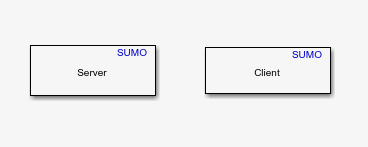
The Server block configures the Eclipse™ Simulation of Urban Mobility (SUMO™) traffic simulator as a server for cosimulation with Simulink®. Use this block to select a configuration file that contains details about the SUMO scenario you want to simulate. Additionally, you can use the block to spawn vehicles within the SUMO scenario, enabling you to control traffic density and simulate diverse and realistic scenarios.

Examples
Parameters

expand all

Specify the path to a SUMO configuration file, which must end with the .sumocfg extension. The configuration file is an XML file that contains the simulation parameters of the SUMO scenario you want to cosimulate, such as road network and route information. By default, this parameter points to the hello.sumocfg SUMO configuration file included with your Eclipse SUMO installation.

Specify the number of the available SUMO server port. During cosimulation, the server receives data from clients through the specified port. This value must be a positive integer in the range [1, 65,535].

Specify the number of clients connected to the server during cosimulation as a positive integer in the range [1, 10].

Select this parameter to enable the Number of vehicles to spawn parameter, which you can to specify the number of vehicles to spawn in the scenario.

Specify the number of vehicles to spawn in the scenario, as a positive integer. The Server block places these vehicles at random positions in the road network of the scenario at the start of the simulation. The block assigns each spawned vehicle an ID in the format SpawnedVehicle_n, where n is the vehicle number. For example, if you choose to spawn two vehicles, the first has the ID SpawnedVehicle_1 and the second has the ID SpawnedVehicle_2.

Version History

Introduced in R2026a

See Also

| | |

External Websites