Use Filter Designer App
R2026bApp Workflow
A typical workflow for designing filters using the Filter Designer app is:
Import or Create Filters — Import existing filters available in the MATLAB® workspace, where each filter is either a set of numeric variables, a
digitalFilterobject, or one of the supported filter System objects (DSP System Toolbox) from DSP System Toolbox™.Choose a predefined response to create a new digital filter with default specifications.
Design Filters — Modify filter parameters, edit poles and zeros, transform filter frequency response, and create filter cascades.
Quantize Filters — Quantize coefficients of floating-point filter to fixed-point. This workflow requires licenses for DSP System Toolbox and Fixed-Point Designer™.
Manage and Analyze Filters — View and compare filter details, analyze filter responses in frequency and time domains, organize analysis with multiple displays and display options.
Export and Share Filters — Export filters to the MATLAB workspace, Simulink®, the DSP HDL IP Designer (DSP HDL Toolbox) app, or a file. Generate MATLAB functions to recreate a filter or save and share your Filter Designer session.
Example: Design, Analyze, and Export Lowpass IIR Filter
Use the Filter Designer app to create, design, analyze, and export a lowpass filter that preserves frequency content under 200 Hz for signals sampled at 1 kHz. You have decided to design a Chebyshev type II filter because you want a low-order filter with a narrow transition region and no ripple in the passband.
Create Filter
Open Filter Designer. In the Response gallery of the Designer tab in the app toolstrip, select Lowpass IIR. The app displays a filter design with default specifications.
Design Filter
To modify the filter specifications, expand the Parameters panel.
Under Algorithm, select
Chebyshev type II.Under Sample Rate, select
Hzfor the frequency units and specify the input sample rate as 1000.Under Filter Order, select
Specifyand specify the order as5.Under Frequency Specifications, specify a stopband frequency of
200Hz.In the Filter section of the Designer toolstrip tab, click Update Filter.
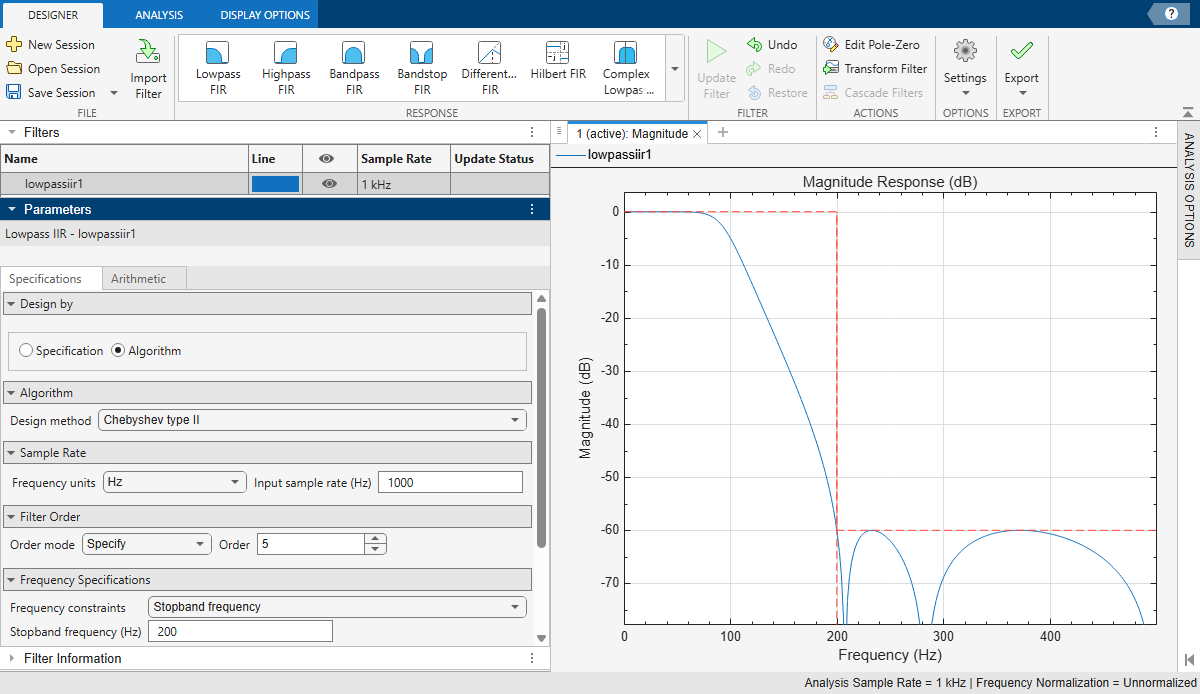
Inspect Filter
To inspect the filter, plot the magnitude and phase responses on a display and set display options.
Add the phase response as an overlaid analysis to the active display. In the Analysis gallery of the Analysis tab, select
Phaseunder the Overlay Analysis pane.Show the CTF sections of the filter. In the Display Options tab, click CTF View.
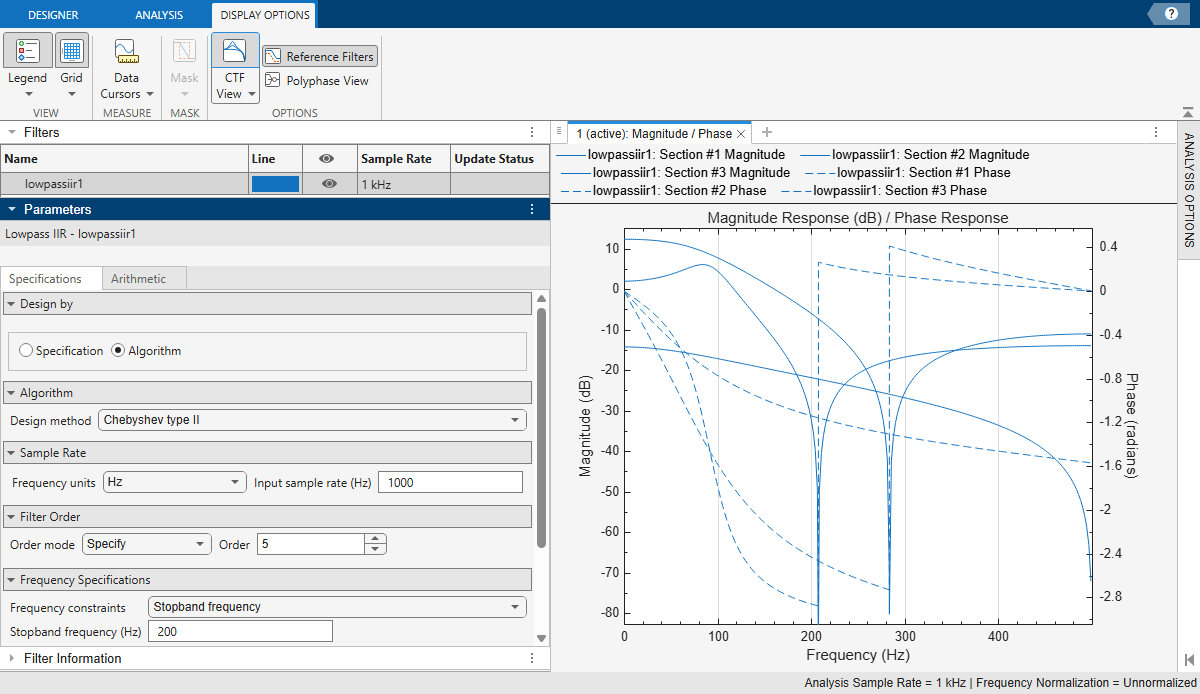
Export Filter
Export the filter coefficients and generate a MATLAB function that creates a digitalFilter object.
To export the coefficients as variables in the MATLAB workspace, click Export in the Designer tab, select
Export to MATLAB Workspace, and then selectCoefficients. Filter Designer appends_Numand_Dento the variables that contain the numerator and denominator coefficients, respectively.To generate a MATLAB function that creates a
digitalFilterobject, click Export in the Designer tab, selectGenerate MATLAB Function, and then selectDigital Filter Object.
See Also
Apps
- Filter Designer | Filter Analyzer | DSP HDL IP Designer (DSP HDL Toolbox)

