Automated Fixed-Point Conversion
R2026bYou can convert floating-point MATLAB® code to fixed-point code by using the Fixed-Point Conversion task in the HDL Workflow Advisor for your HDL Coder™ projects. You can choose to propose data types based on simulation range data, derived (also known as static) range data, or both.
During fixed-point conversion, you can perform these tasks:
| Task | See |
|---|---|
| Propose fixed-point data types based on default word lengths or fraction lengths. | Proposing Data Types |
| Build an instrumented MEX function that the app uses to collect simulation range data. | Build an Instrumented MEX Function |
| Specify safety margins for simulation min/max data. | Specify Safety Margins for Simulation Ranges |
| Compute derived ranges by propagating input ranges through your algorithm. | Computing Derived Ranges |
| Lock proposed data types against changes by the Fixed-Point Conversion task. | Locking Proposed Data Types |
| View functions, class methods, and specializations in your project. | Viewing Functions |
| View simulation ranges, proposed types, and other information for each variable, and optimize whole numbers. | Viewing Variables |
| Replace functions that do not support fixed-point conversion with custom implementations or lookup tables. | Function Replacements |
| Validate that you can build your project with the proposed data types. | Validating Types |
| Verify that your test files cover the full intended operating range of your algorithm by using code coverage results. | Code Coverage |
| Test numerics by running the test bench with the fixed-point types applied. | Testing Numerics |
| Detect overflows. | Detecting Overflows |
For a list of supported MATLAB features and functions, see MATLAB Language Features Supported for Automated Fixed-Point Conversion.
License Requirements
Fixed-point conversion requires these licenses:
Fixed-Point Designer™
MATLAB Coder™
Proposing Data Types
In the Define Input Types task, you specify a test bench that calls the MATLAB function. The app runs the test bench to analyze the code and infer the types for entry-point input arguments.

The Fixed-Point Conversion task proposes fixed-point data types based on computed ranges and the word length or fraction length setting. The computed ranges are based on simulation range data, derived range data, or both. If you run a simulation and compute derived ranges, the app merges the simulation and derived ranges.
Note
You cannot propose data types based on derived ranges for MATLAB classes.
You can manually enter static ranges. These manually-entered ranges take precedence over simulation ranges and the app uses them when proposing data types. If you analyze ranges by using derived range analysis alone, you must enter static ranges. In addition, you can modify and lock the proposed type so that the app cannot change it.
Build an Instrumented MEX Function
To build an instrumented MEX function, click Analyze Design. If the build completes without errors, the app displays compiled information in the Variables tab, in the Type column. To navigate to local functions, in the Navigation pane, click the Function dropdown. If build errors occur, the app displays messages on the Messages tab with links to the line of code that caused the issue. You must address these errors before running a simulation. Use the link to navigate to the offending line of code in the MATLAB editor and modify the code to fix the issue.
Before building the instrumented MEX function, you must complete the Define Input Types task to specify the test bench that exercises your algorithm. If you modify the MATLAB design code, the app automatically rebuilds the instrumented MEX function.
Specify Safety Margins for Simulation Ranges
After you build the instrumented MEX function, you can specify a safety margin so that the proposed types accommodate values outside the observed simulation range. Use a safety margin when your test bench might not exercise the full operating range of your algorithm and you want the proposed types to reserve additional range.
In the Fixed-Point Conversion task, on the Type Proposal pane, click
Advanced. In the Safety margin for sim min/max
(%) field, enter a percentage. The app expands the simulation minimum and
maximum values by this percentage before proposing data types. The default is
0.
The safety margin applies only to ranges collected by running the test bench. It does not expand static ranges that you enter manually on the Variables tab, and it does not expand ranges produced by derived range analysis. To reserve additional range for those sources, edit the Static Min and Static Max values directly.
Computing Derived Ranges
To compute derived ranges, click Propose Types. The app runs the test bench, calling the instrumented MEX function. If the test bench runs successfully, the app displays the simulation minimum and maximum values and the proposed types on the Variables tab. If you manually enter static ranges for a variable, the manually-entered ranges take precedence over the simulation ranges. If you manually modify the proposed types by typing, the data types are locked so that the app cannot modify them.
If the test bench fails, the app displays the errors on the Messages tab.
The test bench should exercise your algorithm over its full operating range. The quality of the proposed fixed-point data types depends on how well the test bench covers the operating range of the algorithm with the desired accuracy.
The advantage of proposing data types based on derived ranges is that you do not have to provide test files that exercise your algorithm over its full operating range. Running such test files often takes a long time.
To compute derived ranges and propose data types based on these ranges, provide static minimum and maximum values or proposed data types for all input variables. To improve the analysis, enter as much static range information as possible for other variables. You can manually enter ranges or promote simulation ranges to use as static ranges. Manually-entered static ranges always take precedence over simulation ranges.
If you know what data type your hardware target uses, set the proposed data types to match this type. Manually-entered data types are locked so that the app cannot modify them. The app uses these data types to calculate the input minimum and maximum values and to derive ranges for other variables.
When the analysis is complete, the app displays the static ranges on the
Variables tab. If the run produces +/-Inf derived
ranges, consider defining ranges for all persistent
variables.
To enable quick derived range analysis, click Propose Types, then under Analyze ranges using derived range analysis, select Enabled. With this option, the app performs faster static analysis. The computed ranges might be larger than necessary. Select this option in cases where the static analysis takes more time than you can afford.
If the derived range analysis for your project is taking a long time, you can set a
timeout. Under Analyze ranges using derived range analysis, in the
Timeout field, enter a value in minutes. The default is
Infinity. The app aborts the analysis when the timeout is reached.
Locking Proposed Data Types
You can lock proposed data types against changes by the Fixed-Point Conversion task by manually setting a proposed data type in the Variables tab in the Proposed Type column.
The app displays locked data types in bold so that they are easy to identify. You can unlock a type using one of these methods:
Manually overwriting it.
Right-clicking the table and selecting
Reset entire
            table
. This action unlocks all locked proposed types and resets all columns in the table.
Viewing Functions
You can view a list of functions in your project on the Navigation pane. This list also includes function specializations and class methods. When you select a function from the list, the MATLAB code for that function or class method is displayed in the Fixed-Point Conversion task code window.

After conversion, the Output tab displays the generated files,
including the fixed-point version of the original algorithm, the type proposal report, and the
code generation report. If your function is not specialized, the conversion retains the
original function name in the fixed-point filename and appends the fixed-point suffix. For
example, the fixed-point version of ex_2ndOrder_filter_split.m is
ex_2ndOrder_filter_split_fixpt.m.
Viewing Variables
The Variables tab provides the following information for each variable in the function selected in the Navigation pane:
Type — The original data type of the variable in the MATLAB algorithm.
Sim Min and Sim Max — The minimum and maximum values assigned to the variable during simulation.
Static Min and Static Max — The static minimum and maximum values. You can populate these columns in one of the following ways:
Manually specify design ranges — Click Propose Types, then under Analyze ranges using simulation, select Manually specify design ranges. This lets you manually enter Static Min and Static Max values for specific variables. The app does not compute ranges for other variables. Manually-entered ranges take precedence over simulation ranges when proposing types.
Derived range analysis — Click Propose Types, then under Analyze ranges using derived range analysis, select Enabled. The app runs a static analysis that propagates your input design ranges through the algorithm to automatically compute Static Min and Static Max for all variables. This method does not require test files that exercise the full operating range, but may produce
+/-Inffor some variables such as persistent state.
Whole Number — Whether all values assigned to the variable during simulation are integers.
The Fixed-Point Conversion task determines whether a variable is always a whole number. To modify this field, double-click the cell and select
YesorNo. Edited fields are shown in bold. The app uses the edited values in subsequent analyses.
Proposed Type — The proposed fixed-point data type for the specified word (or fraction) length. Proposed data types use the
numerictypenotation. For example,numerictype(1,16,12)denotes a signed fixed-point type with a word length of 16 and a fraction length of 12.numerictype(0,16,12)denotes an unsigned fixed-point type with a word length of 16 and a fraction length of 12.Because the app does not apply data types to expressions, it does not display proposed types for them. Instead, it displays their original data types.
Proposed Fimath — The fixed-point math settings applied to the proposed types. The
fimathobject controls rounding method, overflow action, and product and sum precision. The default isFloorrounding,Wrapoverflow, andFullPrecisionfor products and sums. To change the proposed fimath, click Advanced, then click Fimath to expand the fimath settings and modify individual properties.Log Data — Whether input and output data is logged during numeric testing for comparison plots. To enable, click Test Numerics, then under Plotting and Reporting, select Log all inputs and outputs for comparison plots. When enabled, the app logs floating-point and fixed-point simulation data so that you can generate comparison plots showing the difference between the two.
Max Diff — The maximum absolute difference between floating-point and fixed-point values for each variable. To populate this column, enable logging (see Log Data), then click Test Numerics. Use these values to evaluate whether the fixed-point numerical accuracy meets your requirements.
You can use Ctrl+F to search for variables in the MATLAB
code.
Viewing Information for MATLAB Classes
The app displays:
Code for MATLAB classes and code coverage for class methods in the code window. Use the Function list in the Navigation bar to select which class or class method to view.

Information about MATLAB classes on the Variables tab.

Specializations
If a function is specialized, the app lists each specialization and numbers them
sequentially. For example, consider a function, dut, that calls
subfunctions, foo and bar, multiple times with
different input types.
function y = dut(u, v)

tt1 = foo(u);
tt2 = foo([u v]);
tt3 = foo(complex(u,v));

ss1 = bar(u);
ss2 = bar([u v]);
ss3 = bar(complex(u,v));

y = (tt1 + ss1) + sum(tt2 + ss2) + real(tt3) + real(ss3);

end

function y = foo(u)
  y = u * 2;
end

function y = bar(u)
  y = u * 4;
end

If you select a specialization, the app displays only the variables used by the specialization.

In the generated fixed-point code, the number of each fixed-point specialization matches
the number in the Function dropdown, which makes it easy to trace
between the floating-point and fixed-point versions of your code. For example, the generated
fixed-point function for foo > 1 is named
foo_s1.

Function Replacements
When you click Validate Types, the app checks whether your MATLAB code uses functions that do not support fixed-point conversion. If the app finds unsupported functions, it lists them on the Messages tab and leaves them unconverted in the generated fixed-point code.
To replace an unsupported function with a custom fixed-point implementation or a lookup table, use the Function Replacements tab. You can manually add function replacements by specifying the original function name and the replacement function. If you enter a function replacement, the replacement function is used when you validate types. If you do not enter a replacement, the app uses the type specified in the original MATLAB code for the function. For more information on replacing functions, see Replace a Function with a Lookup Table Using the HDL Coder App.

Note
Using the Function Replacements tab, you can replace the names of the functions but you cannot replace argument patterns.
Alternatively, you can exclude functions from fixed-point conversion by using coder.float2fixed.skip
Validating Types
Click Validate Types to validate the build by using the proposed fixed-point data types. If the validation is successful, you are ready to test the numerical behavior of the fixed-point MATLAB algorithm.
If errors or warnings occur during validation, the app displays them on the Messages tab:
On the Variables tab, inspect the proposed types and manually modified types to verify that they are valid.
If your code uses functions that are not supported for fixed-point conversion, the app displays a message on the Messages tab.
Code Coverage
By default, the Fixed-Point Conversion task shows code coverage results in the type proposal report. Your test files must exercise the algorithm over its full operating range so that the simulation ranges are accurate. The quality of the proposed fixed-point data types depends on how well the test files cover the operating range of the algorithm with the accuracy that you want. Reviewing code coverage results helps you verify that your test files are exercising the algorithm adequately. If the code coverage is inadequate, modify the test files or add more test files to increase coverage. If you simulate multiple test files in one run, the report displays cumulative coverage. However, if you specify multiple test files but run them one at a time, the report displays the coverage of the file that ran last.
After you complete the Build, Analyze, and Validate Types steps, the task generates a type proposal report. The report includes a Simulation Coverage column that shows the coverage for each section of your code, color-coded to indicate coverage quality.

This table describes the coverage color coding and recommended actions.
| Color | Indicates | Action |
|---|---|---|
| Green (100%) | Code executes during simulation. Darker shades of green indicate higher execution counts. | If you expect sections of code to execute more frequently than the coverage shows, modify the MATLAB code or the test files. |
| Orange (Once) | The entry-point function executes multiple times, but the code executes only once. | Expected for initialization code such as persistent variable initialization. If you expect the code to execute more than once, modify the MATLAB code or the test files. |
| Red (0%) | Code does not execute. | Acceptable for error-handling code. Otherwise, modify the MATLAB code or the test files. If the code has upper and lower boundary limits that your test files cannot reach, add static minimum and maximum values. |
Code coverage is on by default. Turn it off only after you have verified that you have adequate test file coverage. Turning off code coverage can speed up the analysis. To turn off code coverage, in the Fixed-Point Conversion task:
Click Analyze.
Under Analyze ranges using simulation, clear
Show code coverage.
Testing Numerics
After validating the proposed fixed-point data types, select Test
Numerics to verify the behavior of the fixed-point MATLAB algorithm. By default, if you added a test bench to define inputs or
run a simulation, the app uses this test bench to test numerics. The app compares the numerical behavior of the generated fixed-point
MATLAB code with the original floating-point MATLAB code. To log inputs and outputs for comparison plots, click Test
Numerics > Plotting and Reporting, then select
Log all inputs and outputs for comparison plots. When enabled,
the app generates an additional plot for each scalar output. This plot shows the
floating-point and fixed-point results and the difference between them. For non-scalar
outputs, only the error information is shown.
If the numerical results do not meet your desired accuracy after fixed-point simulation, modify fixed-point data type settings and repeat the type validation and numerical testing steps. You might have to iterate through these steps multiple times to achieve the desired results.
Detecting Overflows
To enable overflow detection, click Test Numerics >
Plotting and Reporting, then select Use scaled doubles to
detect overflows. When this option is selected, the app runs the simulation
by using scaled double versions of the proposed fixed-point types. Because scaled doubles store
their data in double-precision floating-point, they carry out arithmetic in full range. They
also retain their fixed-point settings, so they can report when a computation goes out of the
range of the fixed-point type.
If the app detects overflows, it displays messages on the Messages tab listing:
The variables and expressions that overflowed
The percentage of the current range that was exceeded
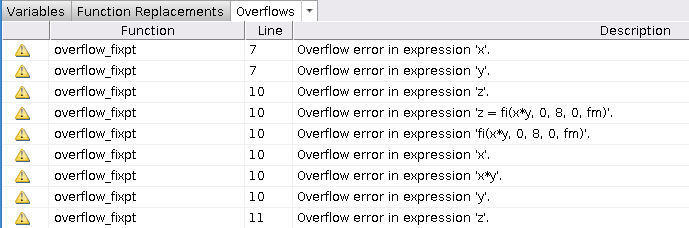
If your original algorithm uses scaled doubles, the app also provides overflow information for these expressions. For more information on detecting overflows, see Detect Overflows.
See Also
coder.FixPtConfig | Workflow Advisor

