Replace a Function with a Lookup Table Using the HDL Coder App
R2026bThe fixed-point conversion process provides an option to generate lookup table approximations for continuous and stateless single-input, single-output functions in the original MATLAB® code. These functions must be on the MATLAB path.
You can use this capability to handle functions that are not supported for fixed-point and to replace custom functions. The fixed-point conversion process infers the ranges for the function and then uses an interpolated lookup table to replace the function. You can control the interpolation method and number of points in the lookup table. By adjusting these settings, you can tune the behavior of the replacement function to match the behavior of the original function as closely as possible.
The fixed-point conversion process generates one lookup table approximation per call site of the function that needs replacement.
This example shows how to use the HDL Coder app to replace a custom function with a lookup table.
Create Algorithm and Test Files
In a local, writable folder:
Create a MATLAB function,
custom_fcn, which is the function to replace.function y = custom_fcn(x) y = 1./(1+exp(-x)); end
Create a wrapper function that calls
custom_fcn.function y = call_custom_fcn(x) y = custom_fcn(x); end
Create a test file,
custom_test, which usescall_custom_fcn.close all x = linspace(-10,10,1e3); for itr = 1e3:-1:1 y(itr) = call_custom_fcn( x(itr) ); end plot( x, y );
Create and Set Up an HDL Coder Project
Navigate to the work folder that contains the file for this example.
To open the HDL Coder app, in the MATLAB Command Window, enter
hdlcoder. In the Create HDL Coder Project dialog box, set Name tocustom_project.mldatx. Set Folder to the current working folder. Click OK to create thecustom_project.mldatxproject in the specified folder and open the HDL Workflow Advisor.
Define Input Types
In the HDL Workflow Advisor, in the Define Input Types task, for the MATLAB Function parameter, click Browse to browse to the MATLAB function file
call_custom_fcn.m. Click Open to add the MATLAB function file to the project. For the MATLAB Test Bench parameter, click the button to browse to the MATLAB test bench file
custom_test.m. Click Open to add the MATLAB test bench file to the project.Click Run. The HDL Workflow Advisor infers the input types automatically by executing the MATLAB test bench. From the test file, HDL Coder™ determines that
xis a scalar double.
Replace custom_fcn with Lookup Table
To replace
custom_fcnwith a Lookup Table, in the Fixed-Point Conversion task, in the Function Replacements tab, in the Enter a function to replace box box, entercustom_fcn. Then, selectLookup Table.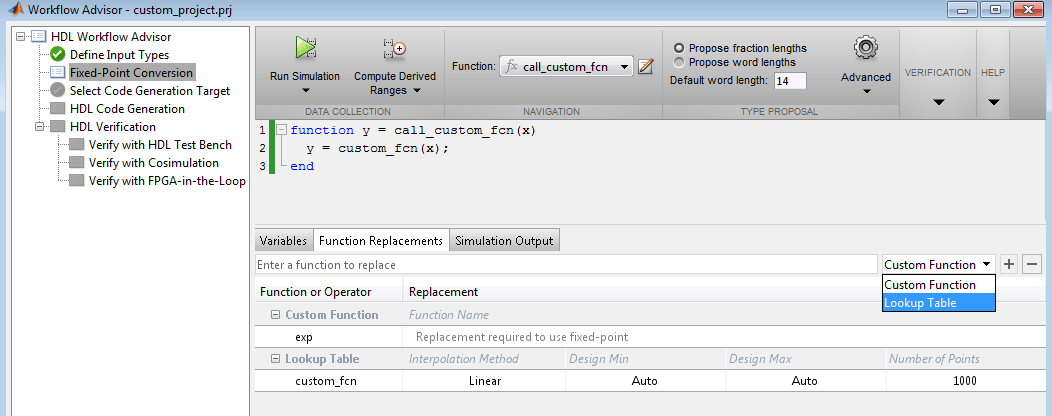
Next, click the
button to confirm the function replacement. By default,
the lookup table uses linear interpolation and 1000 points. The app determines design
minimum and maximum values by using the test bench to run a simulation or compute
derived ranges.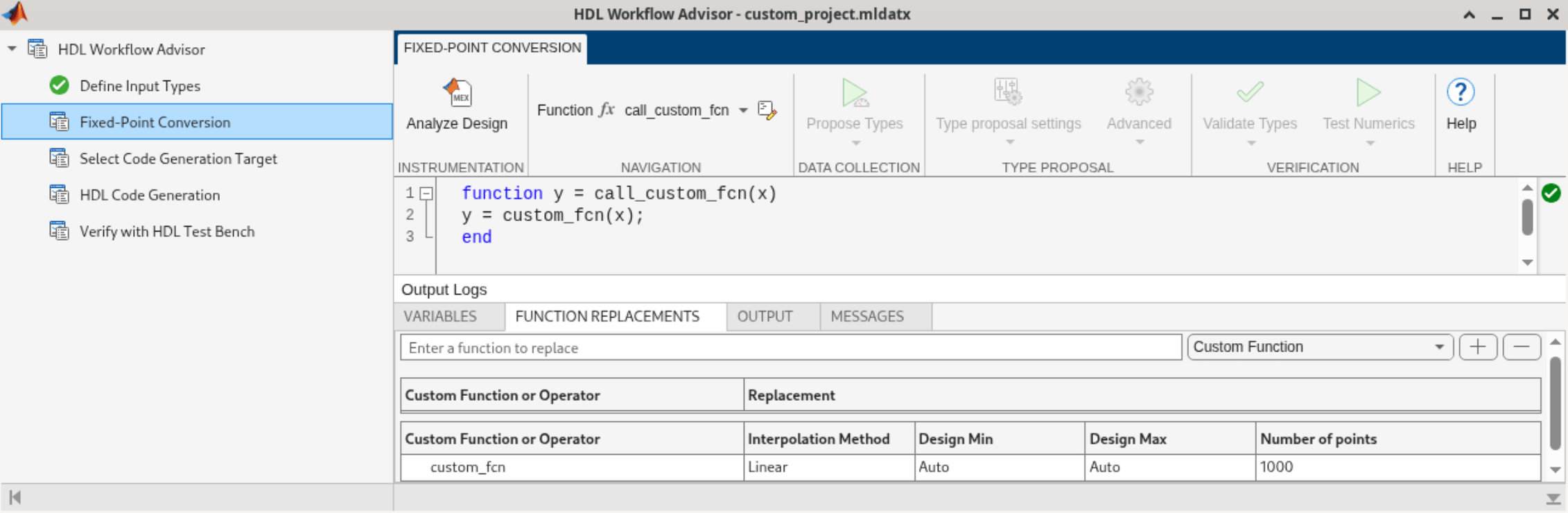
Click Analyze Design to generate an instrumented MEX function for data type range analysis.
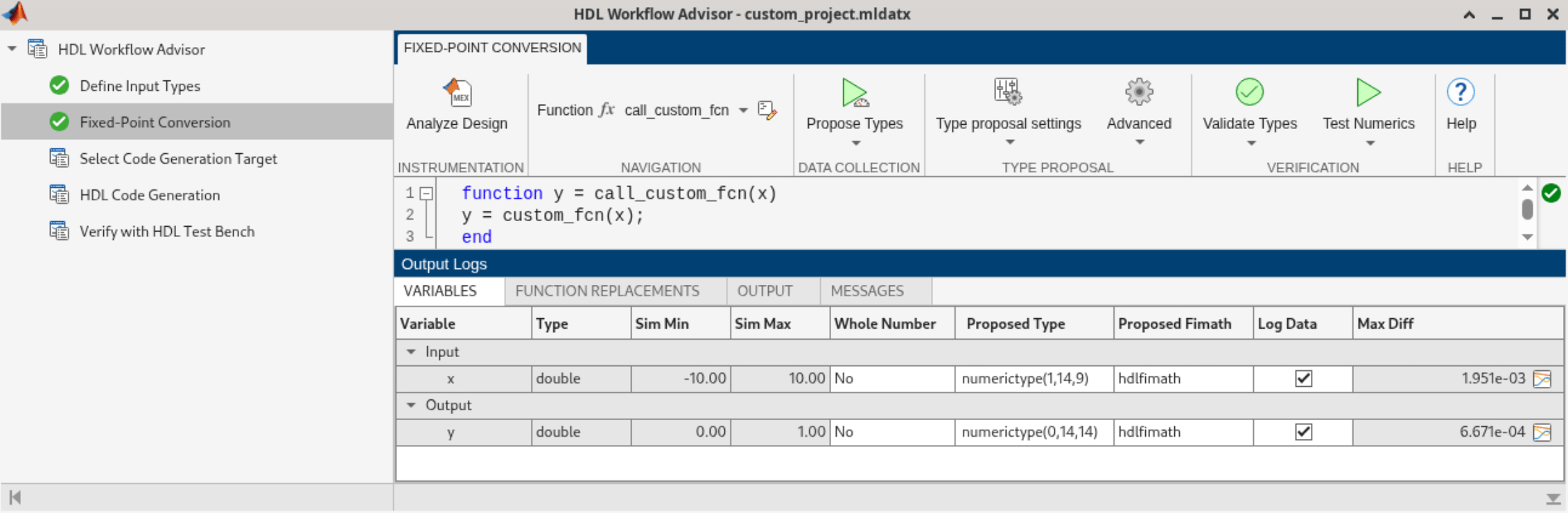
Click Propose Types to perform a range analysis. The app runs a simulation with the test bench and displays simulation minimum and maximum ranges in the Variables tab. The app plots the simulation results in a MATLAB figure.

Validate Fixed-Point Types
Click Validate Types. The app validates the proposed types and generates fixed-point code in the
codegen/call_custom_fcn/fixptfolder.To view the generated fixed-point code, in the Output tab, click the
call_custom_fcn_fixptlink.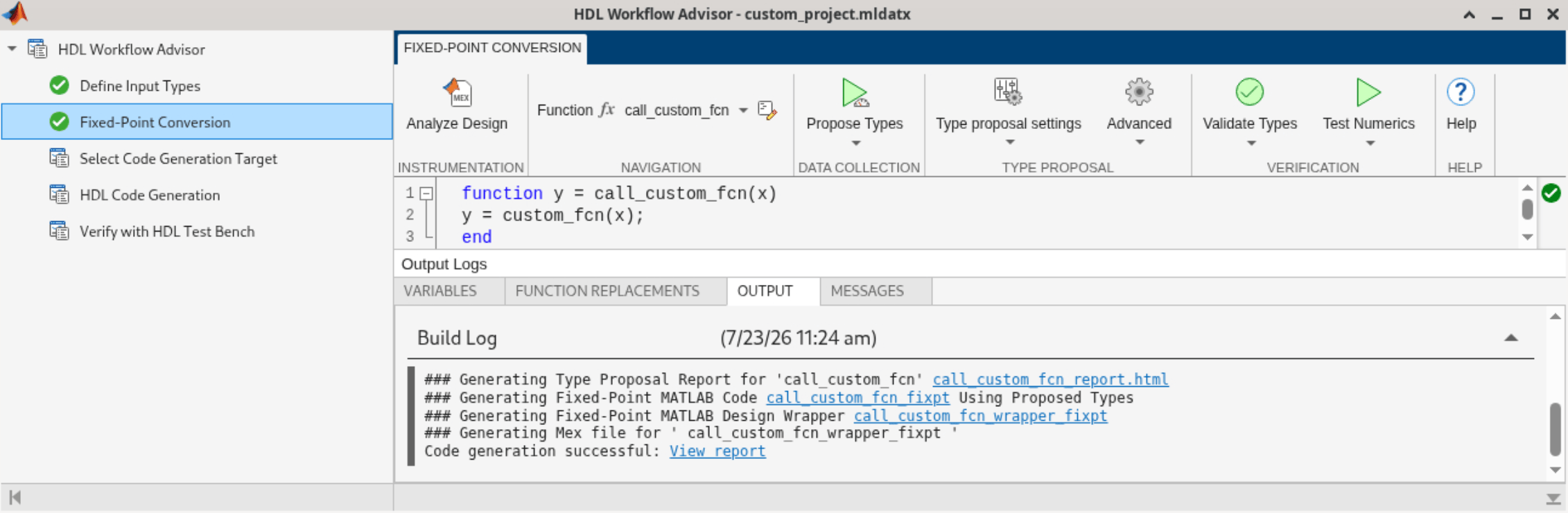
The generated fixed-point function,
call_custom_fcn_fixpt.m, calls the lookup table approximation,replacement_custom_fcn, instead of callingcustom_fcn.function y = call_custom_fcn_fixpt(x) fm = get_fimath(); y = fi(replacement_custom_fcn(x), 0, 14, 14, fm); end
Verify Fixed-Point Types
In Test Numerics > Plotting and Reporting, select Log all inputs and outputs for comparison plots.
Click Test Numerics.
The app runs the test bench with the floating-point function and the generated fixed-point function, generates comparison plots, and logs the maximum error difference in the Max Diff column of the Variables tab.