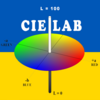
How could I display a "circle at the bottom of the figure? And color it along the way? To show Hue angles?
이전 댓글 표시
Crazy idea. I know Matlab is calling OpenGL under the hood but I would not know how to go about adding these two pieces of geometric elements to my chart. What follows is a "mock-up", to show what I'm trying to achieve :

You have my 3D figure, showing a custom datatip. What I would like to add is a "3D plot" (I guess?) that sits at the bottom of the chart, I get using some kind of colormap, to simulate a continuous drawing? The idea is to represent "Hue angle" on this chart, To show it through a "color wheel" and some kind of "black line" drawn along the hue angle, to show the students how to interpret visually the notion that color can have an "angle".
채택된 답변
추가 답변 (5개)
Image Analyst
2022년 3월 3일
0 개 추천
Perhaps you can adapt my attached demo.

댓글 수: 6
Roger Breton
2022년 3월 4일
Image Analyst
2022년 3월 4일
- color_change_green_into_yellow.m
- color_change_red_into_blue.m
- color_change_white_into_red.m
- color_gamut_visualizer.m
- color_wheel.m
- colorbar.jpeg
- colored_lines.m
- colorize_ROI_box.m
- colorize_ROI_freehand.m
- colormap_demo.m
- colormap_from_colorbar_in_image.m
- colormap_time_shifting.m
- colormaps_plotted.m
- colormaps_with_imshow_vs_image.m
- ColorOrder_demo.m
- RGB_channels_stacked_in_Z.m
- RGB_display_color_channels_in_respective_colors.m
- RGB_Histogram_Demo.m
- RGB_image_as_texturemap_on_grayscale_image.m
- RGBXY_to_CSV.m
@Roger Breton, okay since you're so appreciative, I'm attaching a collection of various color related demos from my collection of 400 demos. Please let me know if any of them does not run (gives an error). I might have forgot to include a file that is needed for it.


Roger Breton
2022년 3월 4일
Roger Breton
2022년 3월 4일
Roger Breton
2022년 3월 4일
Les Beckham
2022년 3월 4일
@Image Analyst provided a comment here that shows what you can achieve using the surface command. I see no reason that this approach wouldn't at least get you close to what you want to do. Just define the x/y/z coordinates of your circle and make the color vary with the angle as you go around the circle.
I decided to experiment with it and came up with this based on his example.
See if it is close to what you want.
r = 50;
rho = linspace(0, 2*pi, 1920); % HDTV resolution.
x = cos(rho) * r;
y = sin(rho) * r;
z = zeros(size(x));
lineColor = rho(1:2:end); % This is the color, it varies with rho in this case.
lineColor = [lineColor flip(lineColor)];
% Plot the line with width 8 so we can see the colors well.
surface([x;x], [y;y], [z;z], [lineColor;lineColor],...
'FaceColor', 'no',...
'EdgeColor', 'interp',...
'LineWidth', 8);
grid on;
axis equal
view(16.5, 25)
댓글 수: 1
Roger Breton
2022년 3월 5일
편집: Roger Breton
2022년 3월 5일
You can make a colored circle by plotting markers:
numPoints = 1000;
angle = linspace(0, 360, numPoints);
x = sind(angle);
y = cosd(angle);
colors = hsv(numPoints);
for k = 1 : numPoints
plot(x(k), y(k), '.', 'MarkerSize', 20, 'Color', colors(k,:));
hold on;
end
grid on;
xlabel('x');
ylabel('y');
axis equal
댓글 수: 3
Roger Breton
2022년 3월 5일
편집: Roger Breton
2022년 3월 5일
Roger Breton
2022년 3월 5일
Image Analyst
2022년 3월 5일
Yes, essentially colors is an N b y 2 array (colormap) and you can put whatever color you want into each row to get the colors to be in the proper order.
Roger Breton
2022년 3월 7일
0 개 추천
댓글 수: 3
DGM
2022년 3월 7일
I guess it depends on what you want the marker line to represent. If it's just to represent the hue and have some fixed radius, then that's easy enough:
hmarkhue = 135;
hmarkchr = 150;
plot([0 hmarkchr*cosd(hmarkhue)],[0 hmarkchr*sind(hmarkhue)],'linewidth',2)

If you want it to be a projection of the selected point's position vector (representing both hue and chroma), and your working in rectangular coordinates, then it'd be simpler to just plot the line based on the a,b values of the point instead of dealing with polar coordinates.
You can try thinning out the points in the hue ring. They get pretty sparse near cyan due to the distortion. I could probably come up with a way to plot them at a uniform density (thereby minimizing the number of points required), but it would probably involve an extra interpolation step or so. It would use fewer points, but it's be more expensive to calculate. Depends whether the issue is the cost of calculation or the cost of having more objects in the axes.
Roger Breton
2022년 3월 7일
DGM
2022년 3월 9일
For what it's worth, the hue ring part can probably be reduced to a literal CT and point list if you want simplicity and speed. Attached is a .mat file containing a uniform 200-point ring. My assumption about how much the interpolation would cost for a uniform ring was wrong. The reduction in point count is significant enough that that it's actually faster. Using the precalculated result is faster yet, and it's concise:
S = load('huering.mat');
% put something relevant in the axes
% just to show that the alignment is correct
csview('lab');
xlim([-150 150])
ylim([-150 150])
hold on;
% plot a scatter to make the hue ring
scatter(S.CTa,S.CTb,30,S.newCTrgb,'filled'); hold on

That makes for a relatively solid ring with only 200 points.
This is how I calculated the points and new CT:
% parameters
npoints = 200;
radius = 100;
% get a cyclic rgb color map
CTrgb = hsv(npoints);
CTlch = rgb2lch(ct2im(CTrgb),'lab');
H = rad2deg(unwrap(deg2rad(CTlch(:,:,3))));
newH = linspace(H(1),H(end),npoints).';
newCTrgb = interp1(H,CTrgb,newH);
% get A,B coordinates
CTa = radius*cosd(newH);
CTb = radius*sind(newH);
%save('huering.mat','newCTrgb','CTa','CTb');
I cheated and used MIMT rgb2lch(), but that can be done with rgb2lab() and polar conversions.
Roger Breton
2022년 3월 9일
0 개 추천
댓글 수: 2
Image Analyst
2022년 3월 9일
Pretty slick! 😃
DGM
2022년 3월 9일
Is this something you might think about releasing on the File Exchange when it's all done?
카테고리
도움말 센터 및 File Exchange에서 Blue에 대해 자세히 알아보기
Community Treasure Hunt
Find the treasures in MATLAB Central and discover how the community can help you!
Start Hunting!