Deep Learning Object Detector
Libraries:
Computer Vision Toolbox /
Analysis & Enhancement
Description
The Deep Learning Object Detector block predicts bounding boxes, class
labels, and scores for the input image by using the trained object detector specified through
the block parameter. This block allows loading of a pretrained object detector into the
Simulink® model from a MAT file or from a MATLAB® function. This block provides a graphical interface for using the detector
objects in Simulink. To enable some parameters of the Deep Learning Object Detector
block you must choose an object detector that supports those parameters. For example, using a
yolov2ObjectDetector object with this block enables you to select
parameters similar to the name-value arguments of the associated detect object
function.
Examples
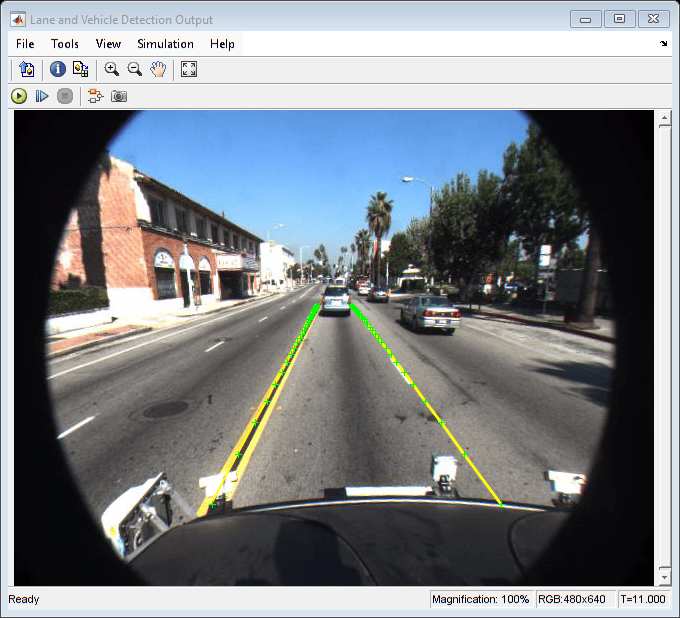
Lane and Vehicle Detection in Simulink Using Deep Learning
Use deep convolutional neural networks inside a Simulink® model to perform lane and vehicle detection. This example takes the frames from a traffic video as an input, outputs two lane boundaries that correspond to the left and right lanes of the ego vehicle, and detects vehicles in the frame.
(Deep Learning Toolbox)
Ports
Input
An H-by-W-by-C numeric array, where H, W, and C are the height, width, and number of channels of the image, respectively. Only one image per time step is allowed as input.
Output
Locations of the objects detected within the input image, returned as an M-by-4 or an M-by-5 matrix. M is the number of bounding boxes detected in the image. You can put an upper bound to the size M by specifying the Maximum Number of Detections parameter.
The table describes the format of bounding boxes.
| Bounding Box | Description |
|---|---|
Axis-aligned rectangle |
Defined in spatial coordinates as an M-by-4 numeric matrix with rows of the form [x y w h], where:
|
Rotated rectangle |
Defined in spatial coordinates as an M-by-5 numeric matrix with rows of the form [xctr yctr w h yaw], where:
|
For more information, see Datastores for Deep Learning (Deep Learning Toolbox).
Labels for the bounding boxes, returned as an M-by-1 enumerated vector. M is the number of bounding boxes detected in the image.
Detection confidence scores for each label, returned as an M-by-1 vector. M is the number of bounding boxes detected in the image. A higher score indicates higher confidence in the detection.
Parameters
Select the source for the detector object from these options:
Detector from MAT file— Import a detector object from a MAT file. For example, select a MAT file containing ayolov2ObjectDetectorobject.Detector from MATLAB function— Import a detector object from a MATLAB function. For example, specify the functionvehicleDetectorYOLOv2, which returns a trainedyolov2ObjectDetectorobject.
The imported detector must be one of these supported objects:
rcnnObjectDetectorfastRCNNObjectDetectorfasterRCNNObjectDetectorrtmdetObjectDetectorssdObjectDetectoryolov2ObjectDetectoryolov3ObjectDetectoryolov4ObjectDetectoryoloxObjectDetector
Programmatic Use
Block Parameter:
Detector |
| Type: character vector, string |
Values:
Detector from MAT file' | 'Detector from MATLAB
function' |
Default:
Detector from MAT file' |
This parameter specifies the name of the MAT file that contains the detector object to load. If the file is not on the MATLAB path, use the Browse button to locate the file.
Dependencies
To enable this parameter, set the Detector parameter to
Detector from MAT file.
Programmatic Use
Block Parameter:
DetectorFilePath |
| Type: character vector, string |
| Values: MAT file path or name |
Default:
'untitled.mat'
|
Since R2026a
Auto mode–– This option automatically selects the simulation mode based on the model configuration and code generation compatibility. It usesCode generationwhenever code generation is supported and switches toInterpreted executionwhen the model is incompatible for code generation.Interpreted execution–– Simulate model using the MATLAB interpreter. This option shortens startup time but has a slower simulation speed thanCode generation. In this mode, you can debug the source code of the block.Code generation–– Simulate model using generated code.The first time you simulate a model that contains a Deep Learning Object Detector block, the software generates binary code or C/C++ MATLAB executable (MEX) code from the block and integrates this code with the model. The Deep Learning Object Detector block uses the same infrastructure as MATLAB Coder™, which you use to generate C/C++ code from MATLAB code outside of Simulink. The generated code is reused for subsequent simulations, as long as the model does not change. This option requires additional startup time, but the speed of the subsequent simulations is comparable to
Interpreted execution.
If your Simulink model is set up to simulate in Normal mode and if you use Deep Learning Object Detector block via code generation, individual Deep Learning Object Detector blocks can take advantage of acceleration via code generation. If the Simulink model is set up to simulate in accelerator mode or any of the other target modes, Deep Learning Object Detector block's Simulate using parameter does not have any effect. However, there is one exception, if the model is set up to simulate in accelerator mode and you use Deep Learning Object Detector block with interpreted execution mode, the block will run in interpreted execution mode.
Programmatic Use
Block Parameter:
SimulateUsing |
| Type: character vector, string |
Values:
"Auto mode" | "Interpreted execution" |
"Code generation" |
Default:
"Auto mode" |
This parameter specifies the name of the MATLAB function that returns a trained object detector. For example, specify the
function vehicleDetectorYOLOv2, which returns a trained
yolov2ObjectDetector object, or specify a custom function.
Dependencies
To enable this parameter, set the Detector parameter to
Detector from MATLAB function.
Programmatic Use
Block Parameter:
DetectorFunction |
| Type: character vector, string |
| Values: MATLAB function name |
Default:
'untitled' |
Specify the search region of interest as vector of the form [x y width height]. The vector specifies the upper-left corner and size of a region in pixels.
Dependencies
To enable this parameter, select the Specify region of interest parameter.
Programmatic Use
Block Parameter:
ROI |
| Type: character vector, string |
Values: character vector specified as
'[x y width
height]' |
Default:
'[1 1 100 100]' |
Specify the detection threshold as scalar in the range [0, 1]. Detections that have scores lower than this threshold value are removed. To reduce false positives, increase this value.
Dependencies
To enable this parameter, you must use a detector that supports the
Detection threshold parameter. For example, use a
yolov2ObjectDetector object.
Programmatic Use
Block Parameter:
Threshold |
| Type: character vector, string |
| Values: scalar |
Default:
'0.5' |
Specify the maximum number of strongest region proposals as an integer. Reduce this
value to speed up processing at the cost of detection accuracy. To use all region
proposals, specify this parameter as Inf.
Dependencies
To enable this parameter, use a detector that supports the Number of
Strongest Regions parameter. For example, use an
rcnnObjectDetector object.
Programmatic Use
Block Parameter:
NumStrongestRegions |
| Type: character vector, string |
| Values: integer |
Default:
'2000' |
Specify the maximum region size as a vector of the form [height
width]. Units are in pixels. The maximum region size defines the size
of the largest region containing the object. For example, [50
50] sets the size of the largest region containing the object to
50-by-50 pixels. To reduce computation time, set
this value to the known maximum region size for the objects that can be detected in the
input test images.
Dependencies
To enable this parameter
Select the Specify maximum region size parameter.
Use a detector that supports the Maximum Region Size parameter. For example, use a
yolov2ObjectDetectorobject.
Programmatic Use
Block Parameter:
MaxSize |
| Type: character vector, string |
Values: character vector specified as
'[height width]' |
Default:
'[50 50]' |
Specify the minimum region size as a vector of the form [height
width]. Units are in pixels. The minimum region size defines the size
of the smallest region containing the object. For example, [1
1] sets the size of the smallest region containing the object to
1-by-1 pixels.
Dependencies
To enable this parameter
Select the Specify minimum region size parameter.
Use a detector that supports the Minimum Region Size parameter. For example, use a
yolov2ObjectDetectorobject.
Programmatic Use
Block Parameter:
MinSize |
| Type: character vector, string |
Values: character vector specified as
'[height width]' |
Default:
'[1 1]' |
Specify the maximum number of detections as a positive integer. This value is the upper bound for the number of detections and must be greater than or equal to 2.
Programmatic Use
Block Parameter:
MaxDetections |
| Type: character vector, string |
| Values: integer |
Default:
'500' |
Extended Capabilities
Usage notes and limitations:
The Language parameter in the Configuration Parameters > Code Generation general category must be set to
C++.For a list of networks and layers supported for code generation, see Networks and Layers Supported for Code Generation (MATLAB Coder).
To generate code for the Math Kernel Library for Deep Neural Networks (MKL-DNN) target library with YOLOv3, YOLOv4, or RTMDet as the object detectors, set the
MaxStackSizeandTLCOptionsmodel parameters to a higher value. For example, you can set theMaxStackSizeandTLCOptionsparameter values to 'inf' using the following syntax.>> set_param(modelName,'MaxStackSize','inf') >> set_param(modelName,'TLCOptions','-aMaxStackVariableSize=inf')
Usage notes and limitations:
The Language parameter in the Configuration Parameters > Code Generation general category must be set to
C++.For a list of networks and layers supported for CUDA® code generation, see Supported Networks, Layers, and Classes (GPU Coder).
Version History
Introduced in R2021bStarting in R2024b, Deep Learning Object Detector block supports Real-Time Model for
object Detection (RTMDet). You can import a pretrained RTMDet object detector object,
rtmdetObjectDetector to perform object detection.
Starting in R2024b, Deep Learning Object Detector block supports You Only Look Once X
(YOLOX) object detection. You can import a pretrained YOLOX object detector object, yoloxObjectDetector to perform object detection.
See Also
Objects
rcnnObjectDetector|fastRCNNObjectDetector|fasterRCNNObjectDetector|ssdObjectDetector|yolov2ObjectDetector|yolov3ObjectDetector|yolov4ObjectDetector|yoloxObjectDetector
Blocks
MATLAB Command
You clicked a link that corresponds to this MATLAB command:
Run the command by entering it in the MATLAB Command Window. Web browsers do not support MATLAB commands.
Select a Web Site
Choose a web site to get translated content where available and see local events and offers. Based on your location, we recommend that you select: .
You can also select a web site from the following list
How to Get Best Site Performance
Select the China site (in Chinese or English) for best site performance. Other MathWorks country sites are not optimized for visits from your location.
Americas
- América Latina (Español)
- Canada (English)
- United States (English)
Europe
- Belgium (English)
- Denmark (English)
- Deutschland (Deutsch)
- España (Español)
- Finland (English)
- France (Français)
- Ireland (English)
- Italia (Italiano)
- Luxembourg (English)
- Netherlands (English)
- Norway (English)
- Österreich (Deutsch)
- Portugal (English)
- Sweden (English)
- Switzerland
- United Kingdom (English)

