Analyze Model and View Results
Use Simulink® Design Verifier™ to confirm the validity of your design models. Avoid potential bugs by running analyses iteratively as you update your model. Begin by configuring your model for analysis, checking compatibility for analysis, and selecting an appropriate analysis mode such as test generation, property proving, or design error detection to meet your verification goals. You can adjust parameter configurations to see how different parameter ranges affect the analysis. For repeated analyses, you can reuse previously generated model representations to save time and resources.
After running an analysis, you can generate a report and access the MAT
file containing the sldvData structure for further custom
analysis or reporting. For more information on analysis results, see View and Understand Analysis Results from Data Files. You can also interpret objectives in
the results summary, noting that incomplete or undecided outcomes may occur
due to model complexity, unsupported features, or analysis
limitations.
Functions
Topics
Basics of Model Analysis
- Analyze Model and Interpret Results
Explore basics of Simulink Design Verifier analysis. - Understanding Analysis Modes for Model Verification
Analyze a simple model that demonstrates Simulink Design Verifier capabilities.
- Configure Analysis Options for Model
Specify Simulink Design Verifier options in the Configuration Parameters dialog box. - Check Model Compatibility for Analysis
Check whether your model is compatible with Simulink Design Verifier. - Configure Model Representation and Continue Analysis
Configure model representation options. - Handle Model Complexities with Automatic Stubbing
How Simulink Design Verifier uses automatic stubbing to handle model complexities. - Use Parameter Configuration in Analysis
Parameter configuration for Simulink Design Verifier analysis. - Share Simulink Cache File for Faster Analysis
Use Simulink cache files to share and reuse the model representation for analysis. - Analyze Models in Parallel Using Parallel Computing Toolbox
Explains how to perform parallel analysis on multiple models using parallelfor-loop. - Resume an Incomplete Analysis
Simulink Design Verifier now automatically saves the state of an incomplete analysis, and allows you to resume later without restarting the analysis.
Interpret Analysis Results
- Review Analysis Results
Review analysis results in the Simulink Design Verifier Results Summary window. - View and Understand Analysis Results from Data Files
View contents of a Simulink Design Verifier data file. - Understanding Objective Statuses
Simulink Design Verifier reports each verification condition as an objective with a status and supporting details. - View the Simulink Design Verifier Report
Simulink Design Verifier report summarizes analysis results, including errors, test cases, and verification outcomes for your model. - Review Results from Analysis Report
View analysis results from a Simulink Design Verifier report. - Highlight Results on the Model
Show analysis results with color-coded highlighting of elements of a model. - Use Harness Model for Test Simulations
Create and use a basic harness model. - Analyze and Resolve Undecided Objective Statuses
Address undecided objectives obtained after Simulink Design Verifier analysis. - Approximations During Model Analysis
Manage approximations that Simulink Design Verifier performs before beginning its analysis.
Featured Examples

Perform Analysis on a Model
Analyze a simple example model with Simulink Design Verifier.

Analyze Results for Dead Logic Analysis
Determine potential causes for dead logic in the analysis.
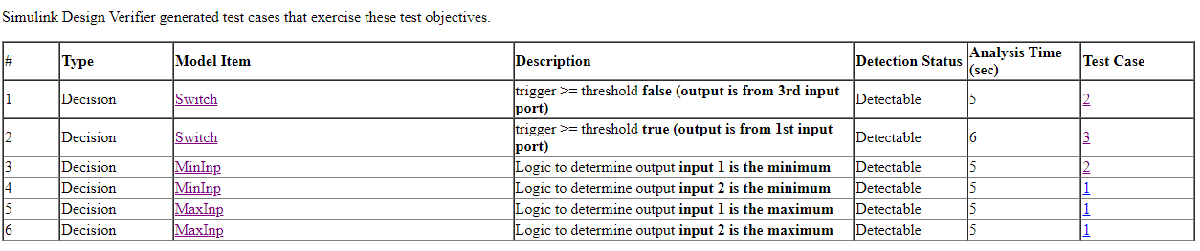
Analyze Model for Enhanced MCDC Analysis
Analyze a model for enhanced MCDC objectives.
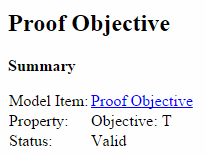
Prove Properties in a Model
Prove model properties that you specify using a Proof Objective block.

Specify Parameter Configuration for Full Coverage
Specify parameter constraint values to achieve full model coverage.
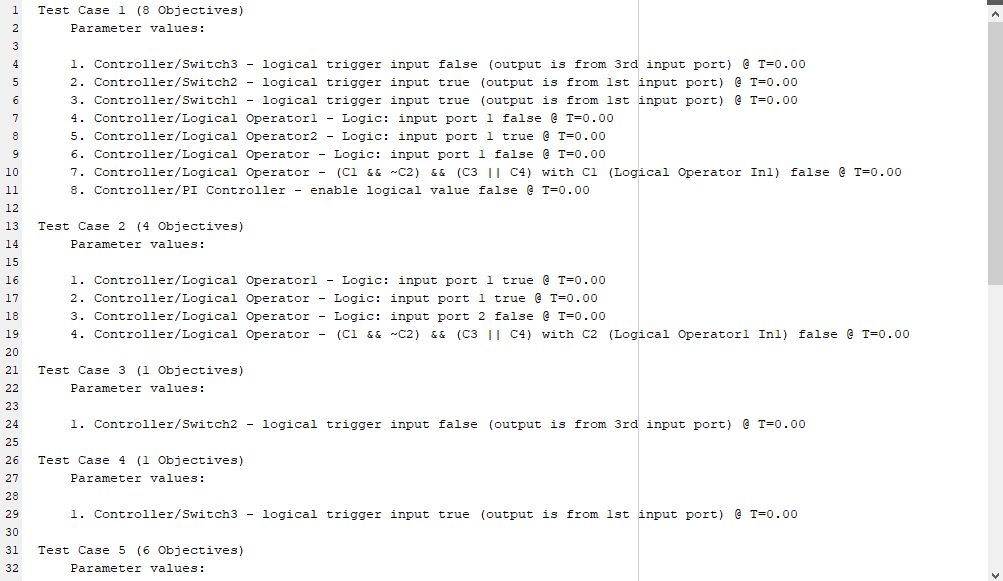
Use Harness Model for Test Simulations
Create and use a basic harness model.

