Override Variant Control Variables of Variant Blocks in Simulation Runs
R2026bYou can use a Simulink.SimulationInput
You can override variant control variables by using either of these functions with the Simulink.SimulationInput object.
Use the
setVariablefunction to override individual variant control variables for a simulation run.
Use the
setVariantConfigurationfunction to apply a named variant configuration that overrides multiple variant control variables in a single call.
Use Simulink.SimulationInput overrides when you want to:
Test different variant choices without editing workspace or data dictionary values
Run parallel simulations with
parsim
Sweep across variant choices as part of a batch simulation workflow
For information on which workspaces support Simulink.SimulationInput overrides, see Verify Variable Type Compatibility with Workspace and Variant Activation Time.
For constraints that apply when defining variant control variables in different workspaces, see Workspace Constraints for Variant Control Variables.
Explore the Model
The slexVariantConfigsSimulation model contains multiple variant blocks, including a Controller Variant Subsystem with three variant choices Linear Controller, Nonlinear Controller, and Smart Controller.
model = "slexVariantConfigsSimulation";
open_system(model)
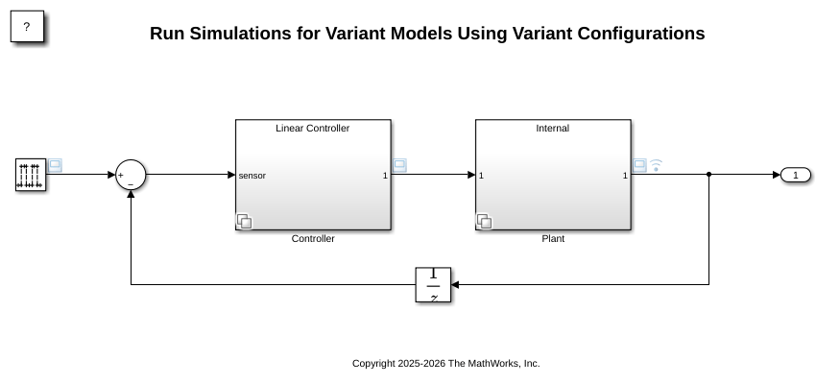
In the Block Parameters dialog box of the Controller block, the variant control expressions are:
Ctrl == ControllerType.Linearfor theLinear Controllerchoice
Ctrl == ControllerType.Nonlinearfor theNonlinear Controllerchoice
Ctrl == ControllerType.Smartfor theSmart Controllerchoice
The variant control variable Ctrl is a Simulink.VariantControl object stored in the data dictionary topData.sldd linked to the model. To view the variable, open the Model Explorer and select External Data > topData > Design Data.
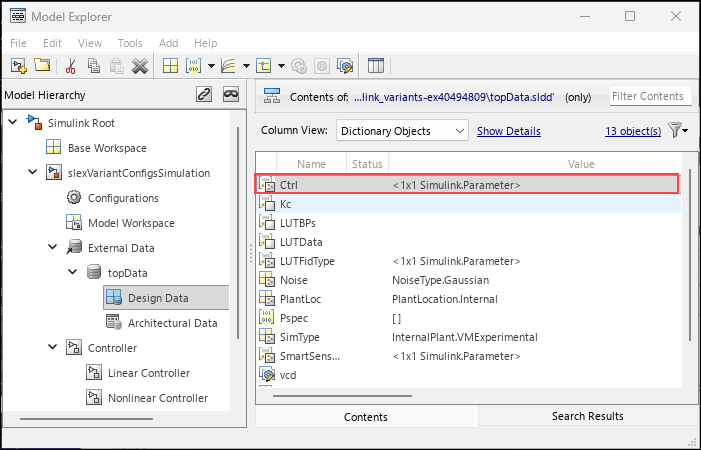
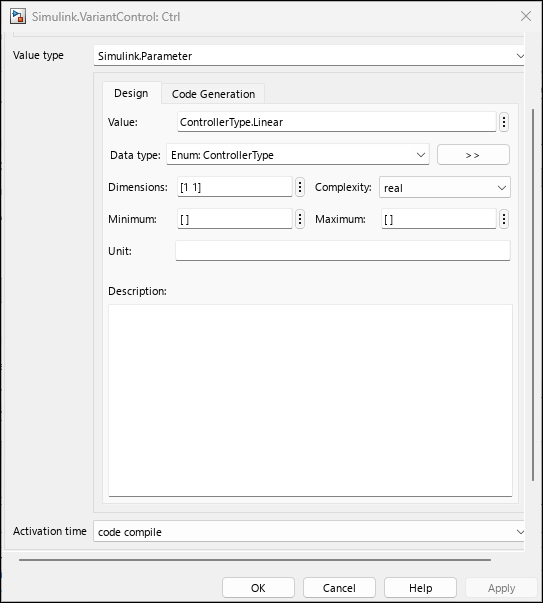
Right-click the Ctrl variable in the Model Explorer and select Properties. The value is a Simulink.Parameter with an enumerated data type ControllerType, and the activation time is code compile.
The ControllerType enumeration class is defined as:
type ControllerType.m
classdef ControllerType < Simulink.IntEnumType
% ControllerType - enumeration class used by slexVariantManagement

% Copyright 2019 The MathWorks, Inc.

    enumeration
        Linear (1)
        Nonlinear (2)
        Smart (3)
    end

    methods (Static)
        function val = getDataScope()
            val = 'Exported';
        end

        function val = getHeaderFile()
            val = 'slexVariantManagementExampleControllerType.h';
        end
    end
end
Note: When you use a Simulink.SimulationInput object to override a variant control variable, the variable must already be present in the model workspace or data dictionary. The Simulink.SimulationInput object overrides the existing value but does not create new variables.
Run a Single Simulation with a Variant Control Variable Override
To simulate the model with the Nonlinear Controller variant choice active, create a Simulink.SimulationInput object and use the setVariableCtrl to ControllerType.Nonlinear. The setVariable function specifies the variant control variable name and its new value. The new value is a Simulink.VariantControl object that defines the override value as a Simulink.Parameter and sets the activation time to code compile.
simIn = Simulink.SimulationInput(model);
simIn = setVariable(simIn,"Ctrl", ...
   Simulink.VariantControl("Value", ...
   Simulink.Parameter(ControllerType.Nonlinear), ...
   "ActivationTime","code compile"));
out = sim(simIn);
During simulation, the variant control expression Ctrl == ControllerType.Nonlinear evaluates to true and the Nonlinear Controller variant choice is active. After the simulation completes, the value of the variable Ctrl in the data dictionary remains unchanged.
Run Parallel Simulations with Variant Control Variable Overrides
To run multiple simulations that each activate a different variant choice, create an array of Simulink.SimulationInput objects. Set Ctrl to a different value for each run and use the parsim function to run the simulations in parallel. In this example, each of the three runs activates a different variant choice: Linear Controller, Nonlinear Controller, and Smart Controller. The persistent data dictionary values remain unchanged after all runs complete.
ctrlValues = [ControllerType.Linear, ...
   ControllerType.Nonlinear,ControllerType.Smart];
numSims = numel(ctrlValues);
simIn(1:numSims) = Simulink.SimulationInput(model);
for idx = 1:numSims
  simIn(idx) = setVariable(simIn(idx),"Ctrl", ...
       Simulink.VariantControl("Value", ...
       Simulink.Parameter(ctrlValues(idx)), ...
      "ActivationTime","code compile"));
end
out = parsim(simIn,"ShowProgress","on");
[17-Aug-2026 16:18:01] Checking for availability of parallel pool...
[17-Aug-2026 16:18:01] Running simulations...
[17-Aug-2026 16:18:03] Completed 1 of 3 simulation runs
[17-Aug-2026 16:18:05] Completed 2 of 3 simulation runs
[17-Aug-2026 16:18:07] Completed 3 of 3 simulation runs
Define Overrides Using Named Variant Configurations
If the model has multiple variant blocks across the hierarchy, overriding each variable individually is complex. With named variant configurations, you can define predefined combinations of variant control variable values and apply an entire set of values in a single call. You create and manage named variant configurations using Simulink® Variant Manager™.
The slexVariantConfigsSimulation model has seven named variant configurations stored in the variant configuration data object of type Simulink.VariantConfigurations (Simulink Variant Manager)Simulink.VariantManager.getVariantConfigurations (Simulink Variant Manager)
vcd = Simulink.VariantManager.getConfigurationData(model);
cellfun(@(name)(fprintf("%s\n",name)), ...
   {vcd.Configurations(:).Name});
LinInterExpNoNoise
LinInterExpWithNoise
LinInterStd
NonLinExterLowFid
NonLinExterHighFid
SmartAIExterHighFid
LinExterHighFid
For more information on creating and managing variant configurations, see Create and Activate Variant Configurations (Simulink Variant Manager).
Run a Single Simulation with a Named Configuration Override
To simulate the model using a named variant configuration, create a Simulink.SimulationInput object. Use the setVariantConfigurationLinInterExpWithNoise configuration activates the Linear Controller variant choice, sets the Plant to Internal, and enables Gaussian noise. After simulation completes, the persistent values in the data dictionary remain unchanged.
simIn = Simulink.SimulationInput(model);
simIn = setVariantConfiguration(simIn, ...
   "LinInterExpWithNoise");
out = sim(simIn);
Run Parallel Simulations with Named Configuration Overrides
To run multiple simulations using different named variant configurations, create an array of Simulink.SimulationInput objects and set the required named variant configurations. Use the parsim or batchsimLinear Controller with Internal plant, the second run uses Nonlinear Controller with External plant, and the third run uses Smart Controller with External plant. The persistent model state is unchanged after all runs complete.
simIn(1:3) = Simulink.SimulationInput(model);
simIn = setVariantConfiguration(simIn, ...
   {"LinInterExpWithNoise","NonLinExterLowFid", ...
   "SmartAIExterHighFid"});
out = parsim(simIn,"ShowProgress","on");
[17-Aug-2026 16:18:11] Checking for availability of parallel pool...
[17-Aug-2026 16:18:11] Running simulations...
[17-Aug-2026 16:18:13] Completed 1 of 3 simulation runs
[17-Aug-2026 16:18:16] Completed 2 of 3 simulation runs
[17-Aug-2026 16:18:18] Completed 3 of 3 simulation runs

