Identify and Address Gaps in Requirements Traceability
R2026bThis step of the example shows how to identify requirements that are not linked and create links to the code and tests that implement and verify the requirements.
Assess Requirement Verification Status
View the verification status for the requirements in the project in the Requirements section of the Code Quality Dashboard.
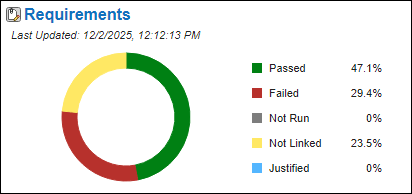
To view details about the verification status, open the requirement sets by clicking
Requirements. The ecgAppReq
requirement set opens in the Requirements Editor. To update the tracking and
status information for the requirements, in the banner, click Analyze now.

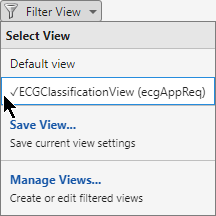
Apply the ECGClassificationView to the requirement set. In the
View section, click Filter
view and select ECGClassificationView
(ecgAppReq).
The Content column shows the requirement summary and description, and the Links column displays the requirement links. The Verified column shows the verification status of the requirements based on the test results of the linked tests.
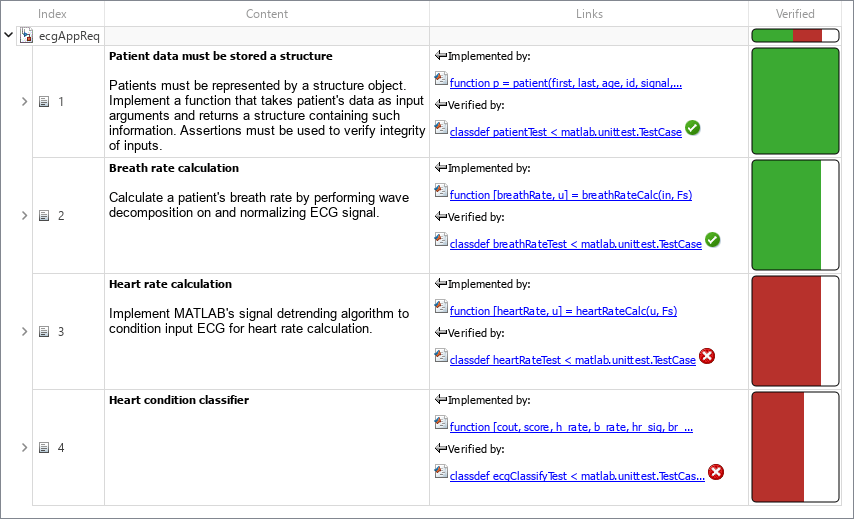
To show the child requirements, expand the parent requirements.
Identify Unlinked Requirements and Create Links
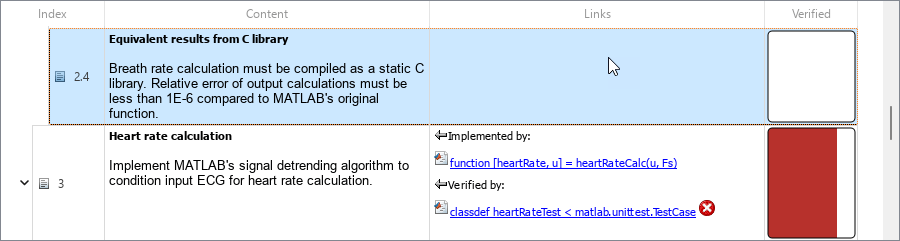
You can identify unlinked requirements when the Links column is empty. For example, requirement 2.4 is unlinked.
This requirement says that the heart rate calculation algorithm must be exported as a static C library, and specifies the required error tolerance between the result of executing the library and executing the MATLAB® code. The Links column for this row is empty, which indicates that the requirement is unlinked.
The breathRateEquivalenceTest.m test class implements and verifies this requirement. Open the file.
open("breathRateEquivalenceTest.m")The generateCode function in line 17 generates the static C library. Select the code in line 17.
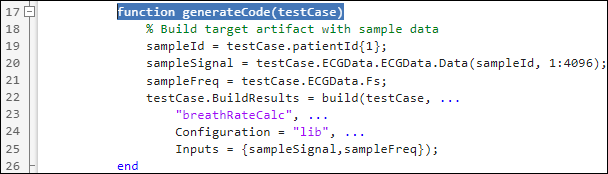
Create the implementation link. In the Requirements Editor, select requirement 2.4, then click Add Links > Link from Selection in MATLAB Editor. The Links column displays an Implementation link to the generateCode function.
The breathRateEquivalenceTest.m test class also tests the static C
library for equivalence with the MATLAB code. To link the requirement to the test, use the MATLAB Test
Manager to create the link:
In the Requirements Editor, select requirement 2.4.
In the Code Quality Dashboard, open the MATLAB Test Manager by clicking Tests.
Right-click
testsEquivalence/breathRateEquivalenceTest.mand select Requirements > Link to Selection in Requirements Browser.
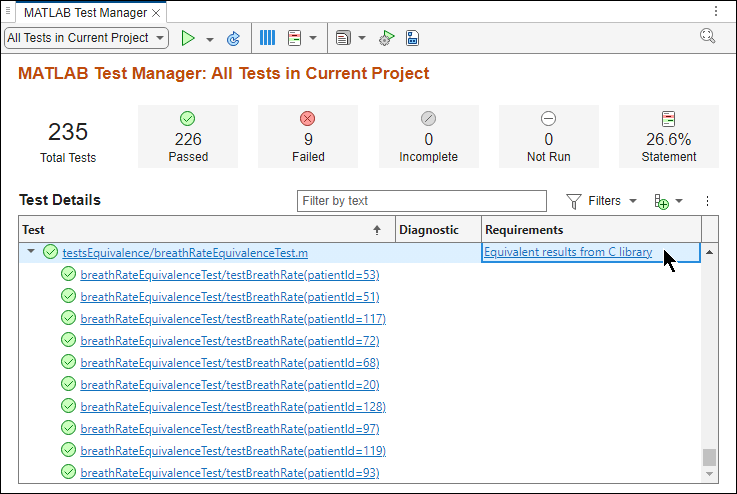
The Requirements column displays the link to requirement 2.4. Navigate to the requirement by clicking the hyperlink.

Because the breathRateEquivalenceTest class ran and passed, the Verified column is green, and the tooltip indicates that the requirement links to a test that passed.
See Also
Apps
- Code Quality Dashboard | MATLAB Test Manager | Requirements Editor (Requirements Toolbox)

