Bring Image Data into the MATLAB Workspace
R2026bOverview
The toolbox provides three ways to move frames from the memory buffer into the MATLAB® workspace:
Move Multiple Frames into the Workspace — Use the
getdatafunction to move a specified number of frames from the memory buffer into the workspace.View Frames in the Memory Buffer — Use the
peekdatafunction to bring the most recently acquired frames in the memory buffer into the workspace without removing them from the buffer.Bring a Single Frame into the Workspace — Use the
getsnapshotconvenience function to returns a single frame of data into the MATLAB workspace.
Move Multiple Frames into the Workspace
To move multiple frames of data from the memory buffer into the MATLAB workspace, use the getdata function. By default,
getdata retrieves the number of frames specified in the
FramesPerTrigger property, but you can specify any number.
Note
When the getdata function moves frames from the memory buffer
into the workspace, it removes the frames from the memory buffer.
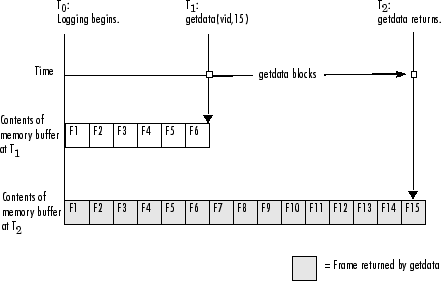
In this figure, getdata is called at T1 with
a request for 15 frames but only six frames are available in the memory buffer.
getdata blocks until the specified number of frames becomes
available, at T2, at which point getdata moves
the frames into the MATLAB workspace and returns control to the command prompt.
getdata Blocks Until Frames Become Available
Acquire 10 Seconds of Image Data
This example shows how you can configure an approximate time-based acquisition using
the FramesPerTrigger property:
Create an image acquisition object — This example creates a video input object for a Windows® image acquisition device. To run this example on your system, use the
imaqhwinfofunction to get the object constructor for your image acquisition device and substitute that syntax for the following code.vid = videoinput('winvideo',1);Configure properties — To acquire 10 seconds of data, determine the frame rate of your image acquisition device and then multiply the frame rate by the number of seconds of data you want to acquire. The product of this multiplication is the value of the
FramesPerTriggerproperty.For this example, assume a frame rate of 30 frames per second (fps). Multiplying 30 by 10, you need to set the
FramesPerTriggerproperty to the value 300.vid.FramesPerTrigger = 300;
Start the image acquisition object — Call the
startfunction to start the image acquisition object.start(vid)
The object executes an immediate trigger and begins acquiring frames of data. The
startfunction returns control to the command line immediately but the object continues logging the data to the memory buffer. After logging the specified number of frames, the object stops running.Bring the acquired data into the workspace — To verify that you acquired the amount of data you wanted, use the optional
getdatasyntax that returns the timestamp of every frame acquired. The difference between the first timestamp and the last timestamp should approximate the amount of data you expected.[data time] = getdata(vid,300); elapsed_time = time(300) - time(1)
10.0467
Clean up — When you no longer need them, always remove image acquisition objects and their variables from memory.
delete(vid)
clear vid
View Frames in the Memory Buffer
To view sample frames from the memory buffer without removing them, use the peekdata function.
The peekdata function always returns the most recently acquired
frames in the memory buffer. For example, if you request three frames,
peekdata returns the most recently acquired frame in the buffer at
the time of the request and the two frames that immediately precede it.
The following figure illustrates this process. The command
peekdata(vid,3) is called at three different times:
T1, T2, and T3. The
shaded frames indicate those returned by peekdata at each call.
peekdata returns frames without removing them from the memory
buffer.
Note in the figure that at T3, only two frames have become
available since the last call to peekdata. In this case,
peekdata returns only the two frames, with a warning that it returned
less data than was requested.
Frames Returned by peekdata

Note
The peekdata function does not return any data while running in
disk logging mode.
The following example shows how to use peekdata:
Create an image acquisition object — This example creates a video input object for a Data Translation® image acquisition device. To run this example on your system, use the
imaqhwinfofunction to get the object constructor for your image acquisition device and, substitute that syntax for the following code.vid = videoinput('dt',1);Configure properties — Configure a manual trigger. Use the
triggerconfigfunction to specify the trigger type.triggerconfig(vid,'manual')In addition, configure a large enough acquisition to allow several calls to
peekdatabefore it finishes.vid.FramesPerTrigger = 300;
Start the image acquisition object — Call the
startfunction to start the image acquisition object.start(vid)
The video object is now running, but not logging.
isrunning(vid)
ans =

     1
islogging(vid)
ans =

     0
Use
peekdatato view frames before a trigger — If you callpeekdatabefore you trigger the acquisition,peekdatacan return only a single frame of data because data logging has not been initiated and the memory buffer is empty. If more than one frame is requested,peekdataissues a warning that it is returning fewer than the requested number of frames.pdata = peekdata(vid,50);
Warning: PEEKDATA could not return all the frames requested.
Verify that
peekdatareturned a single frame. A single frame of data should have the same width and height as specified by theROIPositionproperty and the same number of bands, as specified by theNumberOfBandsproperty. In this example, the video format of the data is RGB so the value of theNumberOfBandsproperty is 3.whos
  Name        Size                   Bytes  Class

  pdata       96x128x3               36864  uint8 array
  vid          1x1                    1060  videoinput object
Verify that the object has not acquired any frames.
vid.FramesAcquired
ans =
	0
Trigger the acquisition — Call the
triggerfunction to trigger an acquisition.trigger(vid)
The object begins logging frames to the memory buffer.
View the most recently acquired frames — While the acquisition is in progress, call
peekdataseveral times to view the latest frames in the memory buffer. Depending on the number of frames you request, and the timing of these requests,peekdatamight return fewer than the number of frames you specify.pdata = peekdata(vid,50);
To verify that
peekdatareturned the frames you requested, check the dimensions ofpdata.peekdatareturns a 4-dimensional array of frames, where the last dimension indicates the number of frames returned.whos
  Name        Size                  Bytes   Class

  pdata       4-D                 1843200   uint8 array
  vid         1x1                    1060   videoinput object
size(pdata)
ans =

    96   128     3    50
Clean up — When you no longer need them, always remove image acquisition objects and their variables from memory.
delete(vid)
clear vid
Bring a Single Frame into the Workspace
To bring a single frame of image data into the MATLAB workspace, use the getsnapshot function. You can call the
getsnapshot function at any time after object creation.
This example illustrates how simple it is to use the getsnapshot
function.
Create an image acquisition object — This example creates a video input object for a Matrox® device. To run this example on your system, use the
imaqhwinfofunction to get the object constructor for your image acquisition device and substitute that syntax for the following code.vid = videoinput('matrox',1);Bring a frame into the workspace — Call the
getsnapshotfunction to bring a frame into the workspace. Note that you do not need to start the video input object before calling thegetsnapshotfunction.frame = getsnapshot(vid);
The
getsnapshotfunction returns an image of the same width and height as specified by theROIPositionproperty and the same number of bands as specified by theNumberOfBandsproperty. In this example, the video format of the data is RGB so the value of theNumberOfBandsproperty is 3.whos
  Name        Size                   Bytes  Class

  frame      96x128x3                36864  uint8 array
  vid         1x1                     1060  videoinput object
Note that the frame returned by
getsnapshotis not removed from the memory buffer, if frames are stored there, and does not affect the value of theFramesAvailableproperty.Clean up — Always remove image acquisition objects from memory, and the variables that reference them, when you no longer need them.
delete(vid)
clear vid
For an example using getsnapshot, see Acquire Single Image in Loop Using getsnapshot.
See Also
Functions
imaqhwinfo|getdata|peekdata|getsnapshot|start|triggerconfig|trigger

