주요 콘텐츠

stepplot

Plot step response of dynamic system

    Description

    The stepplot function plots the step response of a dynamic system model. To customize the plot, you can return a StepPlot object and modify it using dot notation. For more information, see Customize Linear Analysis Plots at Command Line.

    To obtain step response data, use the step function.

    stepplot(sys) plots the step response of the dynamic system model sys.

    If sys is a multi-input, multi-output (MIMO) model, then the stepplot function creates a grid of plots with each plot displaying the step response of one input-output pair.

    If sys is a model with complex coefficients, then the plot shows both the real and imaginary components of the response on a single axes and indicates the imaginary component with a diamond marker. You can also view the response using magnitude-phase and complex-plane plots. (since R2025a)

    example

    stepplot(sys1,sys2,...,sysN) plots the step response of multiple dynamic systems sys1,sys2,…,sysN on the same plot.

    example

    stepplot(sys1,LineSpec1,...,sysN,LineSpecN) sets the line style, marker type, and color for the step response of each specified system.

    stepplot(___,t) simulates the response for the time steps specified by t. You can use t with any of the input argument combinations in previous syntaxes. To define the time steps, you can specify:

    • The final simulation time using a scalar value

    • The initial and final simulation times using a two-element vector (since R2023b)

    • All the time steps using a vector

    example

    stepplot(___,t,p) also specifies the parameter trajectory p for LPV models. (since R2023a)

    stepplot(___,config) specifies additional options for computing the step response, such as the step amplitude (dU) or input offset (U). Use RespConfig to create config.

    example

    stepplot(___,plotoptions) plots the step response with the plotting options specified in plotoptions. Settings you specify in plotoptions override the plotting preferences for the current MATLAB® session. This syntax is useful when you want to write a script to generate multiple plots that look the same regardless of the local preferences.

    example

    stepplot(___,Name=Value) specifies response properties using one or more name-value arguments. For example, stepplot(sys,LineWidth=1) sets the plot line width to 1. (since R2026a)

    • When plotting responses for multiple systems, the specified name-value arguments apply to all responses.

    • The following name-value arguments override values specified in other input arguments.

      • TimeSpec — Overrides time values specified using t

      • Config — Overrides options specified using config

      • Parameter — Overrides parameter values specified using p

      • Color — Overrides colors specified using LineSpec

      • MarkerStyle — Overrides marker styles specified using LineSpec

      • LineStyle — Overrides line styles specified using LineSpec

    stepplot(parent,___) plots the step response in the specified parent graphics container, such as a Figure or TiledChartLayout, and sets the Parent property. Use this syntax when you want to create a plot in a specified open figure or when creating apps in App Designer.

    sp = stepplot(___) plots the step response and returns the corresponding chart object. To customize the appearance and behavior of the response plot, modify the chart object properties using dot notation.

    Examples

    collapse all

    For this example, use the plot handle to change the time units to minutes and turn on the grid.

    Generate a random state-space model with 5 states and create the step response plot with chart object sp.

    rng("default")
    sys = rss(5);
    sp = stepplot(sys);

    MATLAB figure

    Change the time units to minutes and turn on the grid. To do so, edit properties of the chart object.

    sp.TimeUnit = "minutes";
    grid on;

    MATLAB figure

    The step plot automatically updates when you modify the chart object.

    Alternatively, you can also use the timeoptions command to specify the required plot options. First, create an options set based on the toolbox preferences.

    plotoptions = timeoptions("cstprefs");

    Change properties of the options set by setting the time units to minutes and enabling the grid.

    plotoptions.TimeUnits = 'minutes';
    plotoptions.Grid = "on";
    stepplot(sys,plotoptions);

    MATLAB figure

    Depending on your own toolbox preferences, the plot you obtain might look different from this plot. Only the properties that you set explicitly, in this example TimeUnits and Grid, override the toolbox preferences.

    Generate a step response plot for two dynamic systems.

    sys1 = rss(3);
    sys2 = rss(3);
    sp = stepplot(sys1,sys2);

    MATLAB figure

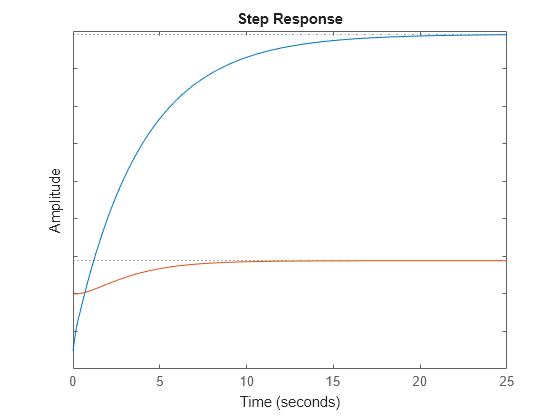
    Each step response settles at a different steady-state value. Use the plot handle to normalize the plotted response.

    sp.Normalize = "on";

    MATLAB figure

    Now, the responses settle at the same value expressed in arbitrary units.

    Compare the step response of a parametric identified model to a nonparametric (empirical) model, and view their 3-σ confidence regions. (Identified models require System Identification Toolbox™ software.)

    Identify a parametric and a nonparametric model from sample data.

    load iddata1 z1
    sys1 = ssest(z1,4); 
    sys2 = impulseest(z1);

    Plot the step responses of both identified models. Use the plot handle to display the 3-σ confidence regions.

    t = -1:0.1:5;
    sp = stepplot(sys1,'r',sys2,'b',t);
    showConfidence(sp,3)
    legend('parametric','nonparametric')

    MATLAB figure

    The nonparametric model sys2 shows higher uncertainty.

    For this example, examine the step response of the following zero-pole-gain model and limit the step plot to tFinal = 15 s. Use 15-point blue text for the title. This plot should look the same, regardless of the preferences of the MATLAB session in which it is generated.

    sys = zpk(-1,[-0.2+3j,-0.2-3j],1)*tf([1 1],[1 0.05]);
    tFinal = 15;

    First, create a default options set using timeoptions.

    plotoptions = timeoptions;

    Next change the required properties of the options set plotoptions.

    plotoptions.Title.FontSize = 15;
    plotoptions.Title.Color = [0 0 1];

    Now, create the step response plot using the options set plotoptions.

    h = stepplot(sys,tFinal,plotoptions);

    MATLAB figure

    Because plotoptions begins with a fixed set of options, the plot result is independent of the toolbox preferences of the MATLAB session.

    Load data for estimating a nonlinear Hammerstein-Wiener model.

    load twotankdata
    z = iddata(y,u,0.2,'Name','Two tank system');

    z is an iddata object that stores the input-output estimation data.

    Estimate a Hammerstein-Wiener Model of order [1 5 3] using the estimation data. Specify the input nonlinearity as piecewise linear and output nonlinearity as one-dimensional polynomial.

    sys = nlhw(z,[1 5 3],idPiecewiseLinear,idPolynomial1D);

    Create an option set to specify input offset and step amplitude level.

    opt = RespConfig(InputOffset=2,Amplitude=0.5);

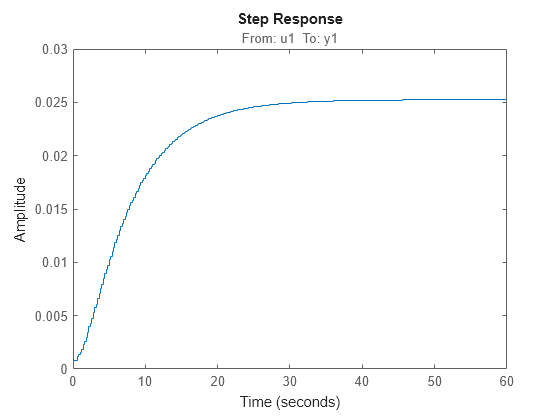
    Plot the step response until 60 seconds using the specified options.

    stepplot(sys,60,opt);

    MATLAB figure

    Since R2025a

    Create a state-space model with complex coefficients.

    A = [-2-2i -2;1 0];
    B = [2;0];
    C = [0 0.5+2.5i];
    D = 0;
    sys = ss(A,B,C,D);

    Plot the step response of the system.

    sp = stepplot(sys);

    MATLAB figure

    By default, the plot shows the real and imaginary components of the response on a single axes, indicating the imaginary component using a diamond marker.

    You can also view the complex response using either a magnitude-phase plot or a complex-plane plot. For example, to view the magnitude and phase of the response, right-click the plot area and select Complex View >Magnitude-Phase.

    Alternatively, you can set the ComplexViewType parameter of the corresponding chart object.

    sp.ComplexViewType = "magnitudephase";

    MATLAB figure

    The plot shows the magnitude and phase of the response on a single axes, indicating the phase plot using a diamond marker.

    You can view response characteristics in the plot. For example, to view the peak response, right-click the plot and select Characteristics > Peak Response.

    Alternatively, you can enable the Visible property of the corresponding characteristic parameter of the chart object.

    sp.Characteristics.PeakResponse.Visible = "on";

    MATLAB figure

    For complex responses, rise time is computed based on the projection of the response onto the ray that connects the initial output value to the final output value. To view this projection, show the response on the complex plane and enable the rise-time characteristic. For clarity, remove the peak response display.

    sp.ComplexViewType = "complexplane";
    sp.Characteristics.RiseTime.Visible = "on";
    sp.Characteristics.PeakResponse.Visible = "off";

    MATLAB figure

    Input Arguments

    collapse all

    Dynamic system, specified as a SISO or MIMO dynamic system model or an array of dynamic system models. You can use these types of dynamic systems:

    • Continuous-time or discrete-time numeric LTI models, such as tf, zpk, or ss models.

    • Generalized or uncertain LTI models such as genss or uss models. (Using uncertain models requires Robust Control Toolbox™ software.)

      • For tunable control design blocks, the function evaluates the model at its current value for both plotting and returning response data.

      • For uncertain control design blocks, the function plots the nominal value and random samples of the model. When you use output arguments, the function returns response data for the nominal model only.

    • Sparse state-space models such as sparss and mechss models.

    • Identified LTI models, such as idtf, idss, or idproc models. For such models, the function can also plot confidence intervals and return standard deviations of the frequency response. See Step Responses of Identified Models with Confidence Regions. (Using identified models requires System Identification Toolbox™ software.)

    • Linear time-varying (ltvss) and linear parameter-varying (lpvss) models.

    This function does not support frequency-response data models such as frd, genfrd, or idfrd models.

    If sys is an array of models, the function plots the responses of all models in the array on the same axes. See Step Response of Systems in a Model Array.

    Line style, marker, and color, specified as a string or character vector containing symbols. The symbols can appear in any order. You do not need to specify all three characteristics. For example, specify the marker and omit the line style, then the plot shows only the marker and no line.

    Example: '--or' is a red dashed line with circle markers.

    Line StyleDescription
    "-"Solid line
    "--"Dashed line
    ":"Dotted line
    "-."Dash-dotted line
    MarkerDescription
    "o"Circle
    "+"Plus sign
    "*"Asterisk
    "."Point
    "x"Cross
    "_"Horizontal line
    "|"Vertical line
    "s"Square
    "d"Diamond
    "^"Upward-pointing triangle
    "v"Downward-pointing triangle
    ">"Right-pointing triangle
    "<"Left-pointing triangle
    "p"Pentagram
    "h"Hexagram
    ColorDescription
    "r"red
    "g"green
    "b"blue
    "c"cyan
    "m"magenta
    "y"yellow
    "k"black
    "w"white

    Time steps at which to compute the response, specified as one of these values:

    • Positive scalar tFinal— Compute the response from t = 0 to t = tFinal.

    • Two-element vector [t0 tFinal] — Compute the response from t = t0 to t = tFinal. (since R2023b)

    • Vector Ti:dt:Tf— Compute the response for the time points specified in t.

      • For continuous-time systems, dt is the sample time of a discrete approximation to the continuous system.

      • For discrete-time systems with a specified sample time, dt must match the sample time property Ts of sys.

      • For discrete-time systems with an unspecified sample time (Ts = -1), dt must be 1.

    • [] — Automatically select time values based on system dynamics.

    When you specify a time range using either tFinal or [t0 tFinal]:

    • For continuous-time systems, the function automatically determines the size of the time step and number of points based on the system dynamics.

    • For discrete-time systems with a specified sample time, the function uses the sample time of sys as the step size.

    • For discrete-time systems with unspecified sample time (Ts = -1), the function interprets tFinal as the number of sampling periods to simulate with a sample time of 1 second.

    Express t using the time units specified in the TimeUnit property of sys.

    If you specify a step delay td using config, the function applies the step at t = t0+td.

    Before R2026a: Specify time values using the Responses.SourceData.TimeSpec property.

    LPV model parameter trajectory, specified as a matrix or a function handle.

    • For exogenous or explicit trajectories, specify p as a matrix with dimensions N-by-Np, where N is the number of time samples and Np is the number of parameters.

      Thus, the row vector p(i,:) contains the parameter values at the ith time step.

    • For endogenous or implicit trajectories, specify p as a function handle of the form p = F(t,x,u) in continuous time and p = F(k,x,u) in discrete time that gives parameters as a function of time t or time sample k, state x, and input u.

      This option is useful when you want to simulate quasi-LPV models.

    Response configuration of the applied signal, specified as a RespConfig object. By default, step applies an input that goes from 0 to 1 at time t = 0. Use this input argument to change the configuration of the step input. See Response to Custom Step Input for an example.

    For lpvss and ltvss models with offsets (x0(t),u0(t)), you can use a RespConfig object to define the input relative to u0(t,p) and initialize the simulation with the state x0(t,p).

    Time response plot options, specified as a timeoptions object. You can use these options to customize the plot appearance. Settings you specify in plotoptions override the preference settings for the current MATLAB session.

    Parent graphics container, specified as one of these objects:

    • Figure

    • TiledChartLayout

    • UIFigure

    • UIGridLayout

    • UIPanel

    • UITab

    Name-Value Arguments

    collapse all

    Specify optional pairs of arguments as Name1=Value1,...,NameN=ValueN, where Name is the argument name and Value is the corresponding value. Name-value arguments must appear after other arguments, but the order of the pairs does not matter.

    Example: steplot(sys,LegendDisplay="off") hides the response of sys from the plot legend.

    Time steps at which to compute the response, specified as one of these values. Specifying time values using a name-value argument overrides the time values that you specify using t.

    • Positive scalar tFinal— Compute the response from t = 0 to t = tFinal.

    • Two-element vector [t0 tFinal] — Compute the response from t = t0 to t = tFinal.

    • Vector Ti:dt:Tf— Compute the response for the time points specified in t.

      • For continuous-time systems, dt is the sample time of a discrete approximation to the continuous system.

      • For discrete-time systems with a specified sample time, dt must match the sample time property Ts of sys.

      • For discrete-time systems with an unspecified sample time (Ts = -1), dt must be 1.

    • [] — Automatically select time values based on system dynamics.

    When you specify a time range using either tFinal or [t0 tFinal]:

    • For continuous-time systems, the function automatically determines the size of the time step and number of points based on the system dynamics.

    • For discrete-time systems with a specified sample time, the function uses the sample time of sys as the step size.

    • For discrete-time systems with unspecified sample time (Ts = -1), the function interprets tFinal as the number of sampling periods to simulate with a sample time of 1 second.

    Express TimeSpec using the time units specified in the TimeUnit property of sys.

    If you specify a step delay td using config, the function applies the step at t = t0+td.

    Response configuration options, specified as a RespConfig object.

    Specifying response configuration options using a name-value argument overrides the options that you specify using config.

    LPV model parameter trajectory, specified as a matrix or a function handle. Specifying parameter values using a name-value argument overrides the parameter values that you specify using p.

    • For exogenous or explicit trajectories, specify Parameter as a matrix with dimensions N-by-Np, where N is the number of time samples and Np is the number of parameters.

      Thus, the row vector Parameter(i,:) contains the parameter values at the ith time step.

    • For endogenous or implicit trajectories, specify Parameter as a function handle of the form p = F(t,x,u) in continuous time and p = F(k,x,u) in discrete time that gives parameters as a function of time t or time sample k, state x, and input u.

      This option is useful when you want to simulate quasi-LPV models.

    Response name, specified as a string or character vector and stored as a string.

    Response visibility, specified as one of these logical on/off values:

    • "on", 1, or true — Display the response in the plot.

    • "off", 0, or false — Do not display the response in the plot.

    The value is stored as an on/off logical value of type matlab.lang.OnOffSwitchState.

    Option to list the response in the legend, specified as one of these logical on/off values:

    • "on", 1, or true — List the response in the legend.

    • "off", 0, or false — Do not list the response in the legend.

    The value is stored as an on/off logical value of type matlab.lang.OnOffSwitchState.

    Marker style, specified as one of these values. Specifying a marker style using a name-value argument overrides any marker style that you specify using LineSpec.

    MarkerDescription
    "none"No marker
    "o"Circle
    "+"Plus sign
    "*"Asterisk
    "."Point
    "x"Cross
    "_"Horizontal line
    "|"Vertical line
    "s"Square
    "d"Diamond
    "^"Upward-pointing triangle
    "v"Downward-pointing triangle
    ">"Right-pointing triangle
    "<"Left-pointing triangle
    "p"Pentagram
    "h"Hexagram

    Plot color, specified as an RGB triplet or a hexadecimal color code and stored as an RGB triplet. Specifying a color using a name-value argument overrides any color that you specify using LineSpec.

    You can also specify some common colors by name. This table lists these colors and their corresponding RGB triplets and hexadecimal color codes.

    Color NameRGB TripletHexadecimal Color Code

    "red" or "r"

    [1 0 0]#FF0000

    "green" or "g"

    [0 1 0]#00FF00

    "blue" or "b"

    [0 0 1]#0000FF

    "cyan" or "c"

    [0 1 1]#00FFFF

    "magenta" or "m"

    [1 0 1]#FF00FF

    "yellow" or "y"

    [1 1 0]#FFFF00

    "black" or "k"

    [0 0 0]#000000

    "white" or "w"

    [1 1 1]#FFFFFF

    Line style, specified as one of these values. Specifying a line style using a name-value argument overrides any line style that you specify using LineSpec.

    Line StyleDescription
    "-"Solid line
    "--"Dashed line
    ":"Dotted line
    "-."Dash-dotted line
    "none"No line

    Marker size, specified as a positive scalar.

    Line width, specified as a positive scalar.

    Series index, specified as a positive integer or "none".

    By default, the SeriesIndex property is a number that corresponds to the order in which the response was added to the chart, starting at 1. MATLAB uses the number to calculate indices for automatically assigning color, line style, or markers for responses. Any responses in the chart that have the same SeriesIndex number also have the same color, line style, and markers.

    A SeriesIndex value of "none" indicates that a response does not participate in the indexing scheme.

    Output Arguments

    collapse all

    Chart object, returned as a StepPlot object. To customize your plot appearance and behavior, modify the properties of this object using dot notation. For more information, see StepPlot Properties.

    Version History

    Introduced before R2006a

    expand all