Accelerate Pixel-Streaming Designs Using MATLAB Coder
R2026bThis example shows how to accelerate a pixel-stream video processing algorithm in MATLAB® by using MATLAB Coder™.
You must have a MATLAB Coder and HDL Coder license to run this example.
Acceleration with MATLAB Coder enables you to simulate large frame sizes, such as 1080p video, at practical speeds. Use this acceleration workflow after you have debugged the algorithm using a small frame size. The Pixel-Streaming Design in MATLAB example shows how to test a design with a small image.
How MATLAB Coder Works
MATLAB Coder generates C code from MATLAB code. Code generation accelerates simulation by locking the sizes and data types of variables. This process removes the overhead of the interpreted language checking for size and data type in every line of code. This example compiles the test bench file DesignAccelerationHDLTestBench.m and the design file DesignAccelerationHDLDesign.m into a MEX function, and uses the resulting MEX file to speed up the simulation.
The directive (or pragma) %#codegen beneath the function signature indicates that you intend to generate code for the MATLAB algorithm. Adding this directive instructs the MATLAB code analyzer to help you diagnose and fix violations that would result in errors during code generation. The directive %#codegen does not affect interpreted simulation.
Best Practices
Debugging simulations with large frame sizes is impractical in interpreted mode due to long simulation time. However, debugging a MEX simulation is challenging due to lack of debug access into the code.
To avoid these scenarios, a best practice is to develop and verify the algorithm and test bench using a thumbnail frame size. In most cases, the HDL-targeted design has no dependence on frame size. After you verify that the design and test bench work correctly, increase the frame size in the test bench, and use MATLAB Coder to accelerate the simulation. Increasing the frame size in the test bench requires only minor changes, as you can see by comparing DesignAccelerationHDLTestBench.m with the PixelStreamingDesignHDLTestBench.m file from Pixel-Streaming Design in MATLAB.
Test Bench
In the test bench DesignAccelerationHDLTestBench.m, the videoIn object reads each frame from a video source. The code converts the frame from RGB to grayscale, and uses the imresize function to resize the frame from 240p to 1080p. The frm2pix object converts the 1080p image frame to a stream of pixels and control structures. The test bench then calls the design under test (DUT) function DesignAccelerationHDLDesign to process one pixel (and its associated control structure) at a time. After processing the entire pixel-stream and collecting the output stream, the pix2frm object converts the output stream to full-frame video. The DesignAccelerationHDLViewer function displays the output image and original image side-by-side.
These lines from DesignAccelerationHDLTestBench.m implement the steps described above.
for f = 1:numFrm
    frmFull = rgb2gray(readFrame(videoIn));            % Get a new frame
    frmIn = imresize(frmFull,[actLine actPixPerLine]); % Enlarge the frame
     [pixInVec,ctrlInVec] = frm2pix(frmIn);
     for p = 1:numPixPerFrm
         [pixOutVec(p),ctrlOutVec(p)] = DesignAccelerationHDLDesign(pixInVec(p),ctrlInVec(p));
     end
     frmOut = pix2frm(pixOutVec,ctrlOutVec);
DesignAccelerationHDLViewer(actPixPerLine,actLine,[frmIn uint8(255*frmOut)]); end
The data type of frmIn is uint8, and the data type of frmOut, the edge detection output, is logical. Matrices of different data types cannot be concatenated, so uint8(255*frmOut) maps false and true values to uint8(0) and uint8(255), respectively.
The code converts between full-frame and pixel-stream domains by using the frm2pix and pix2frm objects. The inner for-loop performs pixel-stream processing. The rest of the test bench performs full-frame processing (that is, videoIn, scaler, and viewer inside the DesignAccelerationHDLViewer function).
The test bench displays the frame rate to show the simulation speed.
Not all functions used in the test bench support C code generation. For those that do not, such as tic, toc, and fprintf, use coder.extrinsic to declare them as extrinsic functions. Extrinsic functions are excluded from MEX generation. The simulation executes them in the regular interpreted mode.
Pixel-Stream Design
The function defined in DesignAccelerationHDLDesign.m accepts a pixel stream and associated control signals, and returns a modified pixel stream and control signals. For more information on the streaming pixel protocol used by System objects from the Vision HDL Toolbox™, see Streaming Pixel Interface.
In this example, the function contains an edge detector System object.
The focus of this example is the workflow, not the algorithm design. So, the design code is simple. After you are familiar with the workflow, you can implement advanced video algorithms by using the System objects from Vision HDL Toolbox.
Create MEX File and Simulate the Design
Generate and execute the MEX file.
codegen('DesignAccelerationHDLTestBench');
DesignAccelerationHDLTestBench_mex;
Code generation successful.

10 frames have been processed in 3.77 seconds.
Average frame rate is 2.66 frames/second.
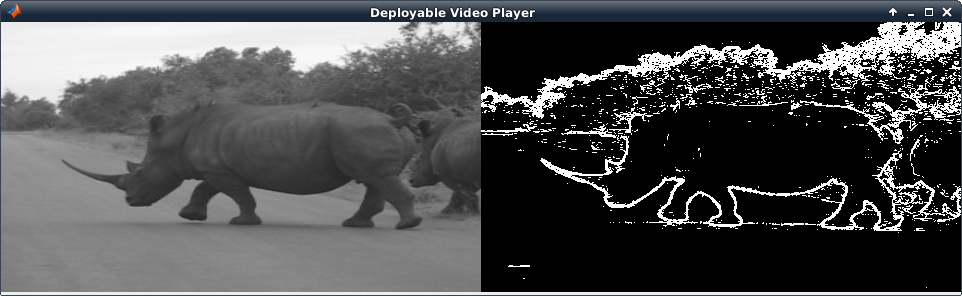
The viewer displays the original video on the left, and the output on the right.
HDL Code Generation
To generate HDL code for this design, use the HDL Workflow Advisor.
In the MATLAB Editor, on the Apps tab, select HDL Coder. Create a project and set MATLAB Function to
EnhancedEdgeDetectionHDLDesign.mand MATLAB Test Bench toEnhancedEdgeDetectionHDLTestBench.m.Right-click the HDL Code Generation task and select Run to selected task.
After code generation completes, the report opens. Examine the generated HDL code in the report.
For the full workflow, see Generate HDL Code from MATLAB Algorithms (HDL Coder).

