Analyze Code and Perform Software-in-the-Loop Testing
R2026bYou can analyze your code to detect errors, check for standards compliance, and evaluate key metrics such as length and cyclomatic complexity. When you create your own code, you typically check for run-time errors by using static code analysis and run test cases that evaluate the code against requirements and evaluate code coverage. Based on the results, you refine the code and add tests.
In this example, you generate code and demonstrate that the code execution produces equivalent results to the model by using the same test cases and baseline results. Then you compare the code coverage to the model coverage. Based on the test results, you add tests and modify the model to regenerate the code.
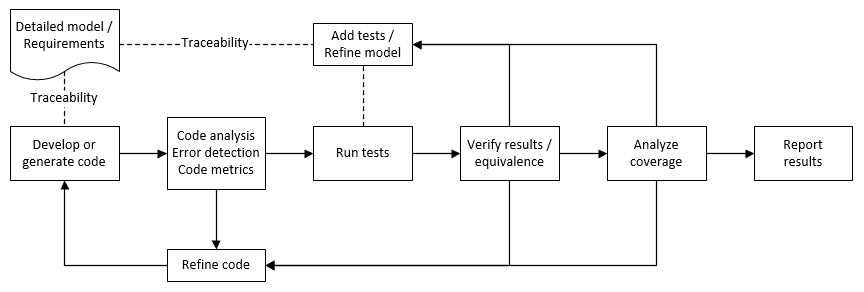
Analyze Code for Defects, Metrics, and MISRA C:2012
First, check that the model produces MISRA™ C:2012 compliant code and analyze the generated code for code metrics and defects. To produce code compliant with MISRA, you use the Code Generation Advisor and Model Advisor. To check whether the code is MISRA compliant, you use the Polyspace® MISRA C:2012 checker.
Open the example project.
openExample("shared_vnv/CruiseControlVerificationProjectExample");
pr = openProject("SimulinkVerificationCruise");
Open the
simulinkCruiseErrorAndStandardsExamplemodel.open_system("simulinkCruiseErrorAndStandardsExample");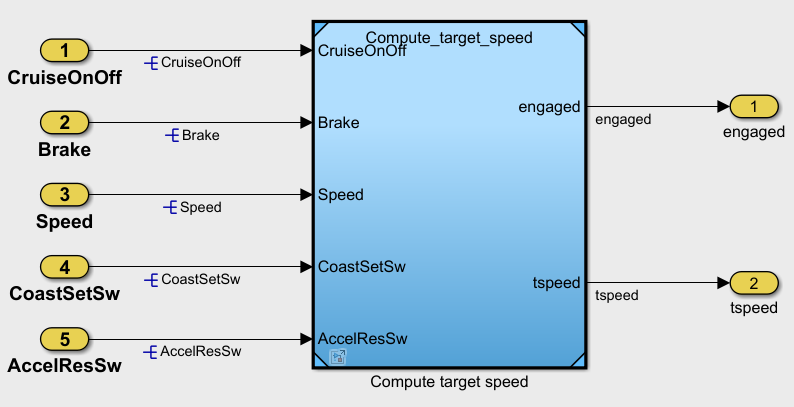
The
simulinkCruiseErrorAndStandardsExamplemodel contains an instance of thecomputeTargetSpeedmodel. Open thecomputeTargetSpeedmodel.open_system("computeTargetSpeed");
Run Code Generator Checks
Check the model by using the Code Generation Advisor. Configure the code generation parameters to generate code more compliant with MISRA C and more compatible with Polyspace.
Open the Embedded Coder® app. In the Apps tab, click Embedded Coder.
In the C Code tab, click C/C++ Code Advisor.
In the left pane, expand the Code Generation Advisor folder. In the right pane, under Available objectives select
Polyspaceand click the right arrow. TheMISRA C:2023 guidelinesobjective is already selected. MISRA C:2023 guidelines maintain compliance with MISRA C:2012.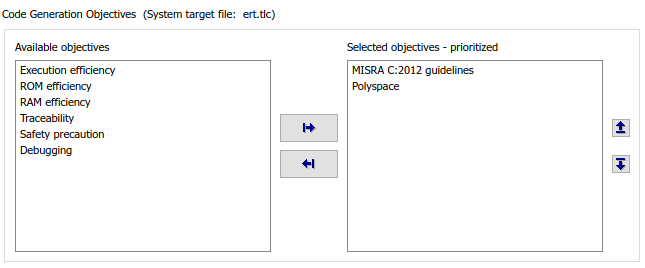
Click Run Selected Checks.
The Code Generation Advisor checks whether the model includes blocks or configuration settings that are not recommended for MISRA C:2012 compliance and Polyspace code analysis. For this model, the check for incompatible blocks passes, but some configuration settings are incompatible with MISRA compliance and Polyspace checking.

Click Check model configuration settings against code generation objectives. Accept the parameter changes by clicking Modify Parameters.
To rerun the check, click Run This Check.
Accept any additional parameter changes by clicking Modify Parameters, and rerun failed checks.
Run Model Advisor Checks
Before you generate code from your model, use the Model Advisor to check your model for MISRA C and Polyspace compliance.
At the bottom of the Code Generation Advisor window, click Model Advisor.
In the Model Advisor, under the By Task folder, select Modeling Standards for MISRA C:2023. Clear the High-Integrity Systems option.
Click Run and review the results.
If any of the tasks fail, make the suggested modifications and rerun the checks until the MISRA modeling guidelines pass.
Generate and Analyze Code
After you check the model for compliance, you can generate the code. After you generate the code, you can use Polyspace to check the code for compliance with MISRA C:2012 and generate reports to demonstrate compliance with MISRA C:2012.
In the Simulink® model, click Generate Code.
After the code generates, in the Simulink Editor, right-click the model and point to Select Apps. Then, click Polyspace Code Verifier button
 .
.In the Polyspace app section, click Settings > Project Settings.
In the Configuration tab of the Polyspace Platform window, select Static Analysis.
In the left pane, select Defects and Coding Standards.
Select Use custom checkers file.
In the Checkers Selection dialog, in the left pane, select MISRA C:2012. Then, select Mandatory and Required. Click Save Changes, enter a name for the file and click Save.
Select Use generated code requirements for MISRA C:2012.
Save and close the Polyspace window.

In the model, right-click and, in the Polyspace Code Prover section, select Find Bugs in Model Code and click the Run Polyspace Analysis for This Model icon.
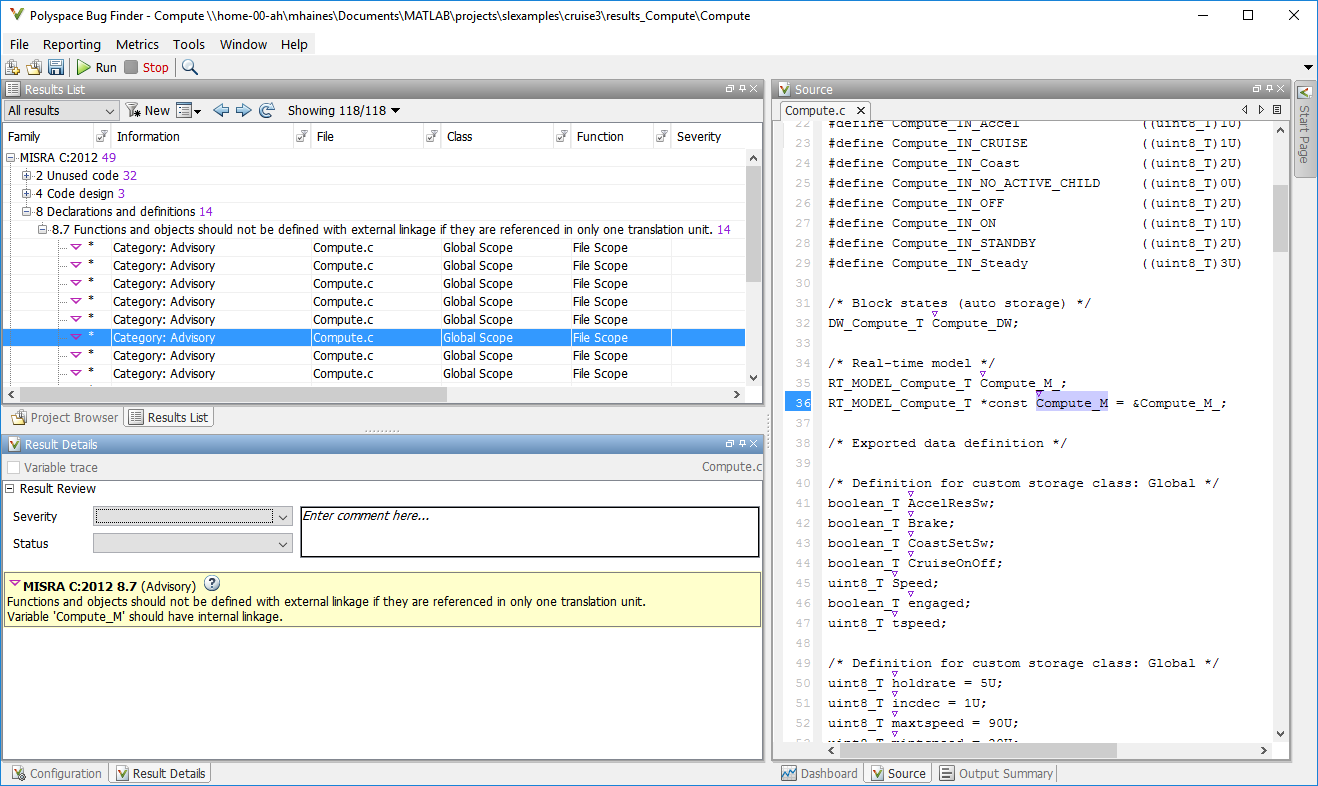
Polyspace Bug Finder™ analyzes the generated code for a subset of MISRA checks. You can see the progress of the analysis in the MATLAB® Command Window. After the analysis finishes, the Polyspace environment opens.
Review Results
The Polyspace environment shows you the results of the static code analysis. For
example, scroll through the results list and select a result for check 8.7. Rule 8.7
states that functions and objects should not be global if the function or object is
local. These results refer to variables that other components also use, such as
CruiseOnOff. You can annotate your code or your model to
justify every result.
To configure the analysis to check only a subset of MISRA rules:
In your model, click Settings > Polyspace Settings. Set Settings from to
Project configuration.Click Settings > Project Settings.
In the Polyspace Platform, in the Configuration tab, select Static Analysis.
In the left pane, select Defects and Coding Standards.
In the Checkers Selection dialog, in the left pane, select MISRA C:2012. Clear Mandatory and Required, and select Single Unit. Click Save Changes. Now Polyspace checks only the MISRA C:2012 rules that are applicable to a single unit.
Rerun the analysis with the new configuration. Review the results of the single-unit checks.
Generate Report
To demonstrate compliance with MISRA C:2012 and report on your generated code metrics, you must export your
results. If you want to generate a report every time you run an analysis, see Generate report (Polyspace Bug Finder).
If they are not open already, open your results in the Polyspace environment.
From the toolbar, select Report > Run Report.
Select BugFinderSummary as your report type.
Click Run Report. The report is saved in the same folder as your results.
To open the report, select Report > Open Report.
Test Code Against Model Using Software-in-the-Loop Testing
Next, run the same test cases on the generated code to show that the code produces the equivalent results to the original model and fulfills the requirements. Then compare the code coverage to the model coverage to see the extent to which the tests exercised the generated code.
In MATLAB, in the Project pane, in the
testsfolder, openSILTests.mldatx. The file opens in the Test Manager.Review the test case. In the Test Browser pane, click
SIL Equivalence Test Case. This equivalence test case runs two simulations for thesimulinkCruiseErrorAndStandardsExamplemodel using a test harness:Simulation 1 is a model simulation in normal mode.
Simulation 2 is a software-in-the-loop (SIL) simulation. For the SIL simulation, the test case runs the code generated from the model instead of running the model.
The equivalence test logs one output signal and compares the results from the simulations. The test case also collects coverage measurements for both simulations.
To run the equivalence test, select the test case and click Run.
Review the results in the Test Manager. In the Results and Artifacts pane, select SIL Equivalence Test Case. The test case passes and the code produces the same results as the model for this test case.

In the right pane, expand the Coverage Results section. The coverage measurements show the extent to which the test case exercises the model and the code.
When you run multiple test cases, you can view aggregated coverage measurements in the results for the whole run. Use the coverage results to add tests and meet coverage requirements, as shown in Perform Functional Testing and Analyze Test Coverage (Simulink Check).
You can also test the generated code on your target hardware by running a processor-in-the-loop (PIL) simulation. By adding a PIL simulation to your test cases, you can compare the test results and coverage results from your model to the results from the generated code as it runs on the target hardware. For more information, see Code Verification Through Software-in-the-Loop and Processor-in-the-Loop Execution (Embedded Coder).

