CSV File Format for Simulation Data
R2026bThe Simulation Data Inspector uses a structured CSV file format to import and export simulation data. The format supports:
Multiple data types, including enumerations, fixed-point data, complex signals, and multidimensional signals
Signal metadata, including units, data types, block paths, and interpolation method
Bus hierarchies and multiple runs in a single file
To import a CSV file into the Simulation Data Inspector, use the import dialog box or
Simulink.sdi.createRun. For more
information, see Import Data from Workspace or File into Simulation Data Inspector.
Tip
To import a CSV file that does not follow the format described on this page, write a
custom file reader using the io.reader
class.
To export data to a CSV file, use Simulink.sdi.exportRun, or the export function on a
Simulink.sdi.RunSimulink.sdi.Signal
Data Format
The first row of the CSV file contains column headers with signal names. A
time column precedes the signal data columns it applies to. Time
values must increase monotonically. Empty or NaN signal values are
interpreted as missing data.
By default, signals that have identical time data share a single time column. When
signals have different time vectors, the file includes additional time columns. Each
time column is named time and defines the sample times for the signal
columns to its right, up to the next time column. Signal columns must have the same
number of data points as the associated time vector. To give each signal its own time
column when exporting, in the export options, select Individual time
columns.
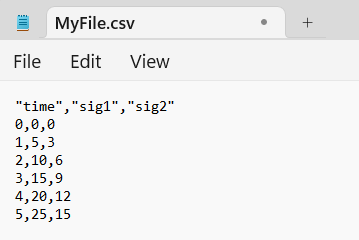
When an imported file does not specify signal metadata, the Simulation Data Inspector
assumes double data type and linear interpolation.
If the file omits some channels of a multidimensional signal, the Simulation Data
Inspector creates the missing channels with zero values.
For variable-size signals, each dimension channel occupies a separate column. Rows
where the signal size is smaller than the maximum are padded with
NaN.
Metadata
Metadata rows appear between the header row and the data rows. Specify signal metadata
using a Label: Value format. Each metadata property occupies its own
row across all columns. If a metadata property does not apply to a column, leave that
cell empty.
| Signal Property | Label | Value | Support |
|---|---|---|---|
| Data type | Type | Built-in data type, such as For multidimensional and complex signals, specify the data type on the first channel of the signal. | Import and export |
| Stored units | Unit | Supported unit, such as For
a list of supported units, enter | Import and export |
| Interpolation method | Interp | linear, zoh (zero-order hold),
or none. | Import and export |
| Block path | BlockPath | Path to the source block. | Import and export |
| Port index | PortIndex | Integer. | Import and export |
| Synchronization method (since R2026b) | Sync | union or intersection. The
default is union. | Import only |
| Relative tolerance (since R2026b) | RelTol | Percentage value in decimal format. For example,
0.1 represents 10% relative tolerance. | Import only |
| Absolute tolerance (since R2026b) | AbsTol | Numeric value. | Import only |
| Time tolerance (since R2026b) | TimeTol | Numeric value in seconds. When set, LeadingTol and
LaggingTol use the same value unless explicitly
overridden. | Import only |
| Leading tolerance (since R2026b) | LeadingTol | Numeric value in seconds. | Import only |
| Lagging tolerance (since R2026b) | LaggingTol | Numeric value in seconds. | Import only |
| Signal name (since R2026b) | Name | Signal name that overrides the column header. When specified, the Simulation Data Inspector uses this value as the signal name instead of the column header. | Import only |
| Simulation number (since R2026b) | Simulation | Integer that groups signals into a run. | Import and export |
| Source type (since R2026b) | Source | input or output. When set,
subdivides a simulation into separate runs. | Import only |
| Domain (since R2026b) | Domain | param or outport. When set to
param, parameter values import as signals with
Domain="Parameters". The value
outport is the default and imports signals with
Domain="Signals". | Import and export |
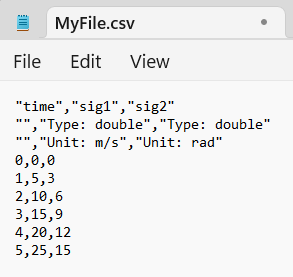
For example, this CSV file contains data for two signals, sig1 and
sig2. Both signals share the same double data
type, but sig1 has units of m/s, while sig2 is in
radians.
User-Defined Data Types
Since R2026b
In addition to built-in data types, you can specify user-defined data types using these metadata labels.
| Data Type | Label | Value |
|---|---|---|
| Enumeration | Enum | Name of the enumeration class. The class definition must be on the MATLAB path. |
| Alias (since R2026b) | Alias | Name of a |
| Fixed-point (since R2026b) | Fixdt | The value can be:
|
| Bus (since R2026b) | Bus | Name of a |
To programmatically resolve user-defined data types during import, use the
model name-value argument of Simulink.sdi.createRun to specify a model that contains the type
definitions. When a type definition is not available, the Simulation Data Inspector
imports the data using the type information available in the file.
Signal Naming Conventions
How signal names appear in column headers depends on the signal type.
| Signal Type | Format | Example |
|---|---|---|
| Scalar signal | Signal name | mySignal |
| Complex signal | Signal name with (real) and
(imag) suffixes | mySignal(real),
mySignal(imag) |
| Multidimensional signal | Signal name with index in parentheses | mySignal(1),
mySignal(2) |
| Complex multidimensional signal | Signal name with channel index followed by real or imaginary suffix | S1(1,3)(real),
S1(1,3)(imag) |
| Bus | Dot-separated hierarchy. The Simulation Data Inspector does not support exporting arrays of buses. | Bus.SubBus.Signal |
Multiple Runs
Since R2026b
A single CSV file can contain data for multiple runs.
When you import data from a CSV file, use the Simulation metadata
label to assign signals to a run by simulation number. For each simulation, you can also
use the Source label to identify signal data as
input or output. The Simulation Data Inspector
creates a separate run for each unique combination of simulation number and source type.
You need to specify the Simulation or Source
metadata only on the first signal in each run. Subsequent signals inherit those values
until a new simulation number or source type appears.
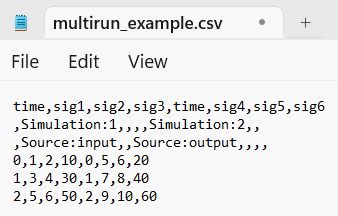
For example, this CSV file defines data for two simulations. The first simulation uses Source labels to separate input and output signals into different runs. The Simulation Data Inspector imports the data as three runs:
sig1andsig2from the first simulation inputsig3from the first simulation outputsig4,sig5, andsig6from the second simulation
When you export multiple runs to a CSV file, the Simulation Data Inspector
automatically includes the Simulation label to preserve the run
grouping.
Function-Call Signals
Since R2026b
Function-call signals represent events that trigger subsystem execution at specific times. To import function-call data, place signal columns before the first time column in the CSV file. Each value in the column specifies a time at which the function call was enabled. The imported signal has a value of 1 at the specified times. Time values for function-call signals must be double, scalar, real, and monotonically increasing.
When exported, function-call signals appear as standard time-based signals with a value of 1 at each trigger time.

