이 페이지는 기계 번역을 사용하여 번역되었습니다. 영어 원문을 보려면 여기를 클릭하십시오.
Image Acquisition Toolbox에서 Kinect for Windows V1 사용
R2026b이 예제는 Image Acquisition Toolbox™를 사용하여 Kinect for Windows® V1 센서에서 제공되는 데이터를 가져오는 방법을 보여줍니다:
유틸리티 함수
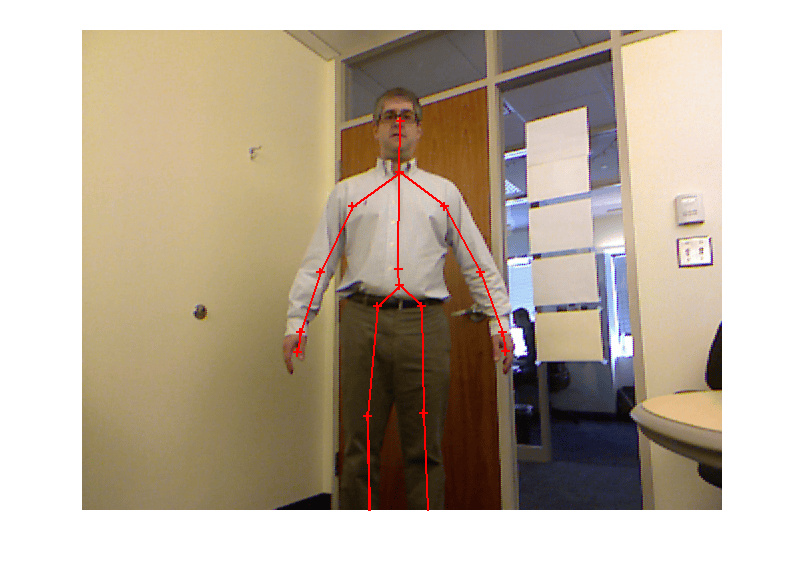
이 예제를 최대한 간단하게 유지하기 위해, Kinect for Windows 메타데이터를 다루는 데 필요한 몇 가지 유틸리티 함수가 만들어졌습니다. 이러한 유틸리티 함수에는 골격 데이터, 컬러 이미지 및 골격 개수를 입력으로 받고 컬러 이미지에 골격을 오버레이하여 표시하는 skeletalViewer 함수가 포함되어 있습니다.
사용 가능한 Kinect for Windows 장치 및 형식을 확인해 보십시오
Kinect for Windows에는 컬러 센서와 깊이 센서, 두 가지 센서가 있습니다. 이러한 각 장치에서 독립적으로 데이터를 수집할 수 있도록 하기 위해, Image Acquisition Toolbox에서는 이 두 장치를 서로 독립적인 장치로 취급합니다. 즉, 색상 및 깊이(IR) 장치 각각에 대해 별도의 VIDEOINPUT 객체를 생성해야 합니다.
% The Kinect for Windows Sensor shows up as two separate devices in IMAQHWINFO.
hwInfo = imaqhwinfo('kinect')
hwInfo =

       AdaptorDllName: [1x68 char]
    AdaptorDllVersion: '4.5 (R2013a Prerelease)'
          AdaptorName: 'kinect'
            DeviceIDs: {[1]  [2]}
           DeviceInfo: [1x2 struct]
hwInfo.DeviceInfo(1)
ans =

             DefaultFormat: 'RGB_640x480'
       DeviceFileSupported: 0
                DeviceName: 'Kinect Color Sensor'
                  DeviceID: 1
     VideoInputConstructor: 'videoinput('kinect', 1)'
    VideoDeviceConstructor: 'imaq.VideoDevice('kinect', 1)'
          SupportedFormats: {1x7 cell}
hwInfo.DeviceInfo(2)
ans =

             DefaultFormat: 'Depth_640x480'
       DeviceFileSupported: 0
                DeviceName: 'Kinect Depth Sensor'
                  DeviceID: 2
     VideoInputConstructor: 'videoinput('kinect', 2)'
    VideoDeviceConstructor: 'imaq.VideoDevice('kinect', 2)'
          SupportedFormats: {'Depth_320x240'  'Depth_640x480'  'Depth_80x60'}
색상 및 깊이 데이터 수집
동기화된 색상 및 깊이 데이터를 수집하기 위해서는 즉시 트리거 방식 대신 수동 트리거 방식을 사용해야 합니다. 동기화된 데이터 수집을 수행할 때 기본 설정인 즉시 트리거 방식은 스트림 간에 지연 현상이 발생합니다. 이는 스트림을 순차적으로 시작하는 데 따르는 오버헤드 때문입니다.
% Create the VIDEOINPUT objects for the two streams
colorVid = videoinput('kinect',1)
Summary of Video Input Object Using 'Kinect Color Sensor'.

   Acquisition Source(s):  Color Source is available.

  Acquisition Parameters:  'Color Source' is the current selected source.
                           10 frames per trigger using the selected source.
                           'RGB_640x480' video data to be logged upon START.
                           Grabbing first of every 1 frame(s).
                           Log data to 'memory' on trigger.

      Trigger Parameters:  1 'immediate' trigger(s) on START.

                  Status:  Waiting for START.
                           0 frames acquired since starting.
                           0 frames available for GETDATA.
depthVid = videoinput('kinect',2)
Summary of Video Input Object Using 'Kinect Depth Sensor'.

   Acquisition Source(s):  Depth Source is available.

  Acquisition Parameters:  'Depth Source' is the current selected source.
                           10 frames per trigger using the selected source.
                           'Depth_640x480' video data to be logged upon START.
                           Grabbing first of every 1 frame(s).
                           Log data to 'memory' on trigger.

      Trigger Parameters:  1 'immediate' trigger(s) on START.

                  Status:  Waiting for START.
                           0 frames acquired since starting.
                           0 frames available for GETDATA.
% Set the triggering mode to 'manual'
triggerconfig([colorVid depthVid],'manual');
트리거당 100프레임을 수집하려면 VIDEOINPUT 객체의 FramesPerTrigger 속성을 '100'으로 설정하십시오. 이 예제에서는 Kinect for Windows 센서가 골격 추적을 시작할 수 있도록 충분한 시간을 확보하기 위해 100프레임을 수집합니다.
colorVid.FramesPerTrigger = 100;
depthVid.FramesPerTrigger = 100;
% Start the color and depth device. This begins acquisition, but does not
% start logging of acquired data.
start([colorVid depthVid]);
% Trigger the devices to start logging of data.
trigger([colorVid depthVid]);
% Retrieve the acquired data
[colorFrameData,colorTimeData,colorMetaData] = getdata(colorVid);
[depthFrameData,depthTimeData,depthMetaData] = getdata(depthVid);
% Stop the devices
stop([colorVid depthVid]);
골격 추적 설정하기
Kinect for Windows 센서는 골격 추적을 위한 다양한 모드를 제공합니다. 이러한 모드는 깊이 측정 장치의 VIDEOSOURCE 객체를 통해 액세스하고 구성할 수 있습니다. 골격 추적 기능을 활성화하는 방법을 알아보겠습니다.
% Get the VIDEOSOURCE object from the depth device's VIDEOINPUT object.
depthSrc = getselectedsource(depthVid)
   Display Summary for Video Source Object:

      General Settings:
        Parent = [1x1 videoinput]
        Selected = on
        SourceName = Depth Source
        Tag =
        Type = videosource

      Device Specific Properties:
        Accelerometer = [-0.008547 -0.98046 -0.11966]
        BodyPosture = Standing
        CameraElevationAngle = 9
        DepthMode = Default
        FrameRate = 30
        IREmitter = on
        SkeletonsToTrack = [1x0 double]
        TrackingMode = Off
골격 추적 기능을 제어하는 깊이 소스 객체의 속성은 VIDEOSOURCE의 TrackingMode, SkeletonToTrack 및 BodyPosture 속성입니다.
TrackingMode는 골격 추적 기능을 활성화할지 여부를 제어하며, 활성화된 경우 모든 관절을 추적하는 ‘Skeleton’ 모드와 고관절 위치만 추적하는 ‘Position’ 모드 중에서 선택합니다. TrackingMode를 ‘off’(기본값)로 설정하면 모든 추적 기능이 비활성화되고 CPU 부하가 줄어듭니다.
‘BodyPosture’ 속성은 추적되는 관절의 수를 결정합니다. ‘BodyPosture’가 ‘Standing’으로 설정된 경우, 20개의 관절이 추적됩니다. ‘Seated’로 설정된 경우, 10개의 관절이 추적됩니다.
SkeletonToTrack 속성은 'SkeletonTrackingID'를 사용하여 하나 또는 두 개의 골격을 선택적으로 추적하는 데 사용할 수 있습니다. 'SkeletonTrackingID'에 대해 현재 유효한 값들은 깊이 측정 장치의 메타데이터 일부로 반환됩니다.
% Turn on skeletal tracking.
depthSrc.TrackingMode = 'Skeleton';
골격 데이터 액세스하기
Kinect for Windows가 생성하는 골격 데이터는 GETDATA가 반환하는 메타데이터의 일부로서 깊이 측정 장치에서 확인할 수 있습니다. Kinect for Windows는 화면에 보이는 최대 6명의 위치를 추적할 수 있으며, 이 중 2명의 골격에 대한 관절 위치를 능동적으로 추적할 수 있습니다. 또한 사용자가 서 있는지 앉아 있는지에 따라 두 가지 추적 모드를 지원합니다. 서 있는 모드에서는 총 20개의 관절 위치가 추적되어 반환되며, 앉아 있는 모드에서는 상체의 10개 관절 위치가 반환됩니다. 골격 데이터에 대한 자세한 내용은 Kinect for Windows 어댑터에 대한 MATLAB 설명서를 참조하십시오.
% Acquire 100 frames with tracking turned on.
% Remember to have a person in person in front of the
% Kinect for Windows to see valid tracking data.
colorVid.FramesPerTrigger = 100;
depthVid.FramesPerTrigger = 100;
start([colorVid depthVid]);
trigger([colorVid depthVid]);
% Retrieve the frames and check if any Skeletons are tracked
[frameDataColor] = getdata(colorVid);
[frameDataDepth, timeDataDepth, metaDataDepth] = getdata(depthVid);
% View skeletal data from depth metadata
metaDataDepth
metaDataDepth =

100x1 struct array with fields:

    AbsTime
    FrameNumber
    IsPositionTracked
    IsSkeletonTracked
    JointDepthIndices
    JointImageIndices
    JointTrackingState
    JointWorldCoordinates
    PositionDepthIndices
    PositionImageIndices
    PositionWorldCoordinates
    RelativeFrame
    SegmentationData
    SkeletonTrackingID
    TriggerIndex
이미지와 골격 데이터를 시각화하기 위해 95번째 프레임을 무작위로 선택합니다.
% Check for tracked skeletons from depth metadata
anyPositionsTracked = any(metaDataDepth(95).IsPositionTracked ~= 0)
anySkeletonsTracked = any(metaDataDepth(95).IsSkeletonTracked ~= 0)
anyPositionsTracked =

     1


anySkeletonsTracked =

     1
위의 결과는 적어도 하나의 골격이 추적되고 있음을 보여줍니다. 추적 기능이 활성화되어 있지만 TrackingID 속성에 ID가 지정되지 않은 경우, Kinect for Windows 소프트웨어는 추적할 골격을 최대 두 개까지 자동으로 선택합니다. IsSkeletonTracked 메타데이터를 사용하여 어떤 골격이 추적되고 있는지 확인합니다.
% See which skeletons were tracked.
trackedSkeletons = find(metaDataDepth(95).IsSkeletonTracked)
trackedSkeletons =

     1
골격의 관절 좌표를 표시합니다. 'BodyPosture' 속성이 'Seated'로 설정된 경우, 'JointCoordinates'와 'JointIndices'의 길이는 여전히 20이지만, 2~11번 인덱스(상체 관절)에 대해서만 값이 채워진다는 점에 유의하십시오.
jointCoordinates = metaDataDepth(95).JointWorldCoordinates(:, :, trackedSkeletons)
% Skeleton's joint indices with respect to the color image
jointIndices = metaDataDepth(95).JointImageIndices(:, :, trackedSkeletons)
jointCoordinates =

   -0.0119   -0.0072    1.9716
   -0.0107    0.0545    2.0376
   -0.0051    0.4413    2.0680
    0.0033    0.6430    2.0740
   -0.1886    0.3048    2.0469
   -0.3130    0.0472    2.0188
   -0.3816   -0.1768    1.9277
   -0.3855   -0.2448    1.8972
    0.1724    0.3022    2.0449
    0.3102    0.0382    2.0304
    0.3740   -0.1929    1.9591
    0.3786   -0.2625    1.9356
   -0.0942   -0.0850    1.9540
   -0.1367   -0.4957    1.9361
   -0.1356   -0.8765    1.9339
   -0.1359   -0.9284    1.8341
    0.0683   -0.0871    1.9504
    0.0706   -0.4822    1.9293
    0.0858   -0.8804    1.9264
    0.0885   -0.9321    1.8266


jointIndices =

   318   256
   317   240
   318   143
   319    92
   271   177
   239   243
   219   303
   216   323
   363   177
   399   243
   421   303
   424   322
   296   277
   286   387
   288   492
   286   520
   340   277
   342   384
   347   493
   350   522
대응하는 컬러 이미지 위에 골격 그리기
% Pull out the 95th color frame
image = frameDataColor(:, :, :, 95);

% Find number of Skeletons tracked
nSkeleton = length(trackedSkeletons);

% Plot the skeleton
util_skeletonViewer(jointIndices, image, nSkeleton);