Test Harnesses for Models and Model Components
R2026bA test harness is a separate Simulink® model workspace that you can use to test or debug a Simulink model or model component. A test harness can be an internal test harness, which is stored in the main Simulink model, or an external test harness, which is a separate Simulink model SLX file. Use test harnesses to keep the main model uncluttered and prevent the testing environment from affecting the main model. The presence of a test harness does not impact code generation. For more information about the differences between internal and external test harnesses, see Manage Test Harnesses.
Creating Test Harnesses for Models and Model Components
You can create a test harness for:
An entire model. When you associate a test harness with the top level of a main model, the component under test in the test harness is a Model block that references the main model. The test harness model does not contain copies of parameters from the main model.
A model component, such as a subsystem, library block, Subsystem Reference block, Model block, or System Composer™ component. For subsystems, the test harness model contains a copy of the component and a copy of each component parameter. For Model block test harnesses, the harness does not contain copies of parameters from the main model, but it does synchronize the instance parameters.
To create a test harness in Simulink, right-click in the model or on the model component. Add the Simulink Test
app options to the context menu by pointing to Select Apps and
clicking the Simulink Test button. Then, in the
Simulink Test app section, click the Add Test Harness button
 . Alternatively, use
 sltest.harness.create. For more details, see Create a Test Harness.
The model or component that you test is the component under
test (CUT). A test harness contains its own model workspace,
configuration set, and inputs and outputs. To view an existing test harness, hover in
the lower-right corner of the model or component to display the Show Perspectives views
icon  . Click on the icon and then click the test
harness.
. Click on the icon and then click the test
harness.
Parameters in Test Harnesses
A test harness for a model component contains a copy of the CUT and its parameters.
For example, suppose that you have a model that has two Gain blocks, one in the top
model and one in a subsystem. The Gain block in the top-level of the model has a
parameter value of gain_top and the Gain block in the subsystem has a
parameter value of gain_ss.
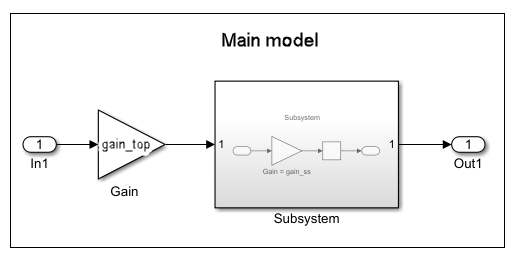
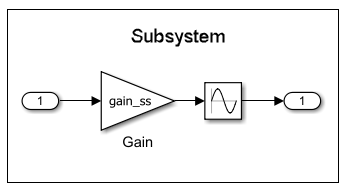
You then create a test harness for the subsystem. The test harness contains a copy of
the subsystem with its Gain block and gain_ss parameter. In the test
harness, suppose you delete the Inport block and replace it with a Constant block that
has a value of constant1.

The test harness then contains the gain_ss and
constant1 parameters, but not the gain_top
parameter. The main model contains the gain_top and
gain_ss parameters, but not the constant1
parameter.
However, if you create a test harness from the top-level model, the test harness
contains a Model block that refers to the main model. The test harness does not contain
copies of gain_ss or gain_top. If you change
gain_ss or gain_top in the main Simulink
model, the same values change in the test harness.
Parameters in the test harness resolve to the most local workspace. Parameters resolve first to the harness model workspace, then the main model workspace. Simulink first attempts to resolve the lowest-level subsystem and then at higher levels of the model hierarchy. Finally, if the parameter has not been resolved, it is resolved in the base MATLAB® workspace.
Test Harness and Model Synchronization
When you create a test harness, you specify how changes to the model or harness affect one another. You can push changes you make in the test harness back to the main model. You can also synchronize changes in the main model to the test harness. To set the synchronization mode, use the Synchronization Mode parameter in the Advanced Properties tab of the Create a Test Harness dialog box. The options are:
Synchronize on harness open and close— When you open one or more test harnesses, synchronization occurs from the model to the harnesses. When only one harness is open and you close it, synchronization occurs from the harness to the model. When more than one harness is open and you close only one of them, synchronization does not occur.Synchronize on harness open— When you open one or more test harnesses, synchronization occurs from the model to the harnesses. When you close one or more open harnesses, synchronization does not occur.Synchronize only during push and rebuild— When only one harness is open, the Push Changes button in the harness synchronizes changes from the harness to the model. The Rebuild Harness button synchronizes from the model to the harness. When more than one harness is open, the Rebuild Harness button synchronizes changes from the model to the harness. Push Changes is not supported.Synchronize only during rebuild— When one or more harnesses are open, the Rebuild Harness button synchronizes from the model to the harness.
All synchronization options are available for both internal and external test harnesses, however the available options differ depending on the type of model element being tested. For more information on synchronization, see Synchronize Changes Between Test Harness and Model.

