replace_block
R2026bReplace blocks in Simulink model
Syntax
Description
replBlks = replace_block(sys,current,new)
Before using the replace_block function:
Load the model
sys. For more information on how to load a model, seeload_systemandopen_system.If the library containing the new block with which you want to replace the current block is not loaded, load the library. For example, to replace the current block with a Message Triggered Subsystem block, load the Simulink library by entering this command in the MATLAB® Command Window:
load_system("simulink.slx");
This syntax prompts you to select the blocks you want to replace from a list of
blocks that match the current argument.
replBlks = replace_block(sys,Name=Value,new)Name=Value pair
arguments.
Specify optional
pairs of arguments as Name1,Value1,...,NameN,ValueN, where
Name is the argument name and Value is the
corresponding value. Name-value arguments must appear after the
sys argument.
To replace only blocks that have specific block parameter values, use the
replace_block function with block parameter and value
pairs. For a list of all the block parameters, see Common Block Properties and Programmatically Specify Block Parameters and Properties.
For example,
replace_block("myModel","Amplitude","2","Sin","noprompt")
replaces all blocks in a model named myModel that have an
amplitude of 2 with Sine Wave blocks.
To specify additional information about the search for blocks to replace, you use
find_system
Name,Value pairs before the block parameters.
For example, you can use "CaseSensitive","off" to make the
search for blocks case insensitive or "FollowLinks","on" to
follow links into library links.
Examples
Suppose you have a model named myModel.
Replace all the Integrator blocks in the model with Math
Function blocks without being prompted to select them from a dialog
box.
Get the block type of Integrator blocks. Select an Integrator block and enter this command in the MATLAB Command window.
get_param(gcb,"BlockType")ans =
'Integrator'Get the block type of Math Function blocks. Select a Math Function block and enter this command.
get_param(gcb,"BlockType")ans =
'Math'Replace the blocks.
replace_block("myModel","Integrator","Math","noprompt");
Suppose you have a model named myModel.
The model contains a subsystem named mySubsystem.
Replace all the Integrator blocks in the subsystem with Gain blocks without being prompted to select them from a dialog box.
replace_block("myModel/mySubsystem","Integrator","Gain","noprompt");
Suppose you have a model named myModel.
Replace all the Integrator blocks in the model with the If
Action Subsystem block without being prompted to select them from a
dialog box.
The block type of the Integrator block is
Integrator.
The block type of the If Action Subsystem is
Subsystem. If you specify the replacement block using
this block type, the replacement block will be a regular
Subsystem block, not an If Action Subsystem
block. To make the replacement block an If Action Subsystem
block, specify the library block path instead of the block type.
Look up the path of the library block. Start by opening the library that contains the block.
You can do so using the quick insert menu. Open the quick insert menu by double-clicking the model canvas. Then, enter the block name. Use your arrow keys to navigate to the desired search result. In the details pane on the right, click the name of the library.
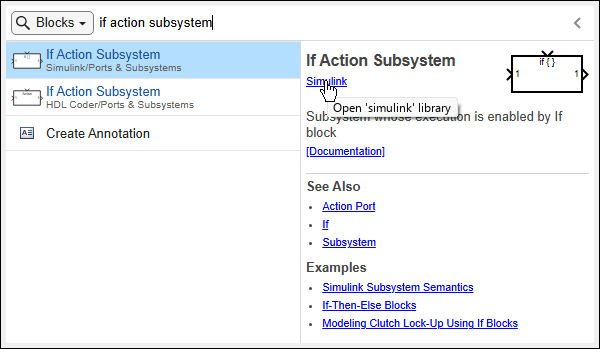
In the library that opens, select the If Action Subsystem block.
Get the block path by entering this command in the MATLAB Command window.
libBlockPath = gcb
libBlockPath =
    'simulink/Ports &
     Subsystems/If Action
     Subsystem'
Replace the blocks.
replace_block("myModel","Integrator","simulink/Ports & Subsystems/If Action Subsystem","noprompt");
Suppose you have a model named myModel.
The model contains a block named myBlock.
Replace all the Integrator blocks in the model with copies
of myBlock without being prompted to select them from a
dialog box.
replace_block("myModel/mySubsystem","Integrator","myModel/myBlock","noprompt");
Suppose you have a model named
myModel.
Replace all the blocks in the model that have an amplitude of
2 with Sine Wave blocks without being
prompted to select them from a dialog box.
replace_block("myModel","Amplitude","2","Sin","noprompt");
Suppose you have a model named
myModel.
Replace all the blocks with the keyword filter in their
name with Transfer Fcn blocks without being prompted to
select them from a dialog box. Use find_system
Name,Value pairs to specify which blocks to replace.
"RegExp","on" turns regular expressions on, and
"Name",".*filter.*" uses regular expressions to
search for blocks whose name contains the keyword
filter.
replace_block("myModel","RegExp","on","Name",".*filter.*","TransferFcn","noprompt")
Input Arguments
Output Arguments
Version History
Introduced before R2006a

