STL 파일 가져오기
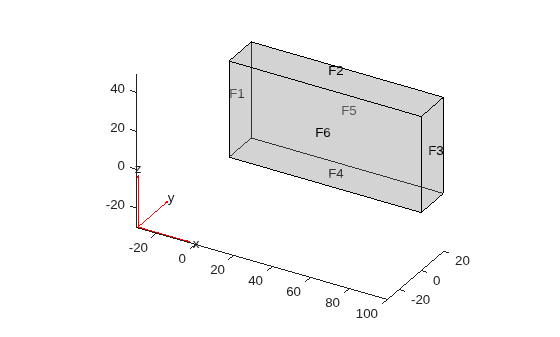
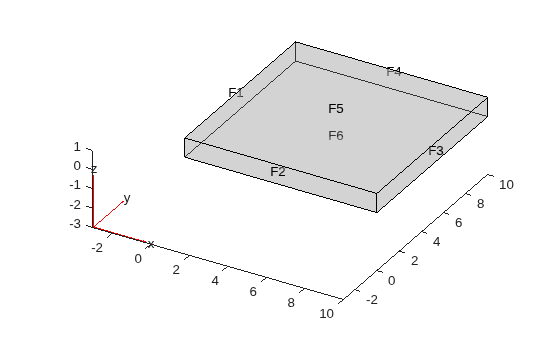
R2026b이 예제에서는 STL 파일에서 지오메트리를 가져온 다음 그 지오메트리를 플로팅하는 방법을 보여줍니다. 일반적으로 STL 파일은 SolidWorks®와 같은 CAD 시스템에서 내보내어 만듭니다. 최상의 결과를 얻으려면 조밀한(성기지 않은) STL 파일을 이진(ASCII가 아닌) 형식으로 내보내십시오. 가져온 후에는 pdegplot 함수를 사용하여 지오메트리를 표시합니다. 면 ID를 확인하려면 FaceLabels 이름-값 쌍을 "on"으로 설정합니다.
Partial Differential Equation Toolbox™에 포함된 지오메트리 예제를 살펴보겠습니다.
figure
gm = fegeometry("Torus.stl");
pdegplot(gm)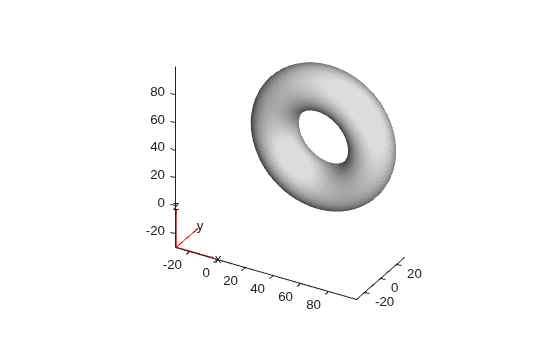
figure
gm = fegeometry("Block.stl");
pdegplot(gm,FaceLabels="on",FaceAlpha=0.3)
figure
gm = fegeometry("Plate10x10x1.stl");
pdegplot(gm,FaceLabels="on",FaceAlpha=0.3)
figure
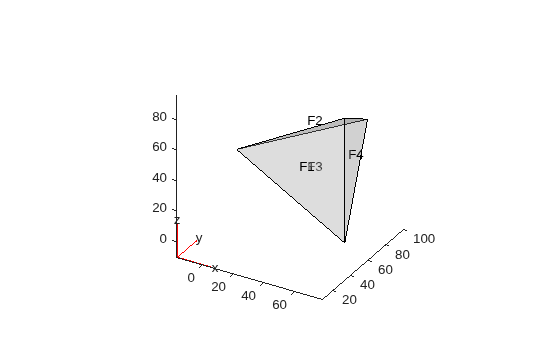
gm = fegeometry("Tetrahedron.stl");
pdegplot(gm,FaceLabels="on",FaceAlpha=0.3)
figure
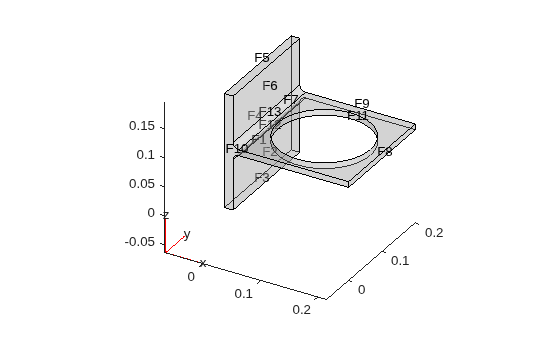
gm = fegeometry("BracketWithHole.stl");
pdegplot(gm,FaceLabels="on",FaceAlpha=0.3)
figure
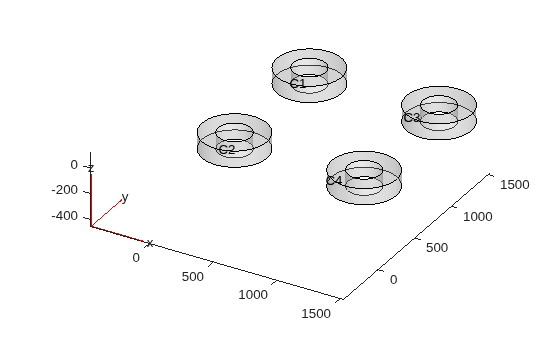
gm = fegeometry("DampingMounts.stl");
pdegplot(gm,CellLabels="on",FaceAlpha=0.3)
figure
gm = fegeometry("MotherboardFragment1.stl");
pdegplot(gm)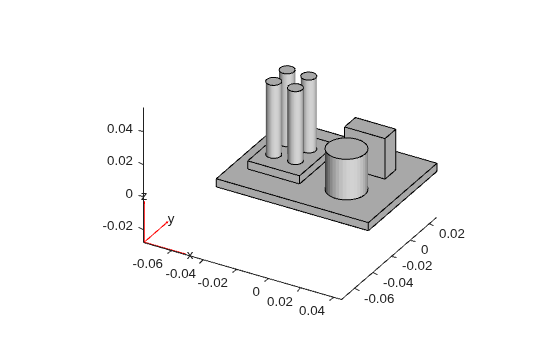
figure
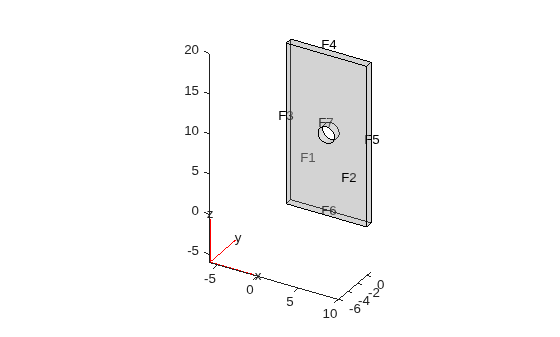
gm = fegeometry("PlateHoleSolid.stl");
pdegplot(gm,FaceLabels="on",FaceAlpha=0.3)
figure
gm = fegeometry("PlateSquareHoleSolid.stl");
pdegplot(gm)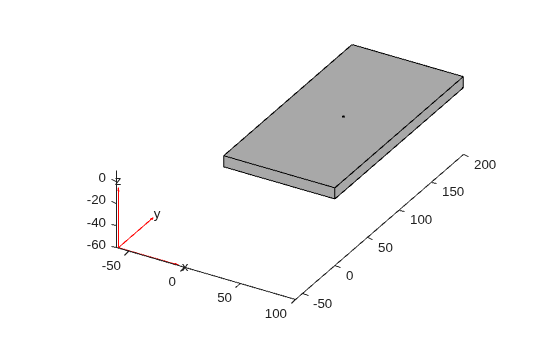
figure
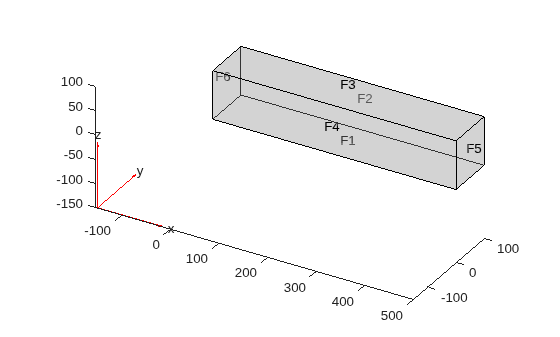
gm = fegeometry("SquareBeam.stl");
pdegplot(gm,FaceLabels="on",FaceAlpha=0.3)
figure
gm = fegeometry("BracketTwoHoles.stl");
pdegplot(gm,FaceLabels="on",FaceAlpha=0.3)
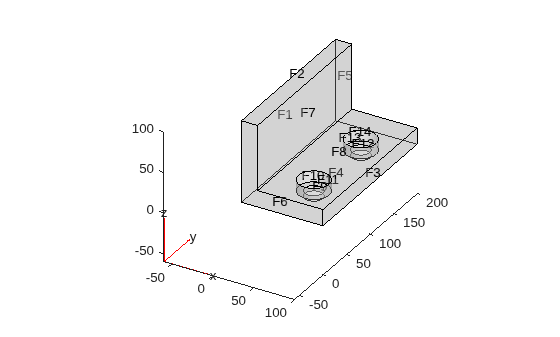
지오메트리의 숨겨진 부분을 보려면 [Rotate 3D] 버튼  또는
또는 view 함수를 사용하여 Figure를 회전합니다. 앵글 브래킷을 회전하여 다음과 같은 뷰를 얻을 수 있습니다.
figure
pdegplot(gm,FaceLabels="on",FaceAlpha=0.3)
view([-24 -19])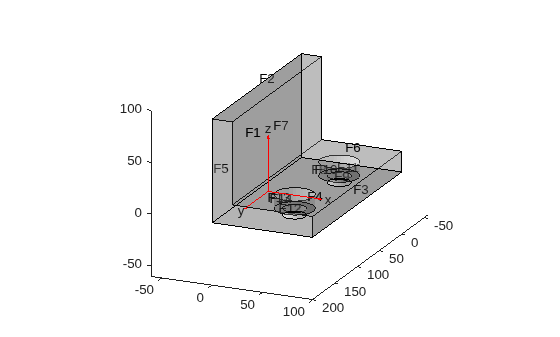
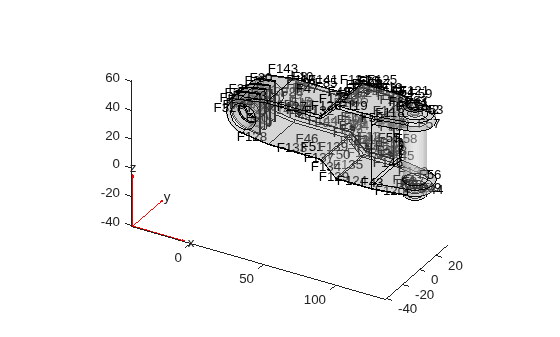
figure
gm = fegeometry("ForearmLink.stl");
pdegplot(gm,FaceLabels="on",FaceAlpha=0.3);
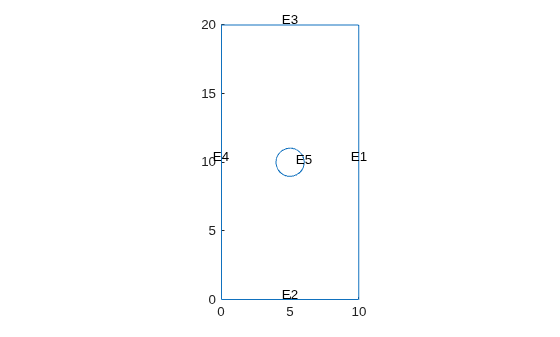
평면 STL 지오메트리를 가져오면 툴박스는 이를 X-Y 평면에 매핑하여 2차원 지오메트리로 변환합니다.
figure
gm = fegeometry("PlateHolePlanar.stl");
pdegplot(gm,"EdgeLabels","on")
figure
gm = fegeometry("PlateSquareHolePlanar.stl");
pdegplot(gm);