Create Animations Using Raster Data
R2026bThis example shows how to animate raster data using map axes objects. Raster data animations are useful for visualizing changes over time.
For an example that shows how to animate latitude and longitude data on a map by creating a comet plot, creating an animated line, and moving a marker along a line, see Create Animations Using Latitude and Longitude Data.
Load Data
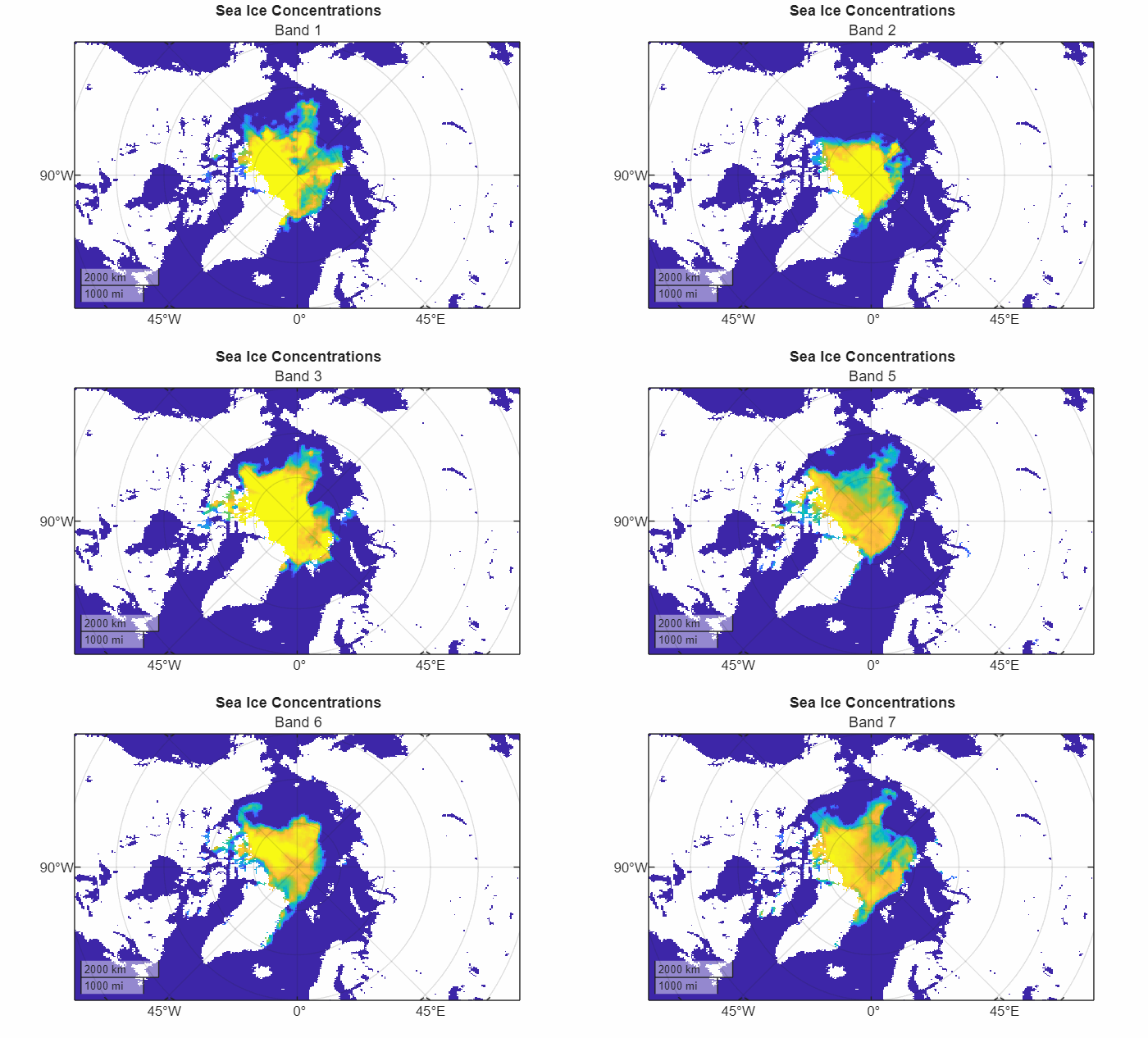
Read a GRIB file into the workspace as an array and a raster reference object. The file contains sea ice concentrations for multiple years [1][2], and each band of the file corresponds to a different year.
[iceConcentration,R] = readgeoraster("seaice.grib");Get information about the GRIB file. Extract the number of bands that are stored in the file.
info = georasterinfo("seaice.grib");
numBands = info.NumBands;
Create Map
Set up a map that uses a projected coordinate reference system (CRS) that is appropriate for an arctic region. Use the WGS 84 / Arctic Polar Stereographic projected CRS, which has the EPSG code 3995. Optionally, avoid displaying the result of the animation by using an invisible figure.
figure(Color="w",Visible="off")
pcrs = projcrs(3995);
newmap(pcrs)
Extract the first band from the array of sea ice concentrations. Then, display the band using a pseudocolor raster plot, which applies color using the colormap of the axes. To enable yourself to use the same figure for each frame of the animation, return the PseudocolorRaster object rp.
band1 = iceConcentration(:,:,1);
rp = geopcolor(band1,R);
Add a title and subtitle.
title("Sea Ice Concentrations")
subtitle("Band 1")
Animate Map
Animate the data stored in the GRIB file, and create an animated GIF. For each band:
Extract the band from the array of sea ice concentrations.
Update the color data for the pseudocolor raster plot. Change the subtitle.
Get an RGB image of the figure by using the
getframefunction. Prepare to use the image as input to theimwritefunction, which does not support RGB images for writing GIF files, by converting the RGB image to an indexed image.Write the indexed image to the animated GIF by using the
imwritefunction.Create an animation that loops continuously by setting
LoopCounttoInf.Specify a 0.5 second delay between images in the animation by setting
DelayTimeto0.5.Animate the GIF by appending multiple images to the first image. Append the images by setting
WriteModeto"append".
fig = gcf;
filename = "mapAxesAnimation.gif";
for band = 1:numBands
    % Extract band
    iceConcentrationBand = iceConcentration(:,:,band);

    % Display band on map and update subtitle
    rp.ColorData = iceConcentrationBand;
    subtitle("Band " + band)

    % Get RGB image of figure and convert to indexed image
    figFrame = getframe(fig);
    RGB = figFrame.cdata;
    [figX,figCmap] = rgb2ind(RGB,256,"nodither");

    % Write indexed image to GIF file, creating a continuously looping animation
    if band == 1
        imwrite(figX,figCmap,filename,LoopCount=Inf,DelayTime=0.5)
    else
        imwrite(figX,figCmap,filename,WriteMode="append",DelayTime=0.5)
    end
end
This image shows the animated GIF.
[1] Hersbach, H., B. Bell, P. Berrisford, G. Biavati, A. Horányi, J. Muñoz Sabater, J. Nicolas, et al. "ERA5 Hourly Data on Single Levels from 1940 to Present." Copernicus Climate Change Service (C3S) Climate Data Store (CDS), 2023. Accessed May 22, 2023. https://doi.org/10.24381/cds.adbb2d47.
[2] Neither the European Commission nor ECMWF is responsible for any use that may be made of the Copernicus information or data it contains.

