이 페이지는 기계 번역을 사용하여 번역되었습니다. 영어 원문을 보려면 여기를 클릭하십시오.
시간에 따른 이미지 평균화
R2026b이 예시는 시간에 따라 수집한 이미지를 평균화하는 방법을 보여줍니다.
일부 고급 응용 프로그램의 경우, 이미지 수집 과정에서 이미지가 수집되는 즉시 처리되어야 하며, 처리 결과는 디스크에 기록되어야 할 수 있습니다.
이 예제는 Image Acquisition Toolbox™ 콜백, 트리거 및 기록 기능을 사용하여 다음 작업을 수행하는 방법을 보여줍니다.
10초마다 5프레임을 수집합니다.
수집 과정을 10회 반복합니다.
이미지를 수집하는 동안 수집한 프레임들을 평균화하고 그 결과를 디스크에 저장합니다.
실험 장치는 시간이 지남에 따라 흰 모래가 흘러내리는 모래시계로 구성됩니다. 이 예제에서는 Image Processing Toolbox™ 함수를 사용하여 수집한 이미지 프레임을 평균화하는 콜백 함수를 사용합니다.
수집 구성
이미지 수집을 위한 비디오 입력 객체를 생성하고 구성합니다.
% Access a device using a 24 bit RGB format.
vid = videoinput('winvideo', 1, 'RGB24_320x240');

% Assuming data logging can begin immediately upon START,
% an immediate trigger is used.
triggerconfig(vid, 'immediate');

% Configure the acquisition to collect 5 frames...
framesPerTrigger = 5;
vid.FramesPerTrigger = framesPerTrigger;

% ...and repeat the trigger 9 additional times
% (for a total of 10 trigger executions).
nAdditionalTrigs = 9;
vid.TriggerRepeat = nAdditionalTrigs;
프레임 기록 속도를 제어하기 위해 두 가지 옵션이 있습니다.
장치 프레임 속도를 구성합니다.
TimerFcn을 사용하여 콜백을 실행
먼저 기기의 프레임 속도를 이용한 해결 방법을 보여드리고, 이어서 타이머 콜백을 이용한 다른 해결 방법을 보여드리겠습니다.
프레임 속도 옵션을 사용하면 장치의 실제 비디오 스트림 속도와 가장 유사한 수집 결과를 얻을 수 있는 반면, 타이머 방식을 사용하면 장치의 스트리밍 속도와 무관한 수집 결과를 얻을 수 있습니다.
프레임 속도 기반 수집(솔루션 1)
기기의 프레임 속도는 해당 기기에서 지원하는 경우에만 설정할 수 있습니다. 이는 기기별 속성이므로 비디오 소스 객체에서 찾을 수 있습니다.
% Access the video source selected for acquisition.
src = getselectedsource(vid);

% Notice this device provides a FrameRate property.
get(src)
  General Settings:
    Parent = [1x1 videoinput]
    Selected = on
    SourceName = input1
    Tag =
    Type = videosource
    UserData = []

  Device Specific Properties:
    BacklightCompensation = on
    Brightness = 255
    BrightnessMode = auto
    Contrast = 127
    Exposure = 511
    ExposureMode = auto
    Focus = 58
    FrameRate = 15.1500
    Gamma = 0
    Iris = 4
    Saturation = 108
    Sharpness = 127
    WhiteBalance = 100
    WhiteBalanceMode = auto
% Using the FrameRate property, one can configure the acquisition source
% to provide the toolbox 30 frames per second.
fps = 30;
src.FrameRate = num2str(fps);

% Since the goal is to acquire 5 frames every 10 seconds, the toolbox
% should not acquire any frames until the device provides the 300'th
% frame:
acqPeriod = 10;
frameDelay = fps * acqPeriod
frameDelay =

   300
% If the trigger is delayed by this value, the toolbox will not buffer
% any frames until the 300'th frame is provided by the device.
vid.TriggerFrameDelay = frameDelay;

% To ensure the acquisition does not come close to timing out, configure
% the time out value slightly above the expected acquisition duration.
totalTrigs = nAdditionalTrigs + 1;
acqDuration = (acqPeriod * totalTrigs) + 3
acqDuration =

   103
vid.Timeout = acqDuration;
이미지 평균화
처리된 이미지를 디스크에 저장하기 위해 VIDEOWRITER 객체가 사용됩니다. 수집한 각 프레임 세트는 Image Processing Toolbox 함수를 사용하여 평균화된 다음 디스크에 저장됩니다.
% Create an AVI file and configure it.
vwObj = VideoWriter('imaverages.avi', 'Uncompressed AVI');
vwObj.FrameRate = fps;

% Use the video input object's UserData to store processing information.
userdata.average = {};
userdata.avi = vwObj;
vid.UserData = userdata;

% Configure the video input object to process every 5 acquired frames by
% specifying a callback routine that is executed upon every trigger.
vid.TriggerFcn = {'util_imaverage', framesPerTrigger};

% Now that the image acquisition and processing configuration is complete,
% the acquisition is started.
start(vid)

% Wait for the acquisition to complete. This provides the acquisition
% time to complete before the object is deleted.
wait(vid, acqDuration);

% Verify the averaged frames were saved to the AVI file.
userdata = vid.UserData;
vwObj = userdata.avi;
framesWritten1 = vwObj.FrameCount
framesWritten1 =

    10
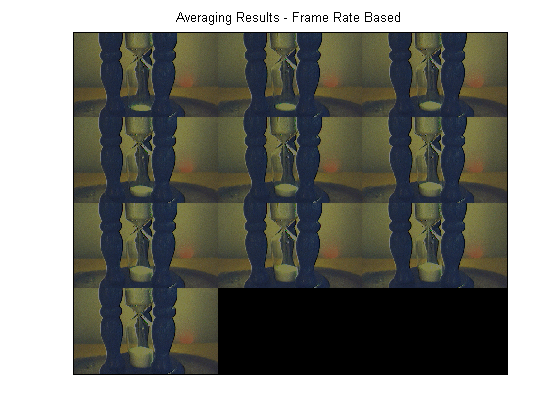
% Display the resulting averages of the acquired frames.
% Notice the change in the lower chamber of the hourglass over time.
imaqmontage(userdata.average);
title('Averaging Results - Frame Rate Based');
% Once the video input object is no longer needed, delete
% it and clear it from the workspace. Also delete and clear the VideoWriter object.
delete(vid)
delete(vwObj)
clear vid vwObj
타이머 기반 데이터 수집 (솔루션 2)
이 작업을 위한 또 다른 해결책은 TimerFcn을 사용하는 것입니다. TimerFcn은 10초마다 실행될 수 있으며, 이때 5프레임이 수집되어 평균화됩니다. 정확한 시점에 데이터 수집을 시작하기 위해 수동 트리거가 사용됩니다.
참고로, 이 방법은 기기의 프레임 속도 설정과는 무관합니다.
% Access a device and configure the acquisition. Have
% the TimerFcn trigger the acquisition every 10 seconds.
vid = videoinput('winvideo', 1, 'RGB24_320x240');
triggerconfig(vid, 'manual');
vid.TimerFcn = @trigger;
vid.TimerPeriod = acqPeriod;

% Configure the acquisition to collect 5 frames each time the
% device is triggered. Repeat the trigger 9 additional times.
vid.FramesPerTrigger = framesPerTrigger;
vid.TriggerRepeat = nAdditionalTrigs;

% Configure the processing routine and AVI file.
vid.TriggerFcn = {'util_imaverage', framesPerTrigger};
vwObj2 = VideoWriter('imaverages2.avi', 'Uncompressed AVI');
vwObj2.FrameRate = fps;


% Use the video input object's UserData to store processing information.
userdata2.average = {};
userdata2.avi = vwObj2;
vid.UserData = userdata2;

% Start the acquisition.
start(vid);
wait(vid, acqDuration);

% Verify the averaged frames were saved to the AVI file.
userdata2 = vid.UserData;
vwObj2 = userdata2.avi;
framesWritten2 = vwObj2.FrameCount
framesWritten2 =

    10
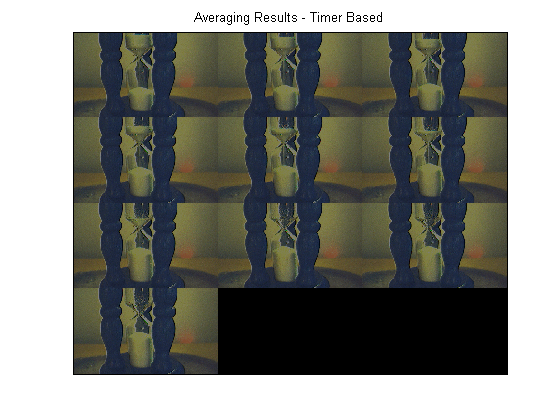
% Display the resulting averages of the acquired frames.
% Notice the change in the lower chamber of the hourglass over time.
imaqmontage(userdata2.average);
title('Averaging Results - Timer Based');
% Once the video input object is no longer needed, delete
% it and clear it from the workspace. Also delete and clear the VideoWriter object.
delete(vid)
delete(vwObj2)
clear vid vwObj2

