Acquire and Generate Data at Different Rates on Same Device
R2026bThis example shows how to use a single NI® device with different sample rates. In this example, you perform simultaneous input and output operations at different sample rates on the same device. The example runs input acquisition in the background, generates output data continuously, and uses a callback function to monitor input and output progress.
This workflow is useful for applications such as weather monitoring and process testing. You can acquire slowly varying sensor data, such as temperature or humidity, at a lower rate. At the same time, you can generate higher‑rate output signals for sensor excitation or control.
Create Interfaces for Device Subsystems
To acquire and generate data simultaneously on the same NI device, you create separate interfaces for the input and output subsystems. First, create a data acquisition object for the device using the daq function. Add an analog input channel from the device using the addinput function. This example uses NI USB-6211 device.
dqIn = daq("ni");
addinput(dqIn,"Dev1","ai0","Voltage");
Next, create another data acquisition object for the device and add an analog output channel using the addoutput function.
dqOut = daq("ni");
addoutput(dqOut,"Dev1","ao0","Voltage");
Configure Sample Rates
Specify different sample rates for the input and output channels. For this example, set a 1 kHz acquisition rate for the input and a 10 kHz generation rate for the output using the Rate property.
dqIn.Rate = 1000;
dqOut.Rate = 10000;
Define Output Signal
Specify the signal you want to generate. For this example, create a one-second sine wave at 50 Hz, sampled at the output rate.
t = (0:1/dqOut.Rate:1)';
outputSignal = 2*sin(2*pi*50*t);
Monitor Background Acquisition
To monitor acquisition progress, use a callback function. To control how often the callback triggers, set a value for the ScansAvailableFcnCount property of the input data acquisition object. This property specifies the number of scans that must be available before the callback executes. For example, to trigger the callback 10 times per second, set the value to dqIn.Rate/10. For this example, trigger the callback once per second.
dqIn.ScansAvailableFcnCount = dqIn.Rate;
Write a function to perform the operations you need when the callback is triggered. Assign the callback function handle to the ScansAvailableFcn property of the DataAcquisition object. For this example, write a callback function to print the number of input scans acquired and the number of output scans generated.
This example uses an anonymous function as the callback because anonymous functions can access variables from the surrounding workspace. Using an anonymous function allows the callback to directly query the acquisition and generation counters on dqIn and dqOut without defining a separate callback function file.
The anonymous function takes two inputs, src and evt. MATLAB passes the DataAcquisition object that triggers the callback as the input, src. The input evt contains event information, which is not used in this example. The syntax @(src,~) defines an anonymous function with two inputs. Write the function and set dqIn.ScansAvailableFcn.
dqIn.ScansAvailableFcn = @(src,~) ...
    fprintf("Acquired %d scans of data. Generated %d scans of data.\n", ...
    src.NumScansAcquired,dqOut.NumScansOutputByHardware); % src is dqIn
Start Acquisition and Generation
Start input acquisition in the background for 5 seconds. Then, start output generation in repeat mode and queue the waveform.
start(dqIn,"Duration",seconds(5));

start(dqOut,"repeatoutput");
write(dqOut,outputSignal);
After you start the background operations, the callback prints these lines in the Command Window.
Acquired 1000 scans of data. Generated 8401 scans of data.
Acquired 2000 scans of data. Generated 18221 scans of data.
Acquired 3000 scans of data. Generated 28298 scans of data.
Acquired 4000 scans of data. Generated 38197 scans of data.
Acquired 5000 scans of data. Generated 48453 scans of data.
Read Acquired Data
Wait until the background acquisition stops, then read all the acquired scans from memory into a timetable.
while dqIn.Running
    pause(1)
end

data = read(dqIn,"all");
Visualize Acquired Data
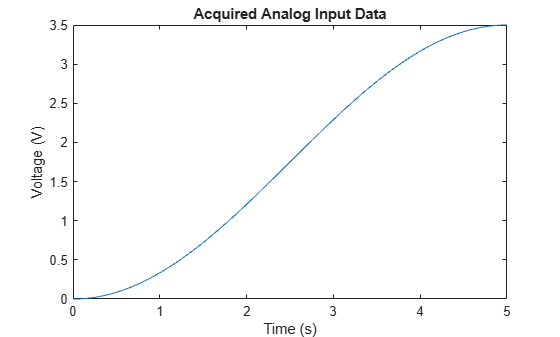
Plot the acquired voltage versus time.
figure
plot(data.Time, data.Dev1_ai0)
xlabel("Time (s)")
ylabel("Voltage (V)")
title("Acquired Analog Input Data")
Stop Data Generation in Background
In this example, you specified input acquisition for 5 seconds, so acquisition stops automatically at that time. In contrast, you configured the output generation to run continuously in repeatoutput mode, so you must explicitly stop the output task.
stop(dqOut);

