주요 콘텐츠

Polyspace® Platform Settings

Settings for Polyspace Platform user interface

Since R2024b

Description

The Polyspace Platform Settings dialog box enables you to specify general and product-specific settings for the user interface.

Using the Polyspace Platform Settings, you can set preferences for options such as:

  • The appearance of the Polyspace Platform user interface

  • The default location for new projects and Polyspace results

  • The source of the documentation (local or web-based)

  • The Polyspace Access™ URL and credentials

  • Custom review statuses for justifying static analysis results

  • The C/C++ host compiler for testing and profiling workflows
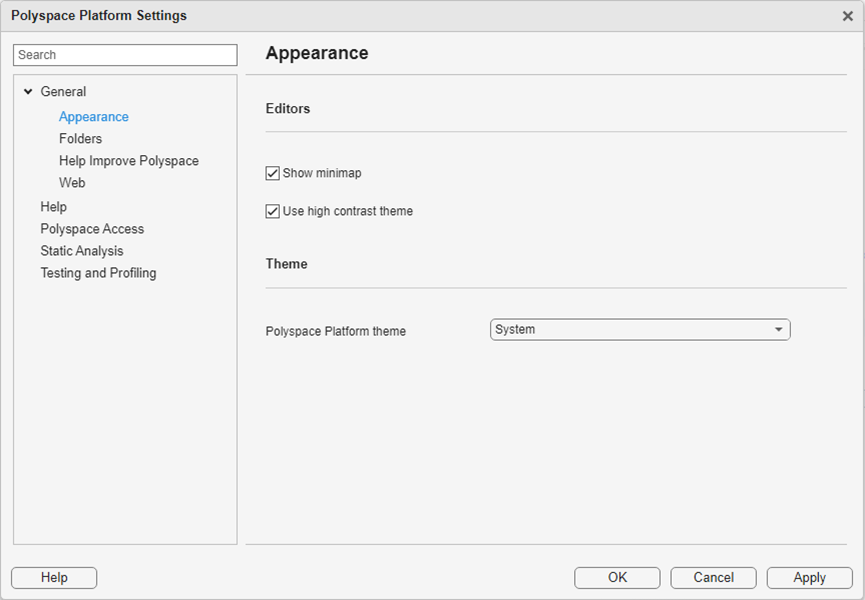
Polyspace Platform Settings Dialog

Open the Polyspace Platform Settings

  • Polyspace Platform Toolstrip: On the Project tab, under Environment, click Settings.

Examples

expand all

You can create custom review statuses to apply to your Polyspace results. To do so:

  1. From the toolstrip, click Settings to open the Polyspace Platform Settings. On the Static Analysis tab, find the User Statuses section and click the add empty row button.

  2. Enter a name in the Status text field of the new row. If you want your custom status to act as a justified status, select the Justified check box.

  3. Click Apply to save your custom status in the User Statuses section.

  4. To apply your custom status to a result, open your static analysis results in the Review perspective. In the Result Details pane, select your custom status from the bottom of the Status dropdown list.

Related Examples

Parameters

expand all

General

Appearance

Select this option to display a minimap with a condensed view of the entire source code when viewing code documents in the Polyspace Platform user interface. Click on a section of the minimap to navigate to the corresponding section of the source code.

Select this option to use a high-contrast color palette when viewing code documents in the Polyspace Platform user interface.

Windows®, Linux®, and macOS systems support light and dark color schemes. By default, the Polyspace Platform user interface uses the System theme so the appearance of the user interface matches the current operating system color scheme. If you change the operating system color scheme, the colors of the Polyspace Platform user interface change to match the new scheme. To always use the Polyspace Platform user interface with a light or dark color scheme, set this option to Light or Dark, respectively.

There are a few known limitations when you use the Polyspace Platform user interface with a dark color scheme:

  • The Constraint Specification window that you open from Configuration > Static Analysis > Inputs and Stubbing > Constraint setup always appears with a light color scheme.

  • In the Review perspective, the Contextual Help tab that displays documentation about individual results always appears with a light color scheme.

You can also use the Polyspace Access user interface with a dark or light color theme. To control the color scheme for Polyspace Access, use the appearance settings for your web browser.

Folders

Specify the default location for new projects.

Example: C:\Polyspace_Workspace\

Specify the parent folder where Polyspace stores results. If you do not specify a folder, Polyspace stores results in a subfolder of the project folder.

Example: C:\Polyspace_Workspace\MyResults

Specify whether you want to save results from all runs or only the latest run.

  • Select this check box to save results from all runs. In this mode, Polyspace Platform creates a separate results folder for each analysis run.

  • Clear this check box to generate results in the same folders, saving only results from the latest run. For each new run that has the same analysis scope, Polyspace Platform overwrites results of the same type, preserving any log files and justifications. If the scope of analysis changes, for example, a run on all tests followed by a run on a single test suite, Polyspace creates dedicated result folders so that results generated from the new context do not overwrite existing results from the prior context.

This setting applies to static analysis runs as well as testing and profiling runs. For more information about the results folder, see Artifacts and Results Generated by Polyspace Platform Projects.

Help Improve Polyspace

Specify whether you want to share user experience information with MathWorks. The default value of this option is the one you select during installation. For more information, see Help Make MATLAB and Other Products Even Better - Frequently Asked Questions.

Web

Polyspace uses a web browser to open HTML reports, AUTOSAR spec documents, the Polyspace documentation, Polyspace Access, and any links in the command output log. If you do not specify a web browser here, Polyspace uses your system default web browser.

To specify a different web browser, enter the full path to the web browser executable in the Web browser box. Alternatively, select the folder icon to navigate to your web browser executable and select Open.

Help

Specify whether you want Polyspace to open documentation from the web (internet connection required), or from the locally installed documentation.

Polyspace Access

URL you use to login to the Polyspace Access interface, specified as https://hostName:port/ or http://hostName:port/. For security reasons, using HTTP is not recommended. If you do not know the URL, contact your Polyspace Access administrator. Specifying a secure URL (https://) enables the Client keystore path and Client keystore password fields.

For more information see Integrate Polyspace Platform User Interface with Polyspace Access (Polyspace Access).

Path to the client key store file where you imported the signed certificate used to configure Polyspace Access with HTTPS. To enable secure HTTPS communications between Polyspace Access and the Polyspace Platform user interface, generate a Java® Key Store (JKS) file. See Generate a Client Keystore (Polyspace Access).

This field is required when the Polyspace Access URL uses HTTPS.

Client key store password for the HTTPS protocol.

This field is required when the Polyspace Access URL uses HTTPS.

Static Analysis

When reviewing Polyspace results, you can assign a predefined status such as To fix or Justified. This table displays the predefined statuses and shows whether Polyspace considers results with that review status to be justified. For more information, see Address Polyspace Results Through Bug Fixes or Justifications.

When reviewing Polyspace results, you can create and assign a custom status. The User Statuses table allows you to add, modify, and remove custom statuses. If you want Polyspace to consider results marked with your custom status to be justified, select the checkbox in the Justified column. For an example, see Create Custom Review Statuses.

Select this option to use Polyspace Platform as the default user interface for static analysis. Polyspace Platform is the default user interface for static analysis beginning in R2026a. For more information see Using Polyspace Platform as Default User Interface for Static Analysis.

To use the previous Polyspace user interface for static analysis, clear this check box and restart Polyspace.

Testing and Profiling

Select a C/C++ host compiler from the list for testing and profiling. If you have supported host compilers installed, Polyspace automatically detects those compilers when you open the Polyspace Platform user interface. For more information on supported compilers and how they are used by Polyspace Test™, see Specify C/C++ Compilers for Testing in Polyspace Platform User Interface (Polyspace Test).

Example: MinGW64

Example: Microsoft Visual C++ 2022 v17.0

Specify a MATLAB installation folder for requirements linking using Requirements Toolbox. Note that you can link to requirements from tests even without a Requirements Toolbox installation. Linking to Requirements Toolbox enables additional workflows such as ability to navigate from requirements to tests, see a traceability matrix with an overview of requirements-to-test links or run tests from requirements. For more information, see Link C/C++ Sources and Tests to Requirements in Requirements Toolbox (Polyspace Test).

Example: C:\Program Files\MATLAB\R2026a

Tips

The software stores the Polyspace Platform settings in this folder:

  • Windows — Drive\Users\User\AppData\Roaming\MathWorks\MATLAB\Release\Polyspace

  • Linux — /home/User/.matlab/Release

Here, Drive is the drive where the operating system files are located, such as C:, User is the username, and Release is the release number.

Version History

Introduced in R2024b

expand all