Define Data and Service Interfaces Between Components
R2026bSoftware components communicate through data and service interfaces defined on their ports.
Interfaces define the data and services that components exchange. To configure how that communication behaves at run time, including buffering, timeouts, and execution triggering, see Configure Communication and Execution Behavior of Software Components.
The two primary interfaces for communication are send-receive and client-server.
Send-receive interfaces support data-oriented communication. Sender components write data through output ports and receiver components read data through input ports. Receivers can read the latest value or multiple values that a queue stores.
Client-server interfaces support function-oriented communication. A client component requests an operation through a client port, and a server component defines and provides the operation through a server port.
Create or Link Data Dictionaries
Use data dictionaries to store interfaces so that you can share and reuse them across multiple software components and compositions. To create or link existing Simulink® data dictionaries from your software component model, you can use the Interface Editor (System Composer).
Open the Interface Editor (System Composer) by clicking Interface Editor on the Software Component tab.
To create a new data dictionary and link it to your model, click Create dictionary .
To link an existing data dictionary to your model, click Link dictionary .
Define Communication Interfaces Using Interface Editor
After you link a data dictionary to your model, you can create communication interfaces that specify the data or functions that components exchange.
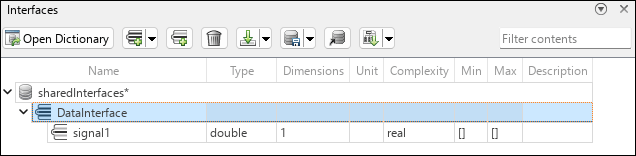
To define send-receive interfaces, create data interfaces.
From the Interface Editor, click Create interfaces
 and select Data Interface.
Add data elements to define the structure of exchanged data. Select the interface and click Add element to selected interface
 .
.
To define client-server interfaces, create service interfaces.
From the Interface Editor, click Create interfaces
and select Service Interface
 .
.Add function elements to define the operations that the server provides. Select the interface and click Add element to selected interface
.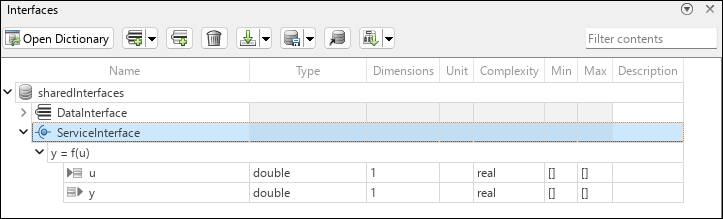
For each function element, specify the name and arguments by editing the function prototype.
Assign Interfaces to Ports
After you define an interface, you can assign it to component ports.
Assign data interfaces to input and output ports.
Assign service interfaces to client and server ports.
To create ports, pause over the component boundary until a + sign and a port outline appear. Then, click the port outline and select a port icon.
The input icon to create an input port.
The output icon to create an output port.
The socket icon
 to create a client port.
The ball icon
 to create a server port.
You can assign interfaces to ports using the Property Inspector or the Interface Editor.
Property Inspector – Select a port, in the Property Inspector, on the Signals tab, set the Data type parameter to
Bus: <interface>.Interface Editor – Select one or more ports, in the Interface Editor, select an interface, right-click and select Assign to selected ports.
Alternatively, select an interface, right-click a port, and select Apply selected interface.
When an interface is assigned to a port, its elements become available as port elements. Select a port to view and configure its elements in the Property Inspector.
Note
If you do not need to share interfaces across components, you can define them and their elements directly on ports using the Property Inspector.
Port labels display full function prototypes only for service interfaces that you assign from a data dictionary. Ports with owned interfaces display function names only.
After you assign interfaces to component ports, you can access each interface element as a port element. You can configure communication and execution behavior of each port element. For more information, see Configure Communication and Execution Behavior of Software Components.

