Variant Manager
R2026bDescription
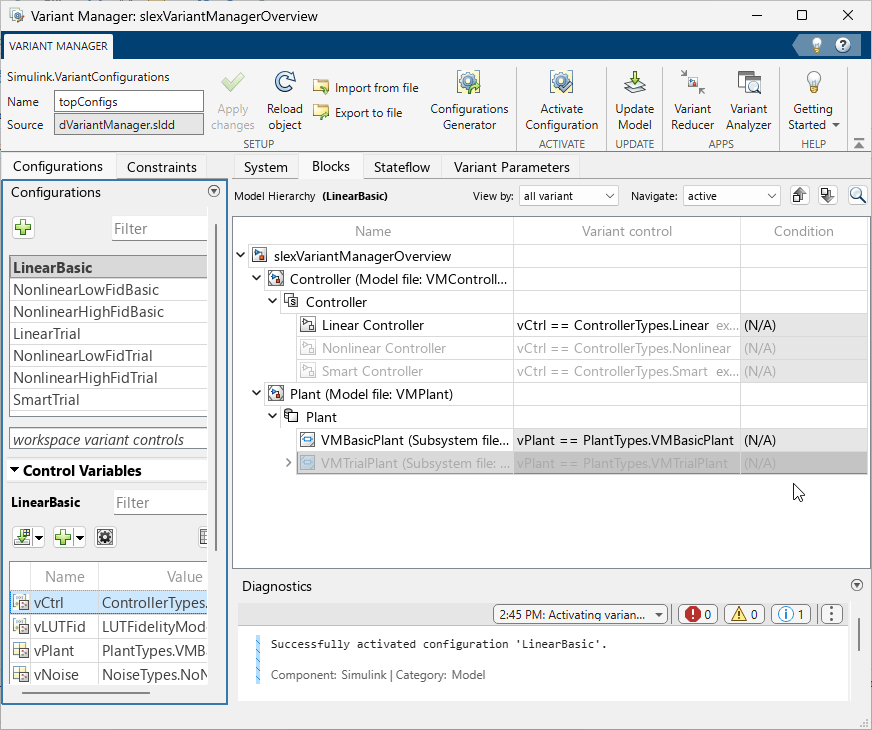
The Variant Manager app provides a centralized environment to manage the full variant workflow: explore variant elements, capture design alternatives, validate variant configurations, and deliver specific product variants.
In large Simulink® models, variant elements such as variant blocks and variant parameters appear across the model hierarchy, which can make them difficult to manage and validate. The Variant Manager app lets you visualize the model hierarchy and centrally manage variant elements such as variant blocks, variant parameters, and variant transitions across the hierarchy.
Use Variant Manager across the Model-Based Design workflow to:
Visualize variant blocks, variant parameters, and variant transitions in a single hierarchical view of the model.
Capture combinations of variant choices as named variant configurations and switch among them to evaluate design alternatives.
Validate that a variant configuration is consistent and valid before simulation or code generation.
Apply variant configurations in simulation, testing, and coverage analysis.
Compare variant configurations with Variant Analyzer to identify differences.
Reduce a model with Variant Reducer to produce a simplified, standalone model that contains only the variants required for a specific product or product line.
To learn about licensing requirements for Simulink Variant Manager™ workflows, see License Requirements for Simulink Variant Manager.
Open the Variant Manager App
Simulink Toolstrip: On the Apps tab, under Model Verification, Validation, and Test, click Variant Manager.
MATLAB® command prompt: Use the
Simulink.VariantManager.openfunction.
Examples
- Manage, Configure, Reduce, and Analyze System Variants with Simulink Variant Manager
- Run Simulations for Variant Models Using Variant Configurations
- Run Tests for Variant Models Using Variant Configurations
- Reduce Model Containing Variant Blocks
- Analyze Variant Configurations in Models Containing Variant Blocks
Parameters
Limitations
You cannot use Variant Manager with library files.
Variant Manager does not support this functionality that requires model compilation with Subsystem block diagrams from the user interface or from the MATLAB Command Window:
Generating variant configurations automatically
Obtaining compile-time information using Update Model
Using Variant Reducer and Variant Analyzer
The model hierarchy table does not show protected referenced models.
Variant Manager does not support workflows such as activation, viewing, or importing control variables from variations inside a protected model.
For a variant block, you can define variant configurations only if the Variant control mode parameter of the block is set to
expression.Variant Manager reports errors and warnings related to variant elements only.
Variant Manager constraints are evaluated based on the values of variant control variables defined in the base workspace or data dictionaries linked to the model.
Variant Manager does not validate constraints post compilation, for example, at
startupvariant activation time.Variant Manager does not support creating or deleting variant parameter objects from the Variant Parameters tab.
Version History
Introduced in R2026b

