주요 콘텐츠

Configure Project for Testing in Polyspace Platform User Interface

R2026b

You can author, build, and run C/C++ tests in the Polyspace Platform user interface. When you build a project in the Polyspace® Platform user interface, Polyspace Test compiles the test code together with your source files into executables that are executed later when you run the tests. This build happens in two steps and requires you to specify a Host Compiler and User Compiler. You specify the host compiler in your Polyspace Platform Settings and use the project configuration to specify the user compiler and related information like compiler flags, include paths and defines.

A Polyspace Platform project configuration consists of these sets of options:

  • Project-specific configuration — Project-wide options

  • Build configuration — Options that specify how to build your code and tests

  • Static analysis configuration — Options specific to static analyses

  • Testing and profiling configuration — Options that specify how to test and profile your code

You can specify sets of distinct build, testing, and static analysis configurations. These sets are configuration variants. A Polyspace Platform project supports multiple variants of build, testing, and static analysis configurations. For each configuration variant, you can choose whether it is part of the project (saved in the .psprjx file) or is saved in an external configuration file (.pscfg or .toml.pscfg) that is referenced by the project. Using external configurations can improve version-control workflows by allowing you to modularize your project and share single-sourced build, static analysis, and testing configurations across similar projects. You cannot create variants for the project-specific configuration options. The project options apply to all configuration variants and are always saved in the .psprjx project file.

Set Up Configuration

To open your configuration, on the Projects pane, double-click the Configuration node of your project.
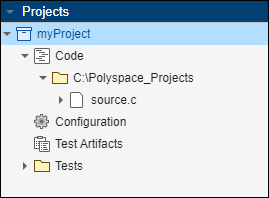
Configuration node in project tree

The configuration opens on a separate Configuration pane. The Configuration pane contains these tabs:

  • Project — The options on this tab include various options that apply to the entire project. These options are relevant to both static analysis and dynamic testing. You cannot create variants for these options.

    For more information on the options, see Project Creation.

  • Build — The options on this tab cover both static analysis and dynamic testing.

    Only a subset of the options on the Target and Compiler node apply to Polyspace Test™. The remaining options on this and other nodes apply only to the static analysis tools, Polyspace Bug Finder™ and Polyspace Code Prover™.

    For more information on the options, see Test Execution in Polyspace Platform User Interface.

  • Static Analysis — The options on this tab apply only to Polyspace Bug Finder and Polyspace Code Prover. For more information on these options, see Configuration (Polyspace Bug Finder) .

  • Testing and Profiling — The options on this tab apply only to Polyspace Test. Using these options, you can specify certain aspects of testing and profiling such as code coverage metrics and folders to exclude from profiling. For more information, see Code Profiling in Polyspace Platform User Interface.

You can also find individual options on the Configuration pane through search if you know the option name. For instance, if you search for the term Compilation toolchain, you can find two matches on the Build tab corresponding to these two options:

  • Compilation toolchain (Static analysis)

  • Compilation toolchain (Testing)

Note that you can search for options on the Static Analysis Tab by their command-line name in addition to the name that appears in the user interface. For instance, you can search for the option Constraint setup by its command-line equivalent -data-range-specifications. For more information on this option, see Constraint setup (-data-range-specifications) (Polyspace Code Prover).
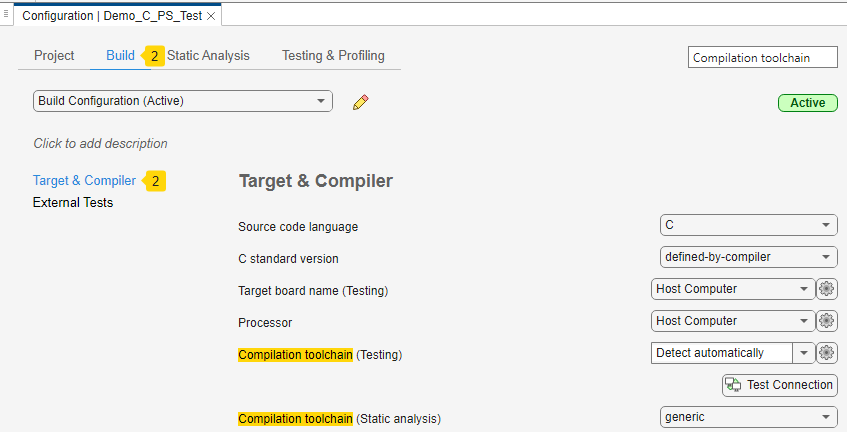
Searching for the option 'Compilation toolchain' shows two instances on the Build tab of the Configuration pane.

Once you locate an option, you can use contextual help to find more information about an option. Hover on the option to see a tooltip describing the option or click More Help in the tooltip to open the documentation for the option.

Create Configuration Variants

You can create multiple configuration variants for build, testing, or static analysis options for specific goals and switch between them within the same project. For example, you can create different configuration variants to use different compilers, or to check for different code coverage metrics.

To create new configuration variants in your project:

  1. Open your project configuration.

  2. On the Polyspace Platform toolstrip, click New.
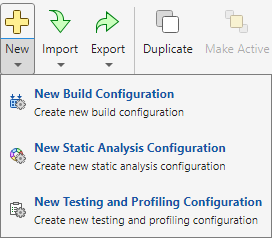
    Menu showing options to create a new build configuration, to create a new static analysis configuration, and to create a new testing and profiling configuration

    Select the type of configuration variant you want to create. For example, select New Build Configuration to create a build configuration variant.

  3. Set options as needed. For example, set Compilation toolchain (testing) as MinGW64| CMake/Ninja (64-bit Windows) and select Enable portable word sizes.

  4. Click edit button to rename the configuration variant.

Instead of creating a configuration variant from scratch, you can also duplicate an existing configuration variant:

  1. Select the configuration variant that you want to duplicate.
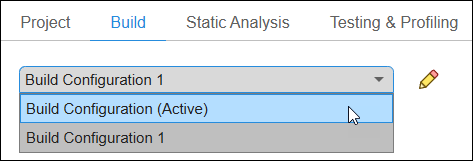
    Drop-down list showing the user-defined build configurations

  2. Select Duplicate on the toolstrip.

To remove a configuration variant, select the variant and then select Delete on the toolstrip.

Switch Between Configuration Variants

Once you have more than one configuration variant in or referenced by your project, you can switch between active variants. To switch to a different configuration variant:

  1. Select the variant using the drop-down lists in the configuration tabs.

    Drop-down list showing the user-defined build configurations

  2. To use the selected variant as part of the active configuration, select Make Active on the toolstrip.

The configuration variant that is currently active has a green Active badge on the top right. All other variants have a gray Inactive badge in the same location. External configurations that are saved in a native .pscfg file have a blue External badge. Because you cannot edit TOML external configuration files (.toml.pscfg) in the user interface, they appear with the blue External badge as well as a blue TOML (Read-Only) badge.

You can select different configuration variants when running your Polyspace Test project at the command line using the polyspace-test command. See polyspace-test -build or polyspace-test -run.

Share and Reuse Configuration Variants

There are two ways to share or reuse configuration variants across projects:

  • To share a single-sourced configuration variant across similar projects, use external configurations. An external configuration is a build, static analysis, or testing and profiling configuration that you save in an external configuration file and link to one or more projects by reference. To use the shared configuration in another project, import the file as an external configuration. When you make changes to that external configuration file, all projects that reference it inherit those changes.

  • To reuse a copy of a configuration variant, export a copy of the configuration to a file and then import a copy of that file into another project. In this workflow, the imported configuration is saved as a part of the .psprjx project file. Any modifications you make to the configuration variant in one project do not impact other projects.

Choose How to Store Configuration Variants

By default, all configurations are owned by the project and saved as part of the .psprjx project file. When you decide to save a configuration in an external file, you choose between the native JSON-based format (.pscfg) and the human-readable TOML format (.toml.pscfg). The format you choose determines how you edit the configuration and how it behaves in version control workflows.


Project Owned (default)

External Native Format (.pscfg) (since R2026a)

External TOML Format (.toml.pscfg) (since R2026b)

Storage Inside the .psprjx project fileSeparate file on disk (.pscfg)Separate file on disk (.toml.pscfg)
Shareable by reference NoYesYes
Editable in user interface YesYesNo. Can only be viewed.
Editable in text editor NoNot recommendedYes (primary editing method)
Version control diffs JSON via project file — noisy diffs due to internal identifiers and full project content. Difficult to merge. Use polyspace-project -diff, polyspace-project -merge.JSON — noisy diffs due to internal identifiers. Difficult to merge. Use polyspace-project -diff, polyspace-project -merge.TOML — Simple, human-readable diffs. Easy to merge in any text-based tool.
Comments allowed NoNoYes (standard TOML # comments)

In a continuous integration workflow, submit external configuration files to a version control system as you would with other text files. The TOML format (.toml.pscfg) is particularly well-suited for version control workflows because it uses descriptive key names, supports comments, and does not include internal identifiers that produce noise in diffs. Before submission, you can compare and merge TOML configuration files using any text-based tool. To compare and merge native-format external configuration files, use the diff/merge tool. For more information, see polyspace-project -diff, polyspace-project -merge.

You can convert between formats at any time. Both external formats are functionally equivalent — the same analysis options and values are available regardless of format.

Use External Configurations to Improve Sharing and Version Control Workflows

To create a modular project or share single-sourced configuration variants across multiple projects, use external configurations. For more information about working with external configurations, see Modularize Project by Converting Configurations to External Configurations in Polyspace Platform User Interface.

Import and Export Copies of Configuration Variants

To reuse a copy of a configuration variant across projects, export a copy of the configuration to a file and then import a copy into another project. Importing a copy of a configuration variant allows you to use similar or identical build, static analysis, or testing configurations in multiple projects. Exporting a copy of a configuration to a file allows you to compare different versions of a configuration as text files. To compare files more easily, export your configurations to the human-readable TOML format (.toml.pscfg) and use any standard text-based diff or merge tool. To compare native-format external configuration files or Polyspace Platform project files, see Compare and Merge Polyspace Platform Projects and Configurations Before Submission to Source Control.

Export Copy of Configuration Variant.  To export a copy of a specific configuration variant from your project:

  1. Open your project configuration.

  2. Navigate to the tab from which you want to export the configuration:

    • Build — Export a build configuration variant

    • Static Analysis — Export a static analysis configuration variant

    • Testing and Profiling — Export a testing and profiling configuration variant

  3. On the Polyspace Platform toolstrip, click Export to export a copy of the currently selected configuration.
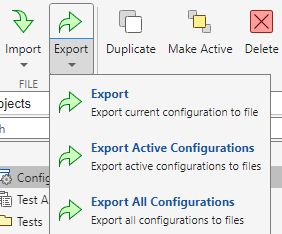
    Menu showing options to export the current configuration to a file, to export active configurations to files, and to export all configurations to files

  4. Specify a filename and location. In the Save as type drop-down, select the format (.pscfg, .toml.pscfg TOML Full, or .toml.pscfg TOML Concise) and click Save.

To export a copy of all active configurations, select Export Active Configurations. Alternatively, you can export copies of all configuration variants in your project by selecting Export All Configurations.

When you export a copy of a build configuration created from a build command (using polyspace-configure) or from Polyspace for AUTOSAR workspaces, the export removes autogenerated options such as file-specific compiler options. The exported copy contains only options that you can set manually.

Import Copy of Configuration Variant.  To import a copy of one or more configuration variants into your project, click Import and select one or more Polyspace configuration files (.pscfg or .toml.pscfg). This imports a copy of all the configurations you select and saves those copies in the .psprjx project file. To use one of the imported configuration variants, select it from the drop-down list and click Make Active in the toolstrip.

To import a configuration variant by referencing an external configuration file, see Import External Configuration.

Create TOML Configuration Files from Templates

To create a TOML configuration file that contains all available keys, you can export any build, static analysis, or testing and profiling configuration to the TOML full format from the Polyspace Platform user interface or the Python® API. Alternatively, to create a TOML file that also contains comments describing the default and possible values for each key in the configuration, copy the following templates. Save each file with the .toml.pscfg extension, and edit the options as needed.

Template for build configuration files (Type = "BUILD_CONFIG"). These settings apply for both static analysis and testing and profiling workflows.

Type = "BUILD_CONFIG"                       # required
Name = "MyBuildConfig"                      # required
Description = ""                            # default: ""
Mode = "CLASSIC"                            # default: "CLASSIC"
                                            # possible values: "CLASSIC", "CONFIGURE"

# --- Source files and paths ---
IncludePaths = [
    # { Path = "/path/to/include", Type = "USER", Recursive = false,
    #   FollowSymLinks = false },
    # possible values for Type: "USER", "SYSTEM"
]

# --- Language and standards ---
CVersion = "DEFAULT"                        # possible values: "DEFAULT", "C90", "C99",
                                            #                  "C11", "C17"
CppVersion = "DEFAULT"                      # possible values: "DEFAULT", "CPP03", "CPP11",
                                            #                  "CPP14", "CPP17", "CPP20"

# --- Compiler preprocessor ---
Defines = []                                # list of macro definitions, default: []
Undefines = []                              # list of macros to undefine, default: []
PreIncludes = []                            # list of files to pre-include, default: []

# --- Board and processor ---
Board = "Host Computer"                     # default: "Host Computer"

# --- Static analysis target ---
StaticAnalysisCompilerName = "Same as testing toolchain"
                                            # default: "Same as testing toolchain"
                                            # e.g. "gnu", "clang", "msvc", "diab"
# StaticAnalysisTargetName = ""             # e.g. "x86_64", "arm", "powerpc"

# --- Advanced build options ---
ExternalSymbols = []                        # list of external symbol names, default: []
EnablePortableWordSizes = false             # default: false
SfrTypes = []                               # list of SFR type names, default: []
PackAlignmentValue = "DEFINED_BY_COMPILER"
                                            # possible values: "DEFINED_BY_COMPILER",
                                            #                  "1", "2", "4", "8", "16"
ArithmeticSignedIntegerRightShift = true    # default: true
IntegerDivisionRounding = "ZERO"
                                            # possible values: "ZERO",
                                            #                  "IMPLEMENTATION_DEFINED"
Language = "C"                              # possible values: "C", "CPP", "C_AND_CPP"
ExtraCFlags = ""                            # extra C compiler flags, default: ""
ExtraCppFlags = ""                          # extra C++ compiler flags, default: ""
ImplicitCompilerDefinesC = []               # implicit compiler defines for C
ImplicitCompilerDefinesCpp = []             # implicit compiler defines for C++
ImplicitCompilerIncludePathsC = []          # implicit include paths for C
ImplicitCompilerIncludePathsCpp = []        # implicit include paths for C++
LibraryPaths = []                           # list of library search paths, default: []
Libraries = []                              # list of library names, default: []
ExtraLinkFlags = ""                         # extra linker flags, default: ""

[Processor]
Custom = false                              # true = custom processor, false = target framework
Id = "Host Computer"                        # target framework processor ID
SizeT = "DEFINED_BY_COMPILER"               # default: "DEFINED_BY_COMPILER"
PtrDiffT = "DEFINED_BY_COMPILER"            # default: "DEFINED_BY_COMPILER"
WCharT = "DEFINED_BY_COMPILER"              # default: "DEFINED_BY_COMPILER"
EnumTypeDefinition = "DEFINED_BY_COMPILER"  # default: "DEFINED_BY_COMPILER"
SignedChar = true                           # default: true
# --- Custom processor keys (only when Custom = true) ---
# Name = "MyCustom"
# CharBitsSize = 8
# ShortBitsSize = 16
# IntBitsSize = 32
# LongBitsSize = 32
# LongLongBitsSize = 64
# FloatBitsSize = 32
# DoubleBitsSize = 64
# LongDoubleBitsSize = 64
# PointerBitsSize = 64
# WordSize = 8
# Alignment = 8
# StructureMinAlignment = 8
# IsLongLongSupported = true
# Endianness = "LITTLE_ENDIAN"              # possible values: "LITTLE_ENDIAN", "BIG_ENDIAN"

# --- Toolchain ---
[Toolchain]
Name = "Detect automatically"               # default: "Detect automatically"
CustomizationOptionsEnabled = false         # default: false
Version = ""                                # specific toolchain version, default: ""
[Toolchain.SetupInfo]                       # toolchain-specific variables (key/value pairs)
# VAR_NAME = "value"

# --- External tests build options ---
[ExternalTestsBuildOptions]
IncludePaths = []
LibraryPaths = []
Libraries = []

# --- Per-file build option overrides ---
[FileOverrides]
# [FileOverrides."/path/to/file.c"]
# IncludePaths = []
# Defines = []
# Undefines = []
# PreIncludes = []
# CVersion = "C11"
# CppVersion = "CPP17"
# Language = "C"
# ExtraFlags = ""
# ImplicitCompilerIncludePaths = []
# ImplicitCompilerDefines = []

Template for static analysis configuration files (Type = "STATIC_ANALYSIS_CONFIG"). These settings apply only for static analysis (Polyspace Bug Finder and Polyspace Code Prover) workflows.

Type = "STATIC_ANALYSIS_CONFIG"             # required
Name = "MyStaticAnalysisConfig"             # required
Description = ""                            # default: ""

[EnvironmentSettings]
StopIfCompileError = false                  # default: false
PostPreprocessingCommand = ""               # default: ""
Dos = false                                 # default: false (DOS/Windows path separators)

[InputsStubbing]
DataRangeSpecifications = ""                # path to DRS XML file, default: ""
NoDefInitGlob = false                       # default: false
FunctionsToStub = []                        # list of functions to stub, default: []
Library = "none"                            # default: "none"
StubEmbeddedCoderLookupTableFunctions = false  # default: false

[Multitasking]
EnableConcurrencyDetection = false          # default: false
EnableExternalMultitasking = false          # default: false
ExternalMultitaskingType = "osek"           # default: "osek"
OsekMultitasking = "auto"                   # default: "auto"
OsekMultitaskingValues = []
AutosarMultitasking = []
EnableMultitasking = false                  # default: false
EntryPoints = []
CyclicTasks = []
Interrupts = []
RoutineInterrupts = []
CriticalSections = []
TemporallyExclusiveTasks = []

[BugFinderAnalysis]
EnableCheckersActivationFile = false        # default: false
CheckersActivationFile = ""                 # path to checkers activation file
MisraAgcMode = false                        # default: false
CodeMetrics = false                         # default: false
GenerateResultsFor = "source-headers"       # default: "source-headers"
GenerateResultsForValues = []
DoNotGenerateResultsFor = "include-folders"
                                            # default: "include-folders"
DoNotGenerateResultsForValues = []
FastAnalysis = false                        # default: false

[BugFinderAnalysis.CheckersBehavior]
BooleanTypes = []                           # list of boolean type names
AllowedPragmas = []                         # list of allowed pragma names
ChecksUsingSystemInputValues = false        # default: false
SystemInputsFrom = "auto"                   # default: "auto"
SystemInputsFromValues = []

[CodeProverVerification]
EnableMain = false                          # default: false
Main = "_tmain"                             # default: "_tmain"
SharedVariablesMode = false
MainGenerator = true                        # default: true
ClassAnalyzer = "all"                       # default: "all"
ClassAnalyzerValues = []
ClassAnalyzerCalls = "unused"               # default: "unused"
ClassAnalyzerCallsValues = []
ClassOnly = false
NoConstructorsInitCheck = false
MainGeneratorWritesVariables = "public"     # default: "public"
MainGeneratorWritesVariablesValues = []
FunctionsCalledBeforeMain = []
VariablesWrittenInLoop = "none"             # default: "none"
VariablesWrittenInLoopValues = []
MainGeneratorCalls = "unused"               # default: "unused"
MainGeneratorCallsValues = []
FunctionsCalledAfterLoop = []
UnitByUnit = false
UnitByUnitCommonSource = []
InitOnlyMode = false

[CodeProverVerification.VerificationAssumption]
FloatRoundingMode = "to-nearest"            # default: "to-nearest"
ConsiderVolatileQualifierOnFields = false
ConstVolatileScalarBehavior = "const"       # default: "const"
UnconstrainedPointersMayBeNull = false
IgnoreAssemblyCode = false

[CodeProverVerification.CheckBehavior]
AllowNegativeOperandInShift = false
SignedIntegerOverflows = "forbid"           # possible values: "allow", "forbid",
                                            #                  "warn-with-wrap-around"
UnsignedIntegerOverflows = "allow"          # possible values: "allow", "forbid",
                                            #                  "warn-with-wrap-around"
AllowNonFiniteFloats = false
CheckInfinite = "allow"                     # default: "allow"
CheckNan = "allow"                          # default: "allow"
CheckSubnormal = "allow"                    # default: "allow"
DisableInitializationChecks = false
CheckGlobalsInit = false                    # default: false
DetectPointerEscape = false
AllowPtrArithOnStruct = false
SizeInBytes = false
PermissiveFunctionPointer = false
UncalledFunctionChecks = "none"             # default: "none"
StackUsage = false

[CodeProverVerification.Precision]
PrecisionLevel = 2                          # integer, default: 2
To = "Software Safety Analysis level 2"
                                            # possible values:
                                            #   "Source Compliance Checking"
                                            #   "Software Safety Analysis level 0"
                                            #   "Software Safety Analysis level 1"
                                            #   "Software Safety Analysis level 2"
                                            #   "Software Safety Analysis level 3"
                                            #   "Software Safety Analysis level 4"
                                            #   "other"
ContextSensitivity = "none"                 # default: "none"
                                            # possible values: "none", "auto", "custom"
ContextSensitivityValues = []
PathSensitivityDelta = 0
ModulesPrecision = []

[CodeProverVerification.Scaling]
Inline = []
EnableKLimiting = false
KLimiting = 0                               # applies only when EnableKLimiting = true

[Reporting]
EnableReportGeneration = false
ReportTemplateCodeProver = "Developer"
                                            # possible values: "Developer",
                                            #   "DeveloperReview",
                                            #   "Developer_WithGreenChecks",
                                            #   "Quality", "VariableAccess",
                                            #   "CallHierarchy"
ReportTemplateBugFinder = "BugFinderSummary"
                                            # possible values: "BugFinder",
                                            #   "BugFinderSummary", "CodeMetrics",
                                            #   "CodingStandards"
ReportOutputFormat = "Word"                 # possible values: "HTML", "PDF", "Word"

[ComputingSettings]
Timeout = ""                                # analysis timeout, default: "" (no limit)

[Advanced]
PostAnalysisCommand = ""                    # command to run after analysis
Other = []                                  # extra analysis options
InternalOther = []                          # internal extra options

Template for testing and profiling configuration files (Type = "TEST_CONFIG"). These settings apply only for testing and profiling (Polyspace Test) workflows.

Type = "TEST_CONFIG"                        # required
Name = "MyTestConfig"                       # required
Description = ""                            # default: ""

[CoverageOptions]
Compact = false                             # default: false
Level = "DECISION"                          # default: "DECISION"
                                            # possible values: "STATEMENT", "DECISION",
                                            #                  "CONDITION_DECISION", "MCDC"
RelationalBoundary = false                  # default: false
RelationalBoundaryAbsTol = 1e-05            # default: 1e-05 (absolute tolerance)
RelationalBoundaryRelTol = 0.01             # default: 0.01 (relative tolerance)

[ProfilingOptions]
ExtraOptions = []                           # list of extra CLI flags, default: []
FileToIgnore = []                           # paths to exclude from profiling, default: []
FoldersToIgnore = []                        # folders to exclude from profiling, default: []
FoldersToProfile = []                       # folders to include for profiling, default: []
FunCallToIgnore = []                        # function calls to ignore, default: []
FunToIgnore = []                            # functions to ignore, default: []

[SanitizerOptions]
SelectionMode = "CATEGORY"                  # default: "CATEGORY"
                                            # possible values: "CATEGORY", "RESULTS_FILE"
Numeric = true                              # default: true (applies only in CATEGORY mode)
Memory = true                               # default: true (applies only in CATEGORY mode)
MemoryLeak = false                          # default: false (applies only in CATEGORY mode)
NonInitialization = false                   # default: false (applies only in CATEGORY mode)
ResultsFile = ""                            # results file path (only in RESULTS_FILE mode)
EnableMaxErrorOccurrences = false           # default: false
MaxErrorOccurrences = 2                     # applies only when EnableMaxErrorOccurrences = true

See Also

|

Topics