Review Polyspace Results Using Polyspace Copilot
R2026bAfter your Polyspace®
as You Code™ analysis in Visual Studio Code is complete, you can use Polyspace Copilot to explain Polyspace results and suggest code fixes. You can perform Polyspace Copilot actions
from the code editor and from the Result Details,
Problems, and Polyspace Copilot panes.
When you see the Polyspace Copilot icon  , click the icon to start a Polyspace Copilot
conversation.
, click the icon to start a Polyspace Copilot
conversation.
Ask Polyspace Copilot to Explain Polyspace Results
After Polyspace as You Code completes an analysis, results appear in the Problems pane and are indicated in the code editor with a red underline. Clicking on a result in the Problems pane provides additional details about the result in the Result Details pane as well as the icons to perform Polyspace Copilot actions such as explain the result or propose a fix. Similarly, place your cursor on a red underline in the code editor to show details about the result and Polyspace Copilot actions for all results at that location in the Result Details pane.
Use Polyspace Copilot to explain the coding standard violation or defect along
with any risks or fixes. Hover over the result name in the Result
Details pane and select the Polyspace Copilot to have Polyspace Copilot explain the violation.
Polyspace Copilot attempts to generate a fix for your code.
Similarly, you can ask Polyspace Copilot about a Polyspace result in the code editor. When you place your cursor on a red
underline result in the code editor, the show code actions icon  appears next to the code. Click the icon and then
select Chat with Polyspace Copilot for the defect or coding
rule violation you are interested in. This creates a new conversation explaining the
result and a generated code fix.
appears next to the code. Click the icon and then
select Chat with Polyspace Copilot for the defect or coding
rule violation you are interested in. This creates a new conversation explaining the
result and a generated code fix.
Generate Code Fixes Using Polyspace Copilot
Polyspace Copilot tries to find a fix for each Polyspace result. To view a Polyspace Copilot fix, select a result from the Problems pane and expand the Fixes section in the Result Details pane.
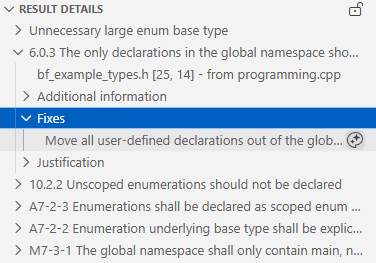
Click the chat with Polyspace Copilot icon . When you click the icon, Polyspace Copilot begins a new conversation
and provides an explanation of the result, a generated code fix, and a suggested
justification. You can continue to send prompts to Polyspace Copilot from the chat
and ask further questions about the fix, or ask Polyspace Copilot to generate a new
fix or justification. Iterating on Polyspace Copilot responses by providing feedback
and alerting Polyspace Copilot to the mistakes it has made can help generate more
relevant, accurate code fixes.
If you decide to implement the fix or the justification in your code, click the
check mark icon  to incorporate the generated code into your code.
When you click the check mark icon for a code fix, Visual Studio Code displays the fix in a diff view allowing you to accept or reject the
fix. Alternatively, click the copy icon
to incorporate the generated code into your code.
When you click the check mark icon for a code fix, Visual Studio Code displays the fix in a diff view allowing you to accept or reject the
fix. Alternatively, click the copy icon  to copy the code fix or justification to your
system clipboard. You can then manually implement the fix or justification in your
code.
to copy the code fix or justification to your
system clipboard. You can then manually implement the fix or justification in your
code.
If you create a conversation about a specific Polyspace result, then change your code by applying a fix, adding a justification, or deleting the line of code containing the result, running another Polyspace analysis no longer finds the original Polyspace result. However, the conversation about the original result with Polyspace Copilot still exists. In this situation, Polyspace Copilot issues a warning, disconnects the conversation related to the result from the source code, and no longer presents the option to apply a fix or justification from the chat window. To avoid confusion, discard outdated conversations and start a new conversation whenever the analysis context changes.

