RMS
R2026bRMS block
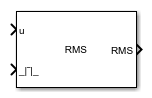
To add a block to a model, double-click the canvas and start typing the block name. Then, select the block from the list.
Libraries:
Power Converter Control with Motor Control Blockset /
Measurement
Description
The RMS block computes the root mean square (RMS) or mean square value of a time-domain input signal over a sliding or fixed measurement window. Use this block to measure the effective magnitude of periodic or quasi-periodic signals such as AC voltages and currents. You can configure the window size, measurement mode, and whether the block outputs the RMS or mean square value.
Ports
Input
Input signal to measure, specified as a scalar. The block computes the RMS or mean square value of this signal over the measurement window.
Data Types: single | double
Reset trigger signal, specified as a scalar. A rising edge on this port resets the measurement window.
Dependencies
To enable this port, set Measurement mode
to Moving window (default).
Data Types: single | double | Boolean
Input frequency signal, specified as a positive scalar in Hz. The block uses this frequency to determine the measurement window length.
Dependencies
To enable this port, set Input frequency
type to Input port.
Data Types: single | double
Measurement restart trigger signal, specified as a scalar. A rising edge on this port restarts the fixed-window measurement cycle.
Dependencies
To enable this port, set Measurement mode
to Fixed window.
Data Types: single | double | Boolean
Output
Root mean squared value of the input signal, returned as a scalar.
Dependencies
To enable this port, set Block output to
Root mean square (default).
Data Types: single | double
Mean square value of the input signal, returned as a scalar.
Dependencies
To enable this port, set Block output to
Mean square.
Data Types: single | double
Measurement window completion status, returned as a scalar. The signal indicates whether the fixed-window measurement cycle is complete.
Dependencies
To enable this port, set Measurement mode
to Fixed window.
Data Types: single | double | Boolean
Parameters
To edit block parameters interactively, use the Property Inspector. From the Simulink® Toolstrip, on the Simulation tab, in the Prepare gallery, select Property Inspector.
Type of measurement output. Select Root mean
square to output the RMS value of the input signal. Select
Mean square to output the mean square
value.
Programmatic Use
To set the block parameter value programmatically, use
the set_param function.
| Parameter: | BlkOutput |
| Values: | "Root mean square" (default) | "Mean square" |
Example: set_param(gcb,"BlkOutput","Mean
square")
Simulation discrete sample time, specified in seconds. This value determines how often the block executes and updates the measurement output. Set this to match the fixed-step solver step size of your model. A smaller value increases measurement resolution but adds computational cost.
Programmatic Use
To set the block parameter value programmatically, use
the set_param function.
| Parameter: | BlkSampleTime |
| Values: | "50e-6" (default) | positive scalar in quotes |
| Data Types: | char | string |
Example: set_param(gcb,"BlkSampleTime","100e-6")
Source for the measurement frequency. Select Specify via
dialog to use the Initial frequency value
(Hz) parameter. Select Input port
to supply the frequency from an input port.
Programmatic Use
To set the block parameter value programmatically, use
the set_param function.
| Parameter: | InputFrequencyType |
| Values: | "Specify via
dialog" (default) | "Input port" |
Example: set_param(gcb,"InputFrequencyType","Input
port")
Fundamental frequency of the input signal, specified in Hz. The block uses this frequency to determine the measurement window length. For a 50 Hz grid, set this to 50; for a 60 Hz grid, set this to 60. The measurement window spans one complete cycle at this frequency.
Dependencies
This parameter is visible when Input frequency
type is set to Specify via
dialog.
Programmatic Use
To set the block parameter value programmatically, use
the set_param function.
| Parameter: | InputFrequency |
| Values: | "50" (default) | positive scalar in quotes |
| Data Types: | char | string |
Example: set_param(gcb,"InputFrequency","60")
Windowing method for RMS computation. Select Moving
window to continuously update the measurement over a
sliding window. Select Fixed window to compute
the measurement over a fixed number of cycles and hold the result until
restarted.
Programmatic Use
To set the block parameter value programmatically, use
the set_param function.
| Parameter: | MeasurementMode |
| Values: | "Moving window" (default) | "Fixed window" |
Example: set_param(gcb,"MeasurementMode","Fixed
window")
Lower bound for the input frequency range, specified in Hz. The block uses this value to allocate the internal buffer that stores samples for one measurement window. A lower frequency requires more buffer memory because the measurement window spans more samples. Set this to the lowest frequency your application needs to measure accurately.
Dependencies
This parameter is visible when Input frequency
type is set to Input port.
Programmatic Use
To set the block parameter value programmatically, use
the set_param function.
| Parameter: | MinimumFrequency |
| Values: | "1000" (default) | positive scalar in quotes |
| Data Types: | char | string |
Example: set_param(gcb,"MinimumFrequency","500")
Number of signal cycles in the fixed measurement window. The block computes the measurement over this many complete cycles before holding the output. Increasing this value improves measurement accuracy by averaging over more cycles, but increases the time before the first valid output is available.
Dependencies
This parameter is visible when Measurement mode
is set to Fixed window.
Programmatic Use
To set the block parameter value programmatically, use
the set_param function.
| Parameter: | NumCycle |
| Values: | "1" (default) | positive integer in quotes |
| Data Types: | char | string |
Example: set_param(gcb,"NumCycle","2")
Extended Capabilities
C/C++ Code Generation
Generate C and C++ code using Simulink® Coder™.
Version History
Introduced in R2026b
MATLAB Command
You clicked a link that corresponds to this MATLAB command:
Run the command by entering it in the MATLAB Command Window. Web browsers do not support MATLAB commands.


웹사이트 선택
번역된 콘텐츠를 보고 지역별 이벤트와 혜택을 살펴보려면 웹사이트를 선택하십시오. 현재 계신 지역에 따라 다음 웹사이트를 권장합니다:
또한 다음 목록에서 웹사이트를 선택하실 수도 있습니다.
사이트 성능 최적화 방법
최고의 사이트 성능을 위해 중국 사이트(중국어 또는 영어)를 선택하십시오. 현재 계신 지역에서는 다른 국가의 MathWorks 사이트 방문이 최적화되지 않았습니다.
미주
- América Latina (Español)
- Canada (English)
- United States (English)
유럽
- Belgium (English)
- Denmark (English)
- Deutschland (Deutsch)
- España (Español)
- Finland (English)
- France (Français)
- Ireland (English)
- Italia (Italiano)
- Luxembourg (English)
- Netherlands (English)
- Norway (English)
- Österreich (Deutsch)
- Portugal (English)
- Sweden (English)
- Switzerland
- United Kingdom (English)