Access MATLAB Copilot in MATLAB Mobile
MATLAB® Copilot provides generative AI–powered capabilities in MATLAB Mobile™. With MATLAB Copilot, you can ask questions, generate code, and get explanations for selected code. Responses in the Copilot Chat are grounded in relevant MathWorks® documentation and code examples.
There are several ways to use Copilot capabilities:
Chat in the Copilot Chat window. Copilot Chat is an interactive assistant that can help you explore ideas and express them in code. Its responses can include both conversational text and generated code.
Copy or execute code from Copilot responses.
Explaining code. You can access Copilot actions from menus in the Editor.
Sign In as Licensed User
To use MATLAB Copilot, you must have a MATLAB Copilot license associated with your MathWorks account.
When you sign in to your MathWorks Account in MATLAB
Mobile, if you are licensed for Copilot, the introductory screen
indicates that you can start by entering MATLAB commands, or tap the Copilot icon  to use Copilot Chat.
Start Copilot Chat
When you start MATLAB Mobile, the Copilot Chat button appears next to the command line.
Copilot Chat has a text box where you can enter prompts—statements or questions that you write using natural language. For example, enter this prompt:
Create an array of 10 random
                    numbers
.
Copilot returns a response that can include generated code, references to documentation, and follow-up prompts. It might also return alternative solutions for specific cases. If you write a prompt in a language other than English, Copilot returns a response in that other language.
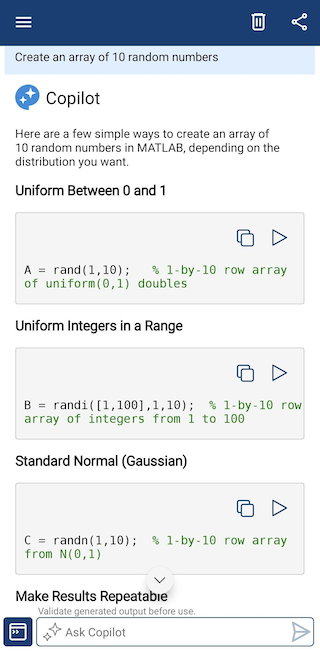
For each block of code in its response, Copilot provides two action icons.
The copy icon copies the code block to the clipboard. From there you can paste it into the command line, the Editor, or elsewhere.
The execute icon enters the code directly into the command line and executes it.
Note
Copilot responses can contain errors and inaccuracies. Validate any generated code and text before using it.
To return to the Command Window from Copilot Chat, tap the command input icon  . Alternatively, you can swipe left and right
to swap between the Command Window and Copilot Chat.
. Alternatively, you can swipe left and right
to swap between the Command Window and Copilot Chat.
Use Copilot in the Editor
You can access Copilot in the MATLAB Mobile Editor to explain all or part of the code in the current file.
With no text selected in the Editor, tap the Copilot icon
and select Explain
code. This switches to the Copilot window and provides
a code explanation for the whole file.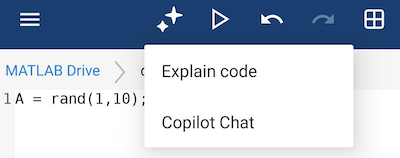
When you select some code in the Editor, the context menu that appears includes the option Explain code. When you tap the Copilot icon at the top of the Editor with code selected, it has the option Explain selected code.
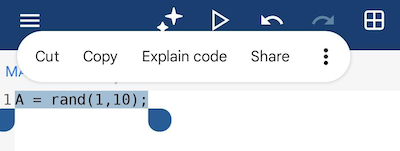
All these options switch to the Copilot Chat window to provide the requested code explanation.
Check Copilot Responses
Because generative AI responses can contain errors and inaccuracies, validate any generated code and text before using it. You can use these strategies to validate Copilot responses:
Review generated code before using it.
Run generated code and review its output. Confirm that the output is what you expected.
Check that the generated response aligns with the documentation.
In Copilot Chat, ask Copilot to explain the code it just generated.
In the Editor, highlight code and select Explain code. If you highlight several lines, Copilot can return a line-by-line explanation in the Copilot Chat window.
Copilot Limitations in MATLAB Mobile
The following limitations apply to Copilot in MATLAB Mobile.
Responses are not necessarily customized for the MATLAB Mobile environment. Some responses might include instructions that are applicable only in the MATLAB desktop or MATLAB Online™ environments. However, you can mention MATLAB Mobile in your prompts to help narrow results to the most useful responses.
Responses in Copilot Chat do not support opening code directly in the Editor. To port code from Copilot Chat to the Editor, copy and paste it.
Copilot cannot generate code or comments in the Editor.
To experience the full functionality of MATLAB Copilot, use the desktop version of MATLAB or MATLAB Online.
Provide Feedback
MathWorks uses your feedback to improve its products and services.
There are three icons at the end of every Copilot response:

Thumbs-up — Send positive feedback that the answer is helpful.
Thumbs-down — Provide negative feedback that the answer is unhelpful. This button opens a dialog box where you can provide more detail. You can choose to send your chat history as part of your feedback.
Copy — Copy the entire response to the clipboard.
See Also
Topics
- Write Effective Prompts for MATLAB Copilot (MATLAB Copilot)
- Get Started with MATLAB Copilot (MATLAB Copilot)

