이 페이지는 기계 번역을 사용하여 번역되었습니다. 최신 내용을 영문으로 보려면 여기를 클릭하십시오.
Infineon AURIX 마이크로컨트롤러에 대한 하드웨어 설정
R2026aMathWorks®에서 지원하는 하드웨어 보드 및 장치를 MATLAB® 및 Simulink®에 연결하려면 추가적인 구성 및 설정 단계가 필요합니다. 각 지원 패키지에는 하드웨어 보드의 등록, 구성 및 연결을 단계별로 안내하는 하드웨어 설정 과정이 포함되어 있습니다.
필요한 타사 툴
하드웨어 설정에 포함된 타사 툴은 다음과 같은 기능을 제공합니다.
TASKING® VX-toolset for TriCore®, HighTec TriCore Development Platform, 그리고 AURIX Development Studio 기반의 GCC for AURIX™ TriCore - 생성된 코드를 컴파일하고 실행 파일을 생성합니다(빌드, PIL, 모니터링 및 조정).
Infineon® TAS/DAS - 생성된 코드와 실행 파일을 다운로드하여 하드웨어 보드에 배포합니다.
Synopsys® Virtualizer Development Kit - Infineon AURIX 마이크로컨트롤러에 탑재된 모든 처리 장치, 메모리 및 주변기기를 시뮬레이션합니다. 하드웨어 보드 없이도 가상 프로토타이핑 환경에서 모델을 구축하고 테스트할 수 있습니다.
하드웨어 설정
Embedded Coder® Support Package for Infineon AURIX TC3x Microcontrollers의 모든 기능을 활용하려면 하드웨어 설정을 실행하십시오. 다음 단계 중 하나를 수행하여 하드웨어 설정을 시작하십시오.
지원 패키지 설치가 완료되면 지금 설정을 클릭하십시오.
이미 지원 패키지를 설치하고 나중에 설정하기로 선택한 경우, 홈 탭의 환경 섹션에서 애드온 > 애드온 관리를 클릭하여 애드온 패널을 여십시오.
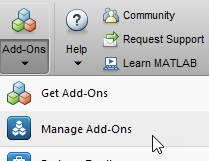
애드온 패널에서 설치됨 탭으로 이동한 후, Embedded Coder Support Package for Infineon AURIX TC3x Microcontrollers를 선택하십시오. 설치된 지원 패키지 옆에 있는 옵션 버튼
 를 클릭하여 하드웨어 설정 과정을 시작한 다음, 설정
  을 클릭하십시오.
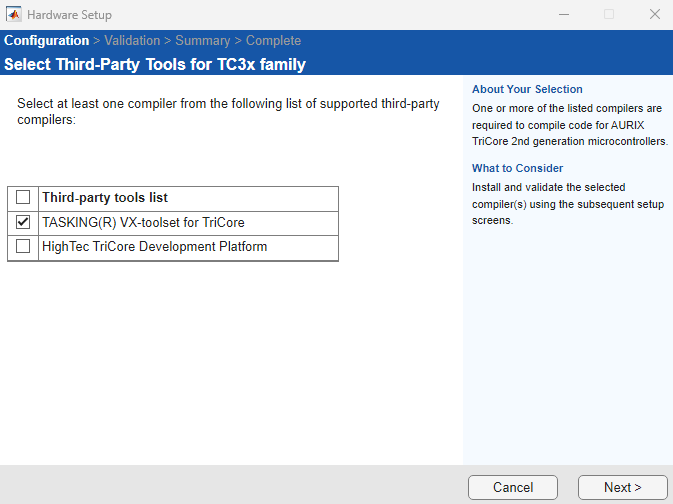
Infineon AURIX 마이크로컨트롤러용 타사 툴을 선택하십시오. 요구 사항에 따라 컴파일러를 선택한 후 다음을 클릭하십시오.
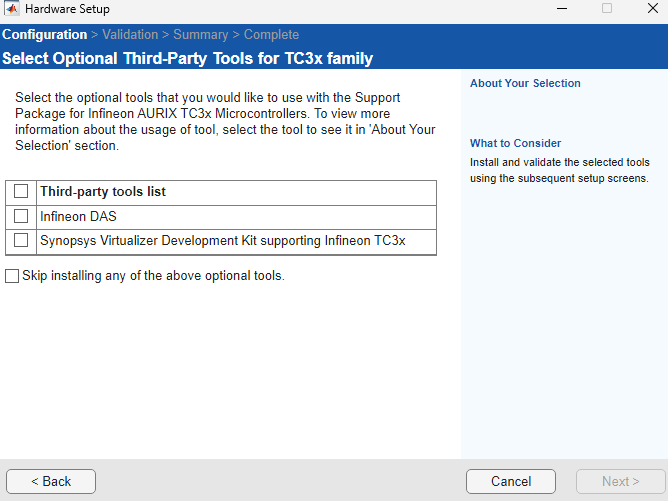
선택 사항인 타사 툴을 선택한 다음 다음을 클릭하십시오.
하드웨어 설정 화면에 제공된 설치 링크를 통해 나열된 타사 소프트웨어를 수동으로 다운로드하여 설치하십시오. 다음을 클릭합니다.
다음을 클릭하고 iLLD 설치를 위한 작업을 선택하십시오.
Automatically download and install — iLLD를 자동으로 다운로드, 설치 및 유효성 검사하려면 이 옵션을 선택하십시오. 이 설정은
C:\ProgramData\MATLAB\SupportPackages\iLLD\TC3x\v1.20.0에서 iLLD 라이브러리를 구성합니다.Install 버튼을 클릭하여 설치를 시작하십시오.
Manually download and install — 이 옵션을 선택하면 하드웨어 설정 화면에 제공된 설치 링크를 통해 iLLD 소프트웨어를 수동으로 다운로드하고 설치할 수 있습니다.
Download를 클릭하여 최신 버전의 iLLD 소프트웨어를 다운로드한 후, iLLD 폴더의 압축을 풀고
iLLD-TC3-v1.20.0.exe파일을 실행하여 설치 과정을 시작하십시오. iLLD 소프트웨어를 등록하려면 유효성 검사 단계에서 설치 경로를 입력하십시오.

설치 과정이 완료되면 다음을 클릭하십시오.
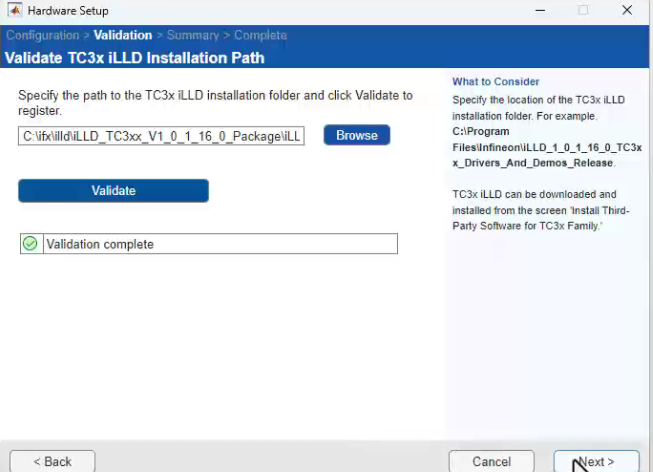
소프트웨어 설치 폴더의 경로를 지정하여 설치된 타사 소프트웨어 툴과 iLLD를 확인하십시오.
예를 들어,
Validate TC3x iLLD Installation Path창에서 찾아보기 버튼을 클릭하여 TC3x iLLD 폴더의 경로를 지정한 다음 Validate를 클릭하십시오. 마찬가지로, 선택한 모든 타사 툴의 정상 작동을 확인하고 하드웨어 설정을 완료하십시오.참고
Infineon AURIX 마이크로컨트롤러용 iLLD 소프트웨어를 다운로드하려면 유효한 Infineon 라이선스가 있어야 합니다.
다운로드한 iLLD 설치용 zip 파일에는 여러 개의 zip 폴더가 포함되어 있습니다. 내부 zip 폴더는 그대로 두고 루트 폴더만 추출하십시오. iLLD 폴더를
C:\Program Files경로에 압축을 풀지 마십시오. 이 위치에 액세스하려면 관리자 권한이 필요하기 때문입니다.
하드웨어 설정 과정이 완료되면 예제 파일을 열어 제품과 그 기능을 살펴볼 수 있습니다.

