Navigate in Unreal Engine Environment
R2026bSimulink® 3D Animation™ displays a scene of the 3D environment in the Simulation 3D Viewer window using a virtual camera.
Note
Simulating models in the 3D visualization environment requires Simulink 3D Animation.
The 3D environment is visualized using the Unreal Engine® from Epic Games®. You can navigate in the 3D environment using keyboard shortcuts and mouse actions to change the location of the virtual camera during simulation or when the simulation is paused. You can place the virtual camera at any location to display the corresponding viewpoint at the start of the simulation. In Simulink, you can set the initial viewpoint of 3D environment with the parameter of the block.
Scene Controls
When viewing the 3D environment in the Simulation 3D Viewer, you can change the
location of the camera during simulation using keyboard shortcuts and mouse actions. You
can also record nine camera viewpoints and access the stored viewpoints using keyboard
shortcuts. In Simulink, set Scene view to Scene Origin or
Custom to navigate in the scene using keyboard and mouse control.
You can also change the camera location when the simulation is paused.
To navigate in the 3D environment, use these keyboard shortcuts.
| Keyboard Shortcut | Camera Control |
|---|---|
W | Move forward. |
Shift+W | Move faster in the forward direction. |
S | Move backward. |
Shift+S | Move faster in the reverse direction. |
A | Move left. |
Shift+A | Move faster toward left. |
D | Move right. |
Shift+D | Move faster toward right. |
E | Move up. |
Shift+E | Move faster in the upward direction. |
Q | Move down. |
Shift+Q | Move faster in the downward direction. |
Mouse scroll wheel | Control the camera distance from the cursor point. |
Shift+mouse scroll wheel | Move camera faster. |
Alt+mouse scroll wheel | Control the camera distance from the cursor point for geospatial actors, including Earth and Moon. |
Right-click and drag | Orbit around the cursor point. |
O | Attach camera to actor under the cursor point. |
Click and drag | Orbit around the actor after camera attaches to the actor. |
P | Detach camera from the actor. |
L | Record the current viewpoint and display |
1 to 9 | Access the stored viewpoints, if available. |
Tab | Cycle the view between all vehicles in the scene and the viewpoint at the start of the simulation, in the forward direction. |
Shift+Tab | Cycle the view between all vehicles in the scene and the viewpoint at the start of the simulation, in the reverse direction. |
I | Toggle the display of keyboard shortcuts on the screen. Press once to show and again to hide. |
Double-click | Best fit-to-screen view of actor under the cursor point. |
Vehicle Views
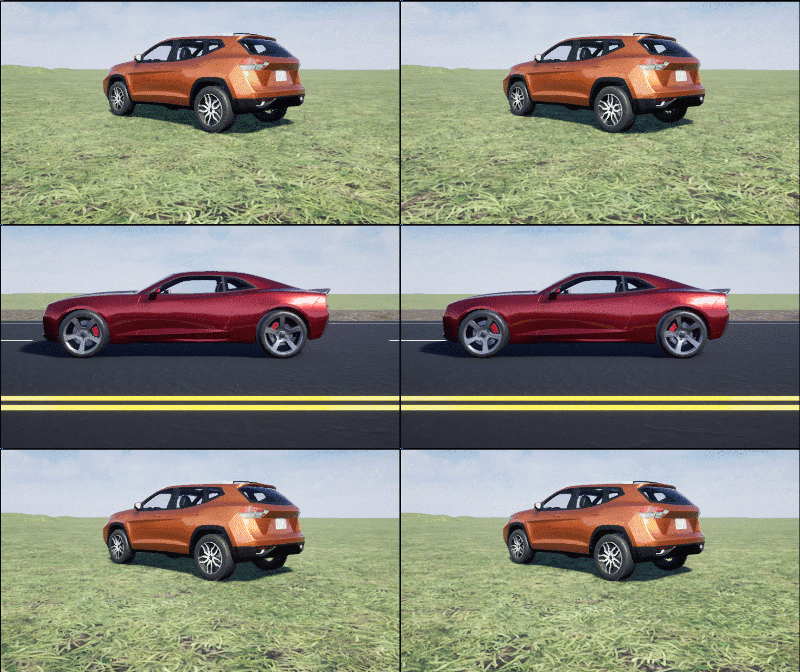
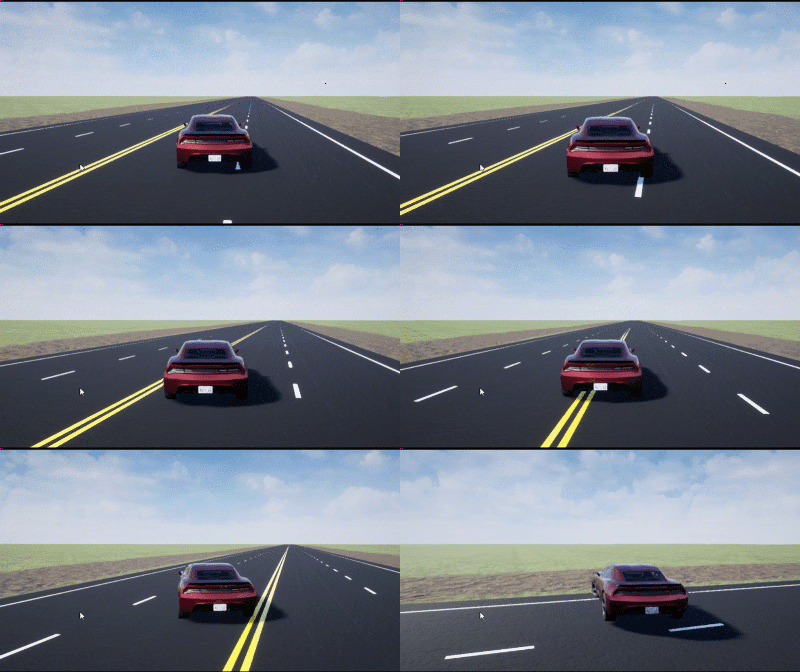
In Simulink, when Scene view is set to a vehicle name, during simulation, you can change the location of the camera around the vehicle. You can also set the view to a vehicle during simulation by pressing Tab.
To smoothly change the camera views, use these keyboard shortcuts.
| Keyboard Shortcut | Camera View | |
|---|---|---|
1 | Back left |
|
2 | Back | |
3 | Back right | |
4 | Left | |
5 | Internal | |
6 | Right | |
7 | Front left | |
8 | Front | |
9 | Front right | |
0 | Overhead | |
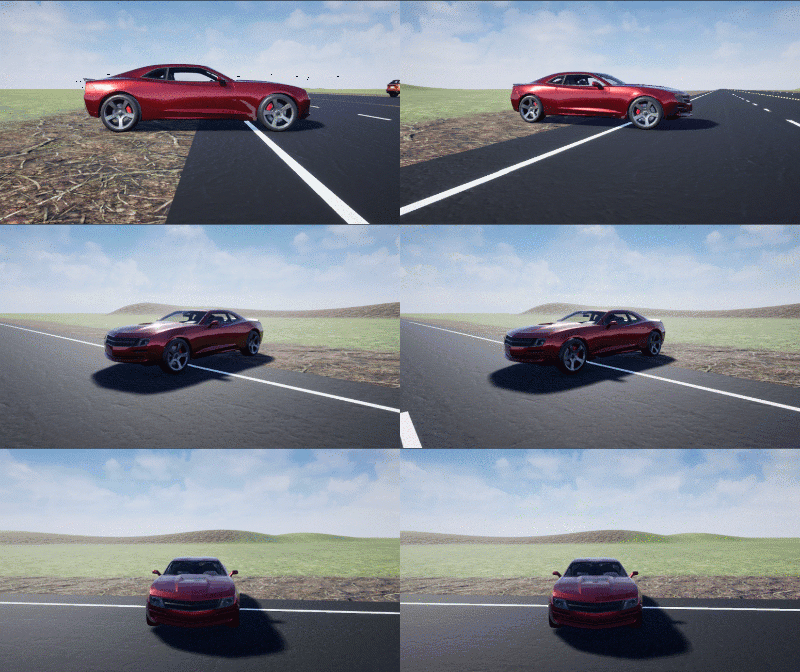
For additional camera controls, use these keyboard shortcuts.
| Keyboard Shortcut | Camera Control |
|---|---|
| Tab | Cycle the view between all vehicles in the scene.
|
Scroll wheel | Control the camera distance from the vehicle.
|
L | Toggle a camera lag effect on or off. When you enable the lag effect, the camera view includes:
This lag improves visualization of overall vehicle acceleration and rotation.
|
| F | Toggle the free camera mode on or off. When you enable the free camera mode, you can use the pointer to change the pitch and yaw of the camera. This mode allows you to orbit the camera around the vehicle.
|


If you are co-simulating a custom project, to enable the numeric keypad, copy the DefaultInput.ini file from the support package installation folder to your custom project folder. For example, copy DefaultInput.ini from:
C:\ProgramData\MATLAB\SupportPackages\<MATLABRelease>\toolbox\shared\sim3dprojects\spkg\project\AutoVrtlEnv\Config
C:\<yourproject>.project\Config

