DateTime to Calendar Time
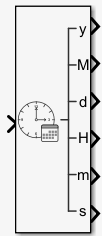
Description
The DateTime to Calendar Time block converts a DateTime formatted signal to calendar
time format.
Limitations
The DateTime blocks are available only as an internal feature with
early access. Their design is subject to change.
Ports
Input
Output
Parameters
To edit block parameters interactively, use the Property Inspector. From the Simulink® Toolstrip, on the Simulation tab, in the Prepare gallery, select Property Inspector.
Year data type. The type can be inherited, specified directly, or expressed as a
data type object such as Simulink.NumericType.
When you select Inherit: Inherit via back propagation,
the block uses the data type of the driving block.
Click the Show data type assistant button
 to display the Data Type
Assistant, which helps you set the data type attributes. For more
information, see Specify Data Types Using Data Type Assistant.
to display the Data Type
Assistant, which helps you set the data type attributes. For more
information, see Specify Data Types Using Data Type Assistant.
Dependencies
If the Data type override parameter is set to
Off, the Year data type parameter
is changed to fixdt('double', 'DataTypeOverride', 'Off').
Programmatic Use
To set the block parameter value programmatically, use
the set_param function.
To get the block parameter value
programmatically, use the get_param function.
| Parameter: | OutYearDataTypeStr |
| Values: | double (default) | Inherit: Inherit via back propagation | single | int8 | uint8 | int16 | uint16 | int32 | uint32 | <data type expression> |
Select the category of data to specify.
Inherit— Specify a rule for inheriting a data type, for example,Inherit: Inherit via back propagation.Built in— Built-inDateTimetype. SelectingBuilt inenables a list to the right where you can select the block output type: double,single,double,int8,uint8,int16,uint16,int32,uint32.Expression— Expressions that evaluate to data types. SelectingExpressionenables a text box to the right, where you can enter the expression.
For more information, see Specify Data Types Using Data Type Assistant.
Select the data type override mode for this signal.
When you select
Inherit, Simulink inherits the data type override setting from its context, that is, from the block,Simulink.Signalobject, or Stateflow® chart in Simulink that is using the signal.When you select
Off, Simulink ignores the data type override setting of its context and uses the fixed-point data type specified for the signal.
For more information, see Specify Data Types Using Data Type Assistant.
Dependencies
To enable this parameter, set Mode to Built
in or Fixed point.
Tips
The option to turn off data type override for an individual data type provides greater control over the data types in your model when you apply data type override. For example, you can use this option to ensure that data types meet the requirements of downstream blocks regardless of the data type override setting.
Month data type. The type can be inherited, specified directly, or expressed as a
data type object such as Simulink.NumericType.
When you select Inherit: Inherit via back propagation,
the block uses the data type of the driving block.
Click the Show data type assistant button
to display the Data Type
Assistant, which helps you set the data type attributes. For more
information, see Specify Data Types Using Data Type Assistant.
Dependencies
If the Data type override parameter is set to
Off, the Month data type parameter
is changed to fixdt('double', 'DataTypeOverride', 'Off').
Programmatic Use
To set the block parameter value programmatically, use
the set_param function.
To get the block parameter value
programmatically, use the get_param function.
| Parameter: | OutMonthDataTypeStr |
| Values: | double (default) | Inherit: Inherit via back propagation | single | int8 | uint8 | int16 | uint16 | int32 | uint32 | <data type expression> |
Select the category of data to specify.
Inherit— Specify a rule for inheriting a data type, for example,Inherit: Inherit via back propagation.Built in— Built-inDateTimetype. SelectingBuilt inenables a list to the right where you can select the block output type: double,single,double,int8,uint8,int16,uint16,int32,uint32.Expression— Expressions that evaluate to data types. SelectingExpressionenables a text box to the right, where you can enter the expression.
For more information, see Specify Data Types Using Data Type Assistant.
Select the data type override mode for this signal.
When you select
Inherit, Simulink inherits the data type override setting from its context, that is, from the block,Simulink.Signalobject, or Stateflow chart in Simulink that is using the signal.When you select
Off, Simulink ignores the data type override setting of its context and uses the fixed-point data type specified for the signal.
For more information, see Specify Data Types Using Data Type Assistant.
Dependencies
To enable this parameter, set Mode to Built
in or Fixed point.
Tips
The option to turn off data type override for an individual data type provides greater control over the data types in your model when you apply data type override. For example, you can use this option to ensure that data types meet the requirements of downstream blocks regardless of the data type override setting.
Day data type. The type can be inherited, specified directly, or expressed as a data
type object such as Simulink.NumericType.
When you select Inherit: Inherit via back propagation,
the block uses the data type of the driving block.
Click the Show data type assistant button
to display the Data Type
Assistant, which helps you set the data type attributes. For more
information, see Specify Data Types Using Data Type Assistant.
Dependencies
If the Data type override parameter is set to
Off, the Day data type parameter
is changed to fixdt('double', 'DataTypeOverride', 'Off').
Programmatic Use
To set the block parameter value programmatically, use
the set_param function.
To get the block parameter value
programmatically, use the get_param function.
| Parameter: | OutDayDataTypeStr |
| Values: | double (default) | Inherit: Inherit via back propagation | single | int8 | uint8 | int16 | uint16 | int32 | uint32 | <data type expression> |
Select the category of data to specify.
Inherit— Specify a rule for inheriting a data type, for example,Inherit: Inherit via back propagation.Built in— Built-inDateTimetype. SelectingBuilt inenables a list to the right where you can select the block output type: double,single,double,int8,uint8,int16,uint16,int32,uint32.Expression— Expressions that evaluate to data types. SelectingExpressionenables a text box to the right, where you can enter the expression.
For more information, see Specify Data Types Using Data Type Assistant.
Select the data type override mode for this signal.
When you select
Inherit, Simulink inherits the data type override setting from its context, that is, from the block,Simulink.Signalobject, or Stateflow chart in Simulink that is using the signal.When you select
Off, Simulink ignores the data type override setting of its context and uses the fixed-point data type specified for the signal.
For more information, see Specify Data Types Using Data Type Assistant.
Dependencies
To enable this parameter, set Mode to Built
in or Fixed point.
Tips
The option to turn off data type override for an individual data type provides greater control over the data types in your model when you apply data type override. For example, you can use this option to ensure that data types meet the requirements of downstream blocks regardless of the data type override setting.
Hour data type. The type can be inherited, specified directly, or expressed as a
data type object such as Simulink.NumericType.
When you select Inherit: Inherit via back propagation,
the block uses the data type of the driving block.
Click the Show data type assistant button
to display the Data Type
Assistant, which helps you set the data type attributes. For more
information, see Specify Data Types Using Data Type Assistant.
Dependencies
If the Data type override parameter is set to
Off, the Hour data type parameter
is changed to fixdt('double', 'DataTypeOverride', 'Off').
Programmatic Use
To set the block parameter value programmatically, use
the set_param function.
To get the block parameter value
programmatically, use the get_param function.
| Parameter: | OutHourDataTypeStr |
| Values: | double (default) | Inherit: Inherit via back propagation | single | int8 | uint8 | int16 | uint16 | int32 | uint32 | <data type expression> |
Select the category of data to specify.
Inherit— Specify a rule for inheriting a data type, for example,Inherit: Inherit via back propagation.Built in— Built-inDateTimetype. SelectingBuilt inenables a list to the right where you can select the block output type: double,single,double,int8,uint8,int16,uint16,int32,uint32.Expression— Expressions that evaluate to data types. SelectingExpressionenables a text box to the right, where you can enter the expression.
For more information, see Specify Data Types Using Data Type Assistant.
Select the data type override mode for this signal.
When you select
Inherit, Simulink inherits the data type override setting from its context, that is, from the block,Simulink.Signalobject, or Stateflow chart in Simulink that is using the signal.When you select
Off, Simulink ignores the data type override setting of its context and uses the fixed-point data type specified for the signal.
For more information, see Specify Data Types Using Data Type Assistant.
Dependencies
To enable this parameter, set Mode to Built
in or Fixed point.
Tips
The option to turn off data type override for an individual data type provides greater control over the data types in your model when you apply data type override. For example, you can use this option to ensure that data types meet the requirements of downstream blocks regardless of the data type override setting.
Minute data type. The type can be inherited, specified directly, or expressed as a
data type object such as Simulink.NumericType.
When you select Inherit: Inherit via back propagation,
the block uses the data type of the driving block.
Click the Show data type assistant button
to display the Data Type
Assistant, which helps you set the data type attributes. For more
information, see Specify Data Types Using Data Type Assistant.
Dependencies
If the Data type override parameter is set to
Off, the Minute data type
parameter is changed to fixdt('double', 'DataTypeOverride',
'Off').
Programmatic Use
To set the block parameter value programmatically, use
the set_param function.
To get the block parameter value
programmatically, use the get_param function.
| Parameter: | OutMinuteDataTypeStr |
| Values: | double (default) | Inherit: Inherit via back propagation | single | int8 | uint8 | int16 | uint16 | int32 | uint32 | <data type expression> |
Select the category of data to specify.
Inherit— Specify a rule for inheriting a data type, for example,Inherit: Inherit via back propagation.Built in— Built-inDateTimetype. SelectingBuilt inenables a list to the right where you can select the block output type: double,single,double,int8,uint8,int16,uint16,int32,uint32.Expression— Expressions that evaluate to data types. SelectingExpressionenables a text box to the right, where you can enter the expression.
For more information, see Specify Data Types Using Data Type Assistant.
Select the data type override mode for this signal.
When you select
Inherit, Simulink inherits the data type override setting from its context, that is, from the block,Simulink.Signalobject, or Stateflow chart in Simulink that is using the signal.When you select
Off, Simulink ignores the data type override setting of its context and uses the fixed-point data type specified for the signal.
For more information, see Specify Data Types Using Data Type Assistant.
Dependencies
To enable this parameter, set Mode to Built
in or Fixed point.
Tips
The option to turn off data type override for an individual data type provides greater control over the data types in your model when you apply data type override. For example, you can use this option to ensure that data types meet the requirements of downstream blocks regardless of the data type override setting.
Second data type. The type can be inherited, specified directly, or expressed as a
data type object such as Simulink.NumericType.
When you select Inherit: Inherit via back propagation,
the block uses the data type of the driving block.
Click the Show data type assistant button
to display the Data Type
Assistant, which helps you set the data type attributes. For more
information, see Specify Data Types Using Data Type Assistant.
Dependencies
If the Data type override parameter is set to
Off, the Second data type
parameter is changed to fixdt('double', 'DataTypeOverride',
'Off').
Programmatic Use
To set the block parameter value programmatically, use
the set_param function.
To get the block parameter value
programmatically, use the get_param function.
| Parameter: | OutSecondDataTypeStr |
| Values: | double (default) | Inherit: Inherit via back propagation | single | int8 | uint8 | int16 | uint16 | int32 | uint32 | <data type expression> |
Select the category of data to specify.
Inherit— Specify a rule for inheriting a data type, for example,Inherit: Inherit via back propagation.Built in— Built-inDateTimetype. SelectingBuilt inenables a list to the right where you can select the block output type: double,single,double,int8,uint8,int16,uint16,int32,uint32.Expression— Expressions that evaluate to data types. SelectingExpressionenables a text box to the right, where you can enter the expression.
For more information, see Specify Data Types Using Data Type Assistant.
Select the data type override mode for this signal.
When you select
Inherit, Simulink inherits the data type override setting from its context, that is, from the block,Simulink.Signalobject, or Stateflow chart in Simulink that is using the signal.When you select
Off, Simulink ignores the data type override setting of its context and uses the fixed-point data type specified for the signal.
For more information, see Specify Data Types Using Data Type Assistant.
Dependencies
To enable this parameter, set Mode to Built
in or Fixed point.
Tips
The option to turn off data type override for an individual data type provides greater control over the data types in your model when you apply data type override. For example, you can use this option to ensure that data types meet the requirements of downstream blocks regardless of the data type override setting.
Version History
Introduced in R2024b

